


Upload your logo and try different colours to see how your brand could look throughout the CM Events app.
Nothing is uploaded or saved. Your logo and colour choices stay in your browser and disappear when you leave the page.
Choose your app colours
Use the colour picker or enter a complete HEX value.
Enter four six-character HEX values. The app also uses fixed white #FFFFFF for input fields, white cards and text on dark surfaces; fixed white is not an additional field.
Upload your logo
Select the logo you want to test inside the app.
Log in using the same email you have used to sign up for the event
Networking
Conference

Start the day with coffee, tea and a light breakfast while participants arrive and settle in.

A short welcome to the day, practical information and an introduction to the sessions ahead.

Explore different networking styles and practical ways to make conversations feel more natural and valuable.

Enjoy lunch and continue the conversations informally with the other participants.

Hands-on workshop with examples and exercises that strengthen communication in meetings and presentations.
Scandic Hotel
Networking Conference

Connect · Learn · Share
Welcome to Networking Conference – a focused day designed to create useful connections and new perspectives.
Meet professionals from across industries, exchange practical experiences and take part in sessions that make networking easier and more valuable.
– Inspiring talks and practical sessions
– Structured and informal networking
– Lunch, refreshments and event materials included
Start the day with coffee, tea and a light breakfast while participants arrive and settle in.
A short welcome to the day, practical information and an introduction to the sessions ahead.
Explore different networking styles and practical ways to make conversations feel more natural and valuable.

A practical session focused on stronger conversations, useful follow-up and creating connections that last.
Enjoy lunch and continue the conversations informally with the other participants.
Hands-on workshop with examples and exercises that strengthen communication in meetings and presentations.
Imprint
ORGANISERConference Manager EMAILsupport@conferencemanager.co.uk WEBSITEconferencemanager.co.uk ID #12345678

Device: Apple iPhone17,2

CM Events FAQ
How do I change the language in the app?
The app automatically follows the language of your phone.
If your device uses a language that the app does not support, the app will appear in English.
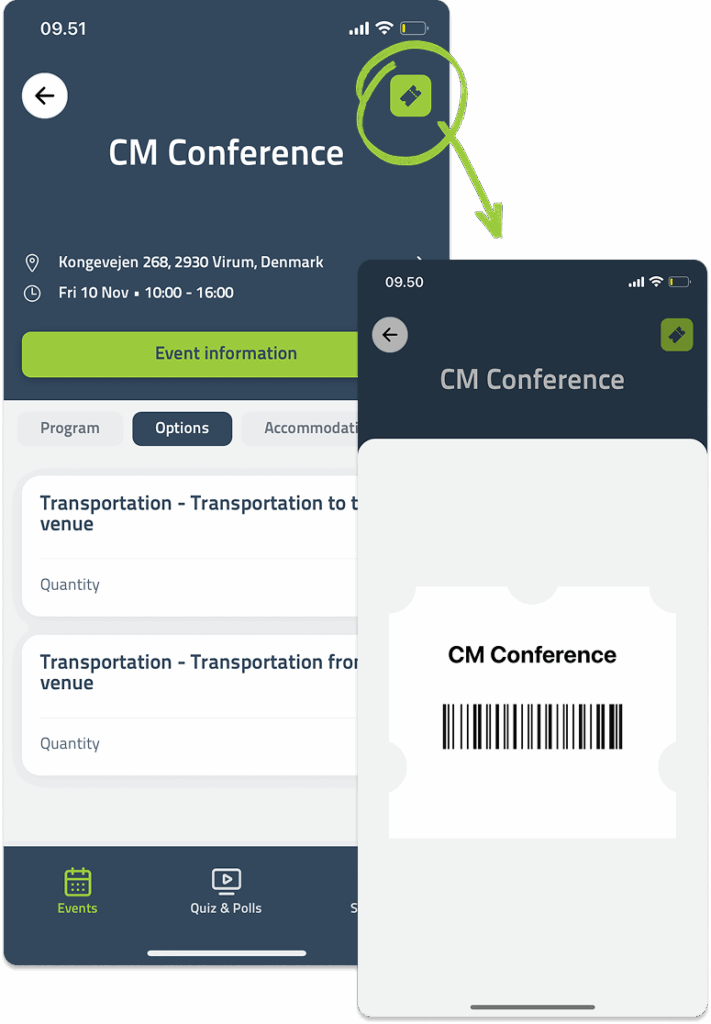
Where can I find my ticket?
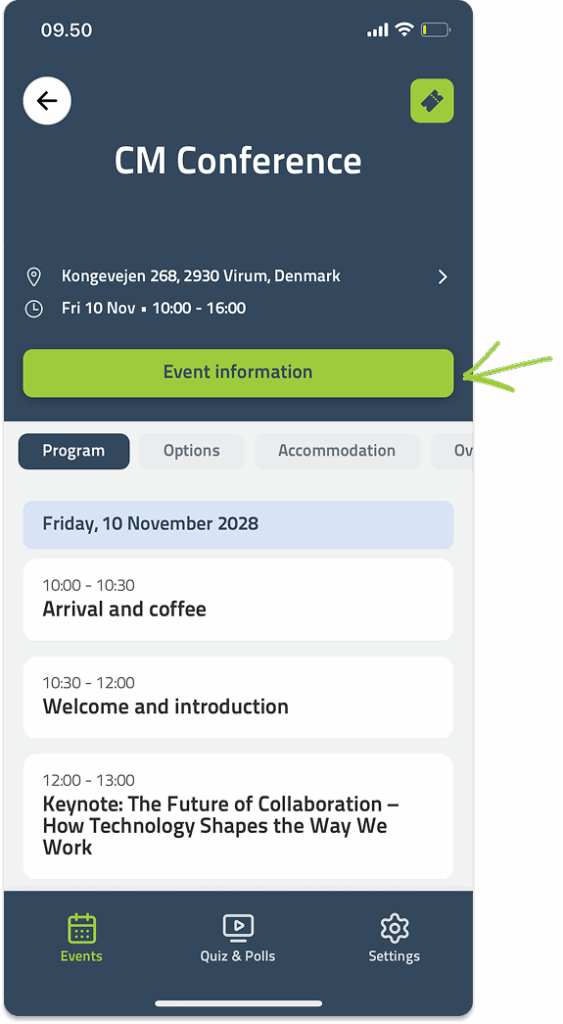
If a ticket is available for the event, open the event and tap the green icon in the top right corner.
This is a direct shortcut to your ticket, which can be scanned at the entrance when you arrive.
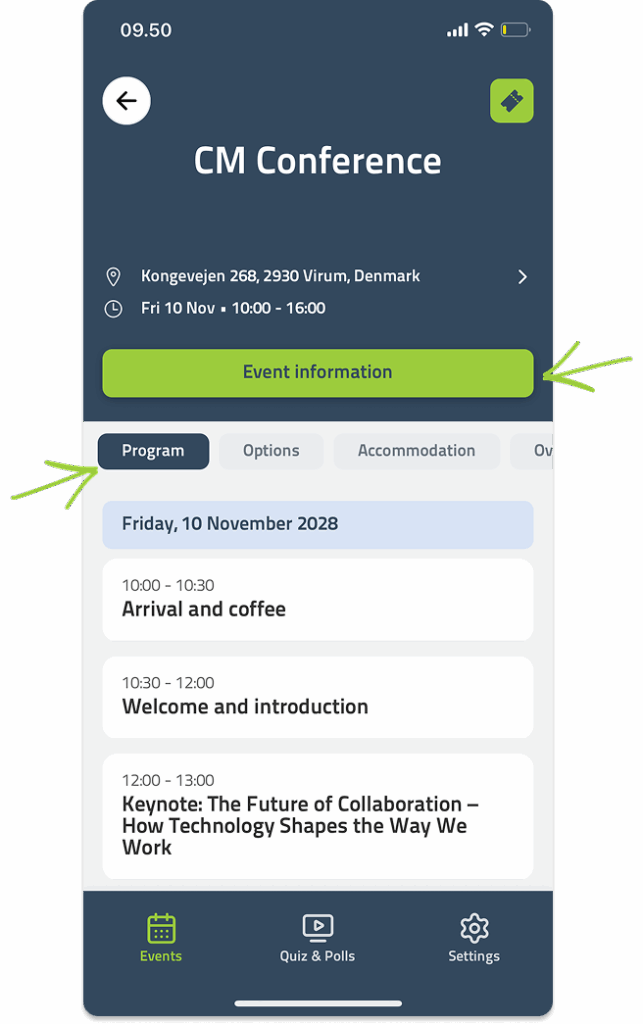
How do I view my personal or general programme?
If you have a personal programme with individual sessions, you can find it under the Programme tab inside the event.
If the organiser has published a general programme, you’ll find it under the Website pages by tapping the green button in the middle of the screen.
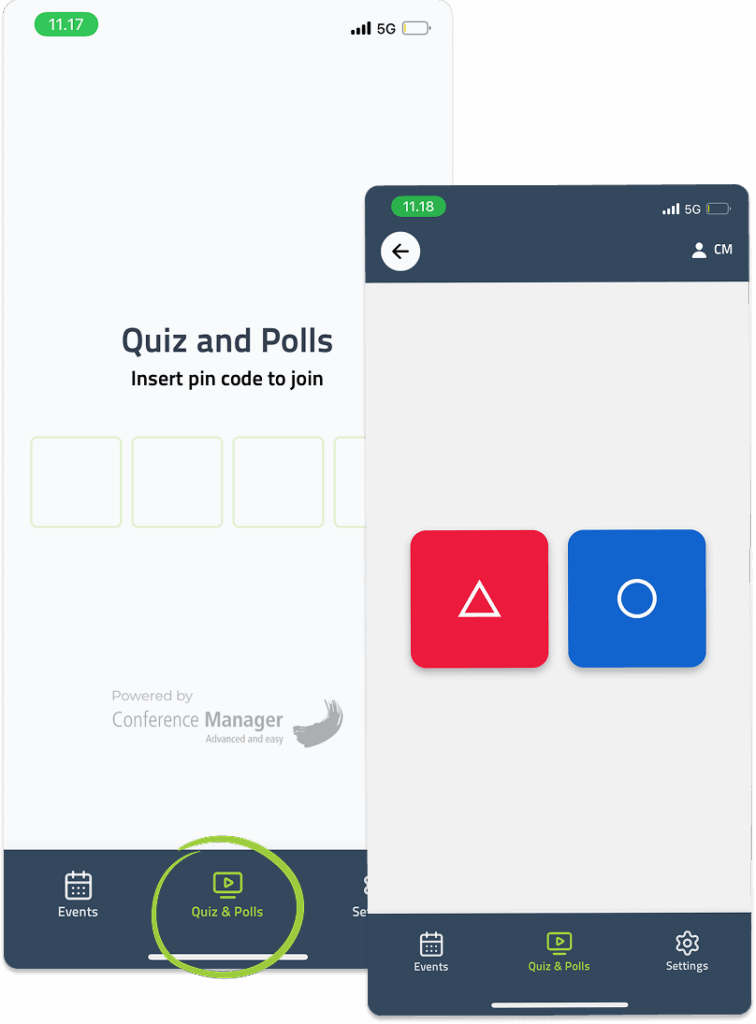
How do I use the app to join a quiz or Q&A session?
The organiser will share a four-digit code for the quiz or poll.
Open the app and go to the Quiz and polls tab, then enter the code to join and submit your answers.
How do I log out of the app?
Go to Settings in the bottom right corner and tap Sign out.
How can I update my participant information?
To edit your participant information, open your registration in a browser.
It’s not possible to make changes in the app.
Where can I find materials shared by the organiser?
If the organiser has shared files or presentations, you’ll find them under the Website pages by tapping the green button in the middle of the screen after opening the event.
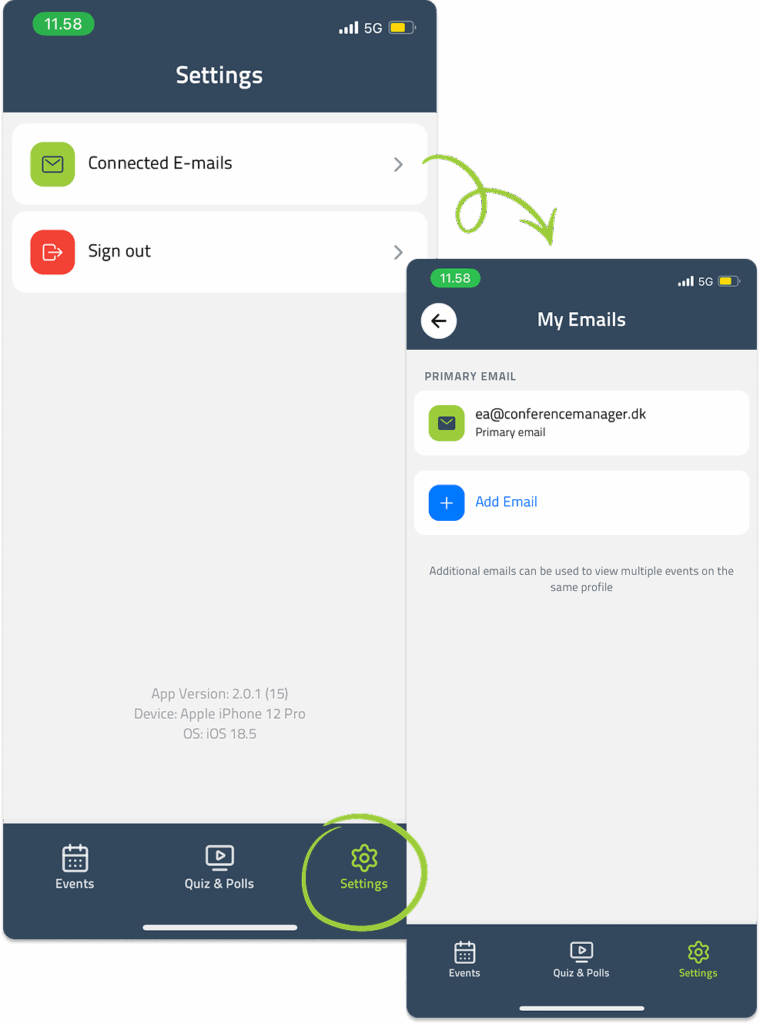
Why can’t I see all my events?
You can only see events linked to the email addresses connected to your account.
If you registered for events with multiple addresses, go to Settings Connected emails Add email to link another address.
Once added, all your events will appear in the app.
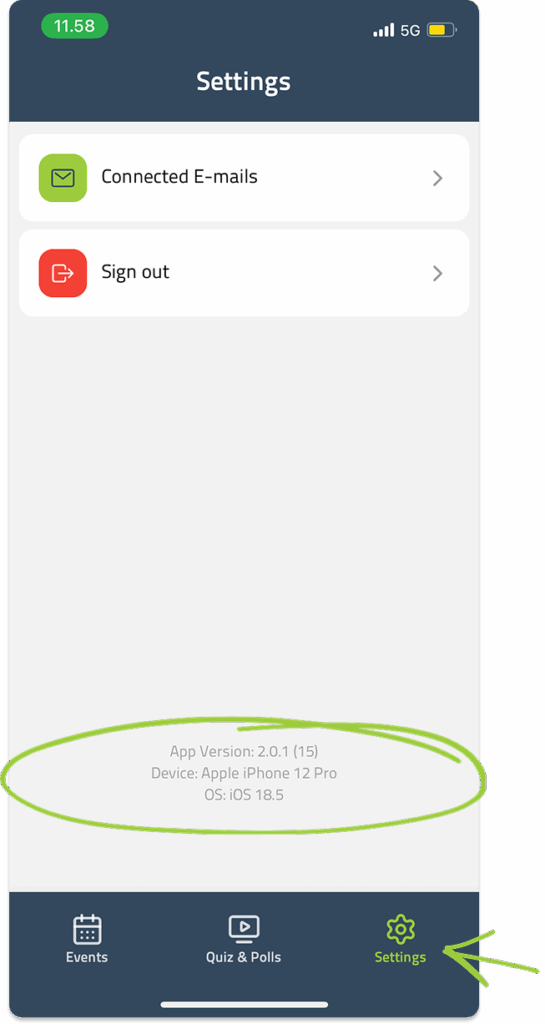
Where can I see which version of the app I’m using?
Go to Settings — the app version is displayed at the bottom of the screen.
Do you have any questions?
Our support team is ready to help.
Connect more email addresses to see all events under the same profile.
Enter the 6-digit code sent to
name@example.com
Want to take a screenshot? Choose a background, crop guide and shadow setting for clean, consistent screenshots.
Contact us if you would like to hear more about possibilities, pricing and setup.
Explore the app and see how participants can use it before, during and after an event.