

Support access allows the Conference Manager team to temporarily access your event setup so they can help you troubleshoot issues or review your configuration.
Grant support access
- Open your event in Conference Manager.
– You can be on any tab within the event.
– Make sure you are inside the event and not on the general event overview page. - Click Help in the bottom-right corner.
- A pop-up window will open. Click Grant support access.

- Choose how long the access should be valid:
- 24 hours
- 7 days
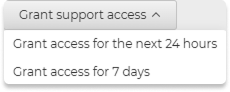
Our team now has temporary access to your event.
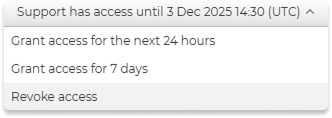
When support access has been granted, you will have also the option to revoke the access:
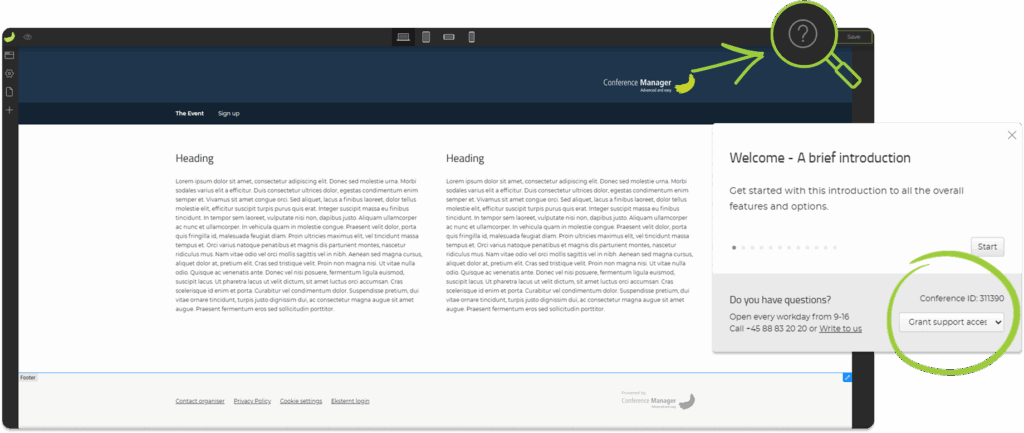
If you are inside the Website Designer, you can open the support window by clicking the question mark in the top right corner:
Find your Conference ID
We will need your Conference ID to locate your event.
You can find it in two places:
- In the Help pop-up (shown just below Grant support access):
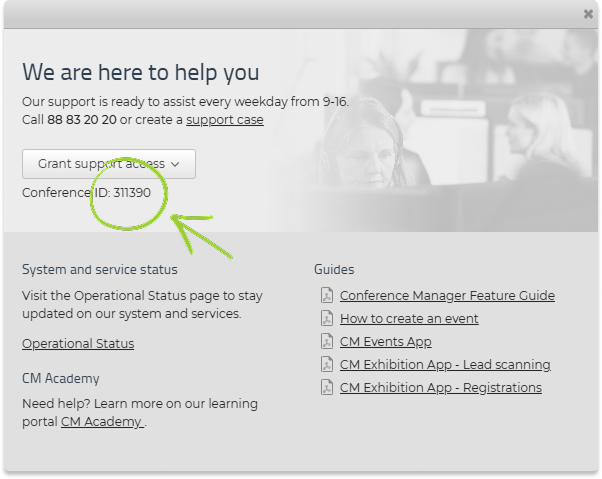
If you are in the Website Designer, it will be shown above Grant support access:
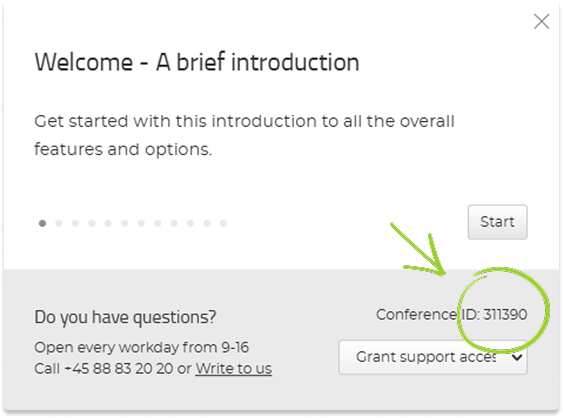
- In the URL of your event — it is the number at the beginning of the event address when you are logged in as admin.
Example: 311390-xxxx.conferencemanager.eu/… → the Conference ID is 311390:
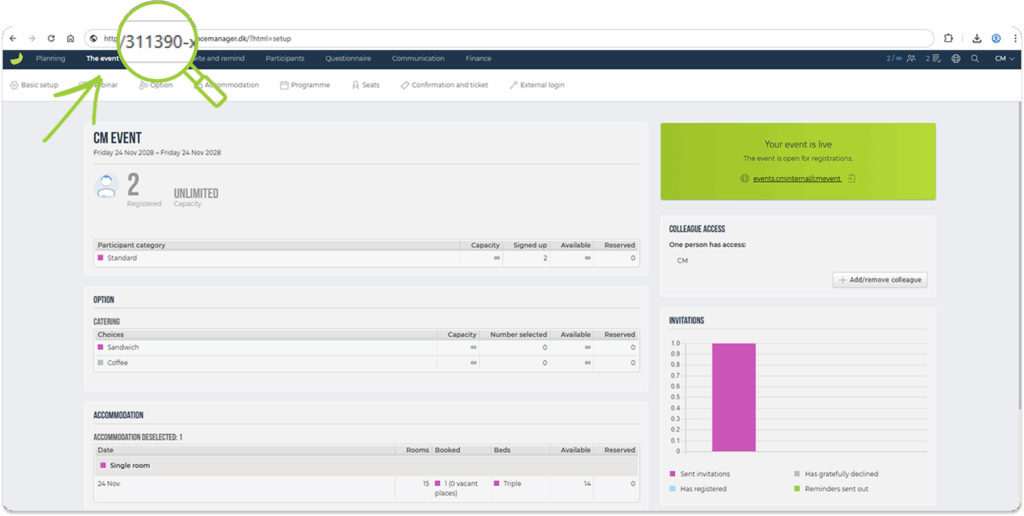
Please share this ID with us when you reach out.
If you cannot see the support access option
If the Grant support access button does not appear in the Help pop-up, your organisation may be using its own internal support desk that takes care of Conference Manager related questions.
In that case, please contact your internal support desk for assistance.