



You can create personalised tickets in Conference Manager using the ticket editor. Tickets can include participant information, barcodes and QR codes for check-in.
Once activated, tickets are automatically attached to order confirmation emails and are also available to participants in the CM Events app.
This guide shows you how to create a ticket, add dynamic information, customise the design and activate it.
Create the ticket
Start by opening the ticket editor for your event.
Click Create new ticket.
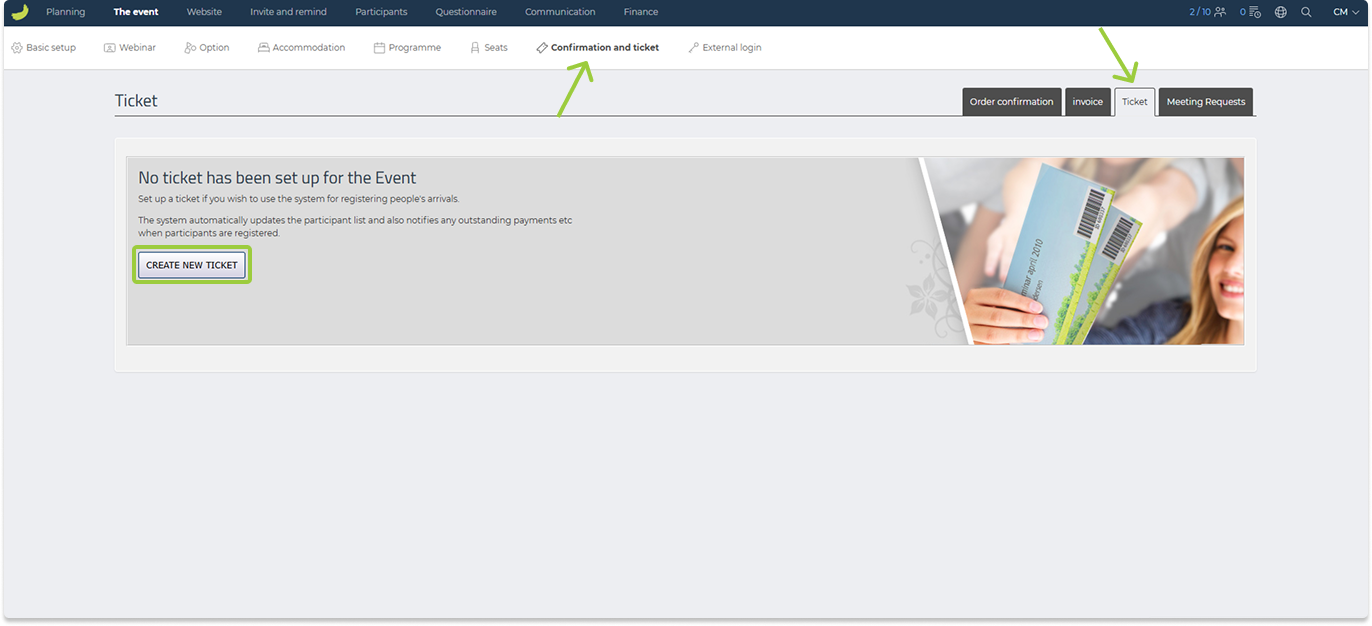
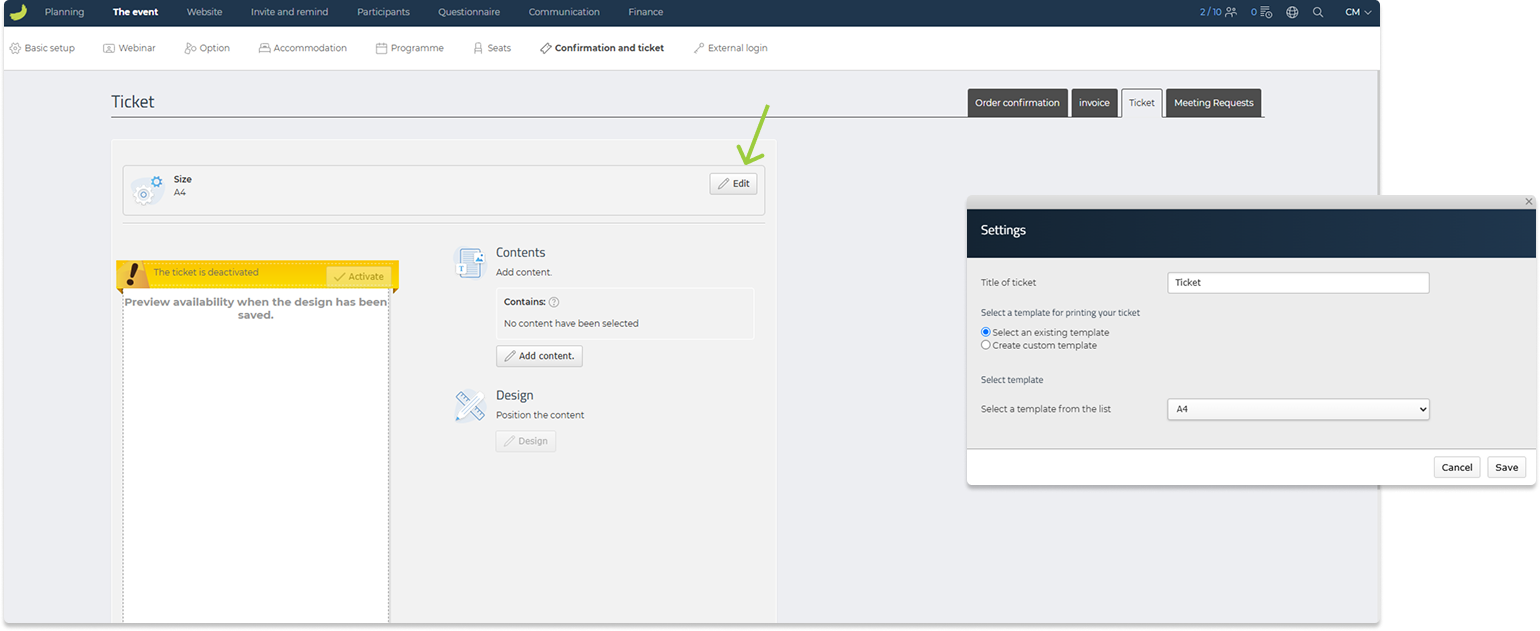
The default ticket size is A4. Click Edit in the top-right corner to open the ticket settings.
Here you can choose another ticket size, select an existing template or create a new template. You can also change the title of your ticket.
Insert content
Next, choose the information and elements that should appear on your ticket.
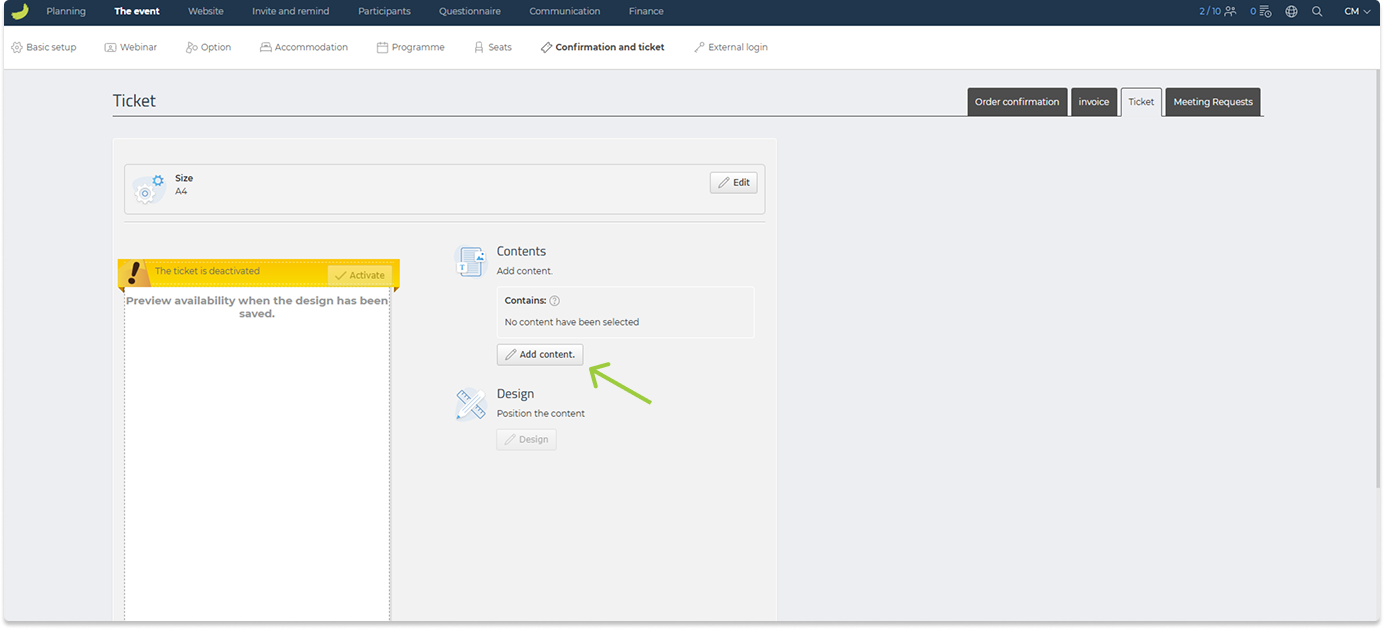
Click Add content.
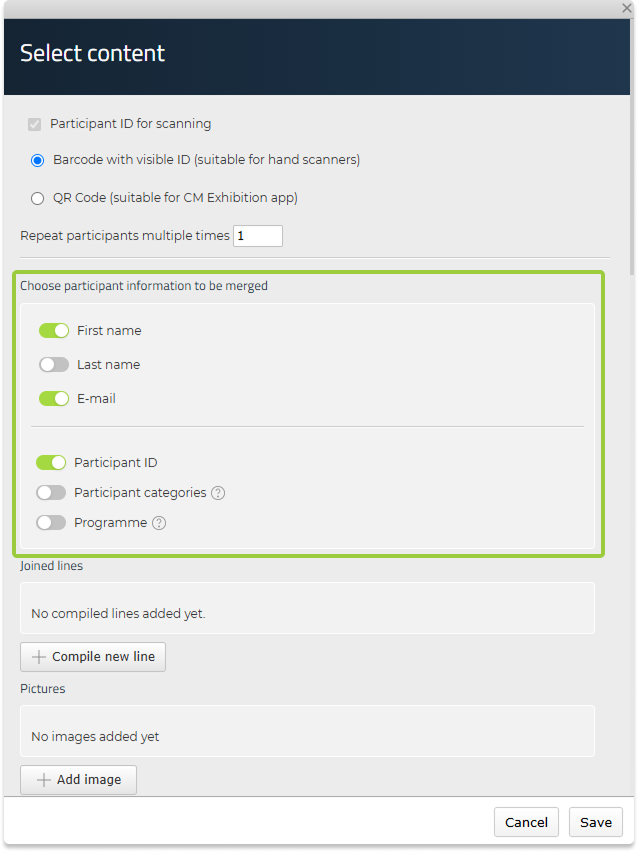
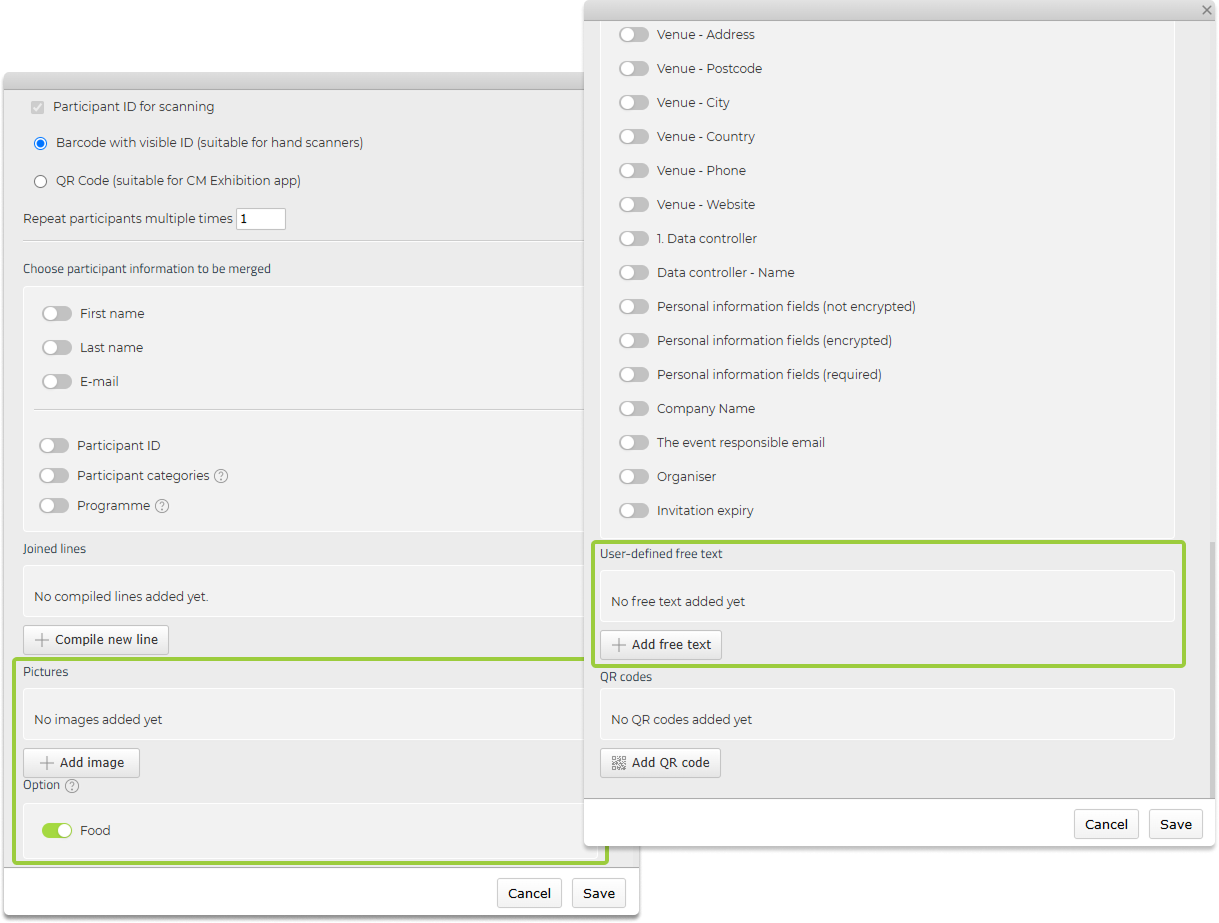
In Select content, choose the information or element you want to add to the ticket.
If the ticket will be used for check-in, you can add a barcode or QR code. Both can be scanned using the CM Exhibition app.

You can also add other types of content.
Participant information
- First name and last name
- Participant category
- Participant ID
Event information
- Event name
- Event date and location

Other content
- Images, such as your logo or a background
- Options
- Free text with additional information
- QR codes containing a link
Combine fields on one line
Use Compile new line to combine fields, such as first name and last name, on the same line.
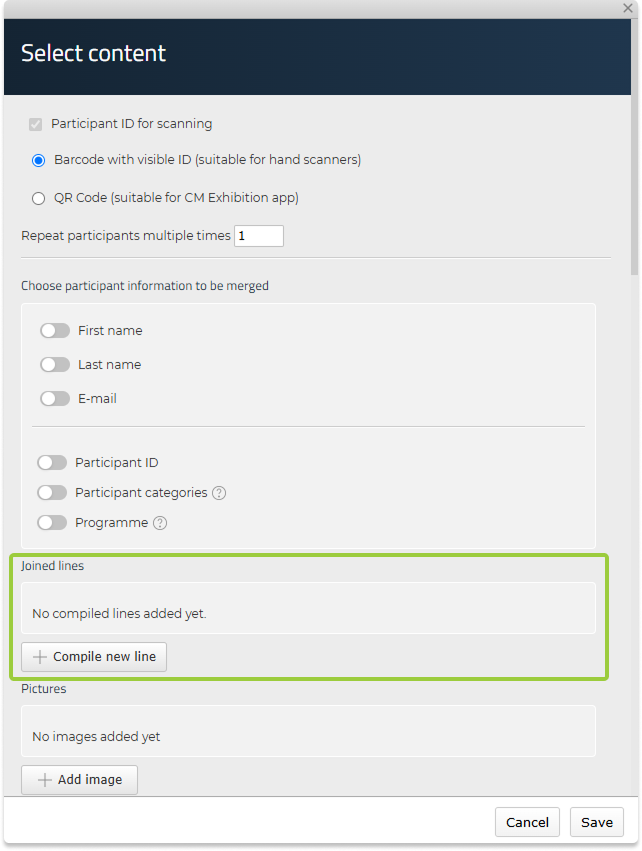
The spacing between the combined fields adjusts automatically, so names remain neatly aligned regardless of their length.
The fields you insert are dynamic placeholders. When a ticket is generated for a participant, Conference Manager automatically replaces them with the relevant participant and event information.
This means that each participant receives a personalised ticket without you having to enter their information manually.
Once the content is saved, it becomes available in the layout editor.
Design and position the content
Once you have added your content, you can arrange the elements and customise the appearance of your ticket.
Click Design to open the layout editor.
When you first open the editor, the elements may be placed on top of each other in one corner of the ticket.
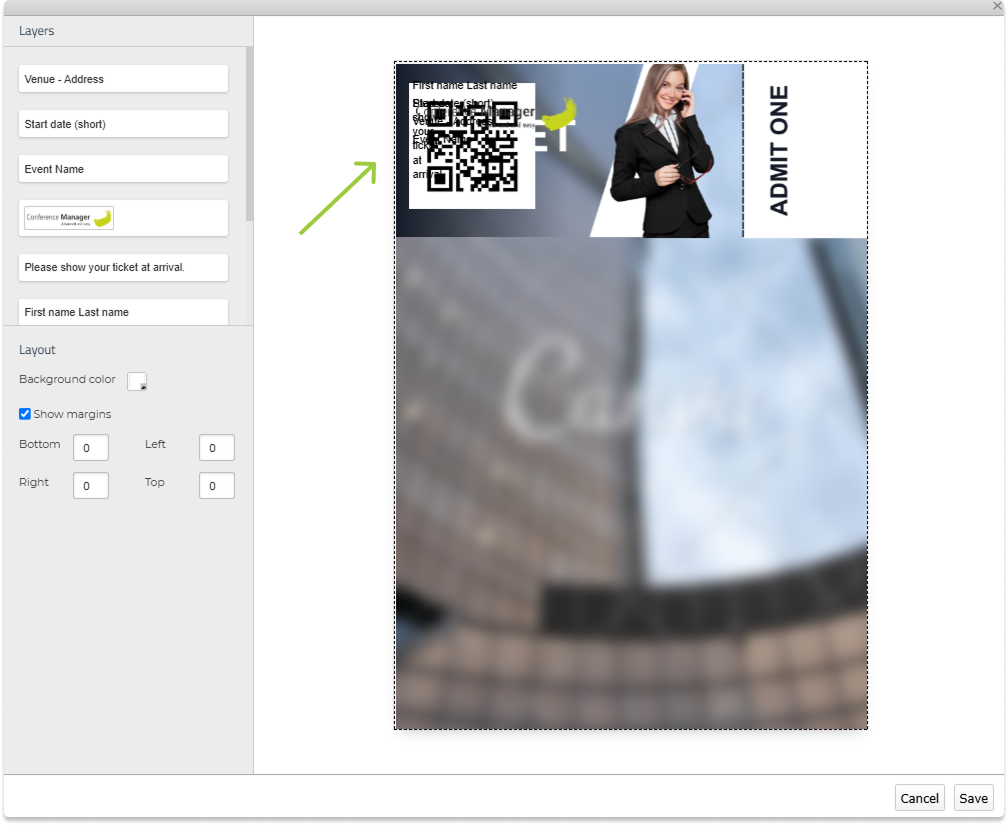
Drag each element to the position you want on the ticket.

You can also adjust individual elements and manage how they overlap.
Select an element, such as a text field, to open its formatting options.
Adjust the font, size and colour as needed.
Use Align to position content to the left, right or centre.
Enable Show margins to help position elements consistently.
Click Back in the top-left corner to return to Layers.
In Layers, drag elements up or down to change which elements appear in front of or behind others.

Click Save when you are satisfied with the layout.
You can create a complete ticket background in an external design tool, such as Canva, and upload it as an image. Then add the dynamic elements that should be personalised for each participant, such as their name, event information and barcode.
Make sure the background image is placed at the bottom of the Layers panel so the other elements remain visible on top. The ticket example in this guide was created using Canva.
Activate the ticket
When you have finished designing your ticket, remember to activate it.
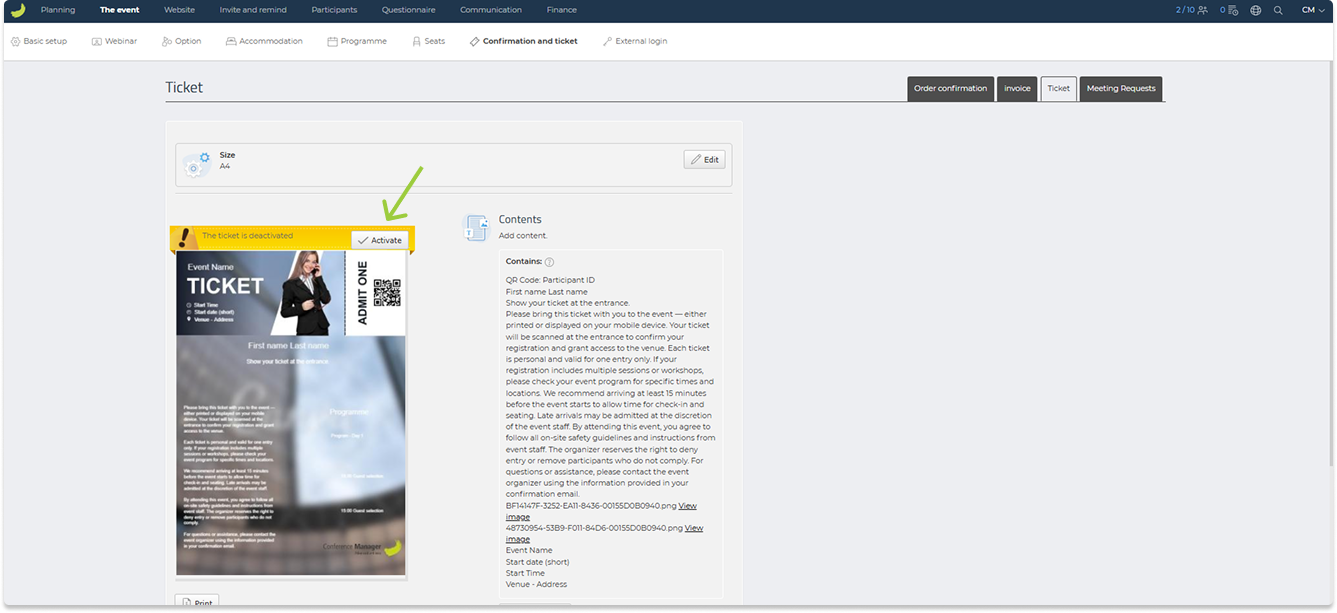
Once the ticket is activated:
- It is automatically attached to the participant’s order confirmation email.
- Participants can access their ticket in the CM Events app.
You can also download and print participants’ tickets directly from Conference Manager. The ticket does not need to be activated for this.
Check in participants using their tickets
You can use the CM Exhibition app to register participants’ arrival by scanning the barcode or QR code on their ticket.
Each ticket has a unique barcode or QR code that identifies the participant. Scanning it at the entrance allows you to mark the participant as arrived.
You can also combine ticket scanning with onsite print. When participants check in, their personalised name tags can be printed automatically.
The CM Exhibition app can also be used to scan tickets and register attendance at specific options or programme items. This helps you manage access to different activities during your event.
Related guideGet a mobile key for CM ExhibitionLearn how to access the CM Exhibition app for scanning tickets and registering attendance.Read the guide