

When you send emails from the system, you can insert links to your files so that recipients can open them by clicking on the link. You can use these two steps to send PDF files, Word documents, PowerPoint slides, and similar files to your participants.
Watch a quick explainer

1. Upload file
The download page can hold your documents throughout all phases of your event, and you can also choose whether this page should be made available to your participants. In the first step, you need to upload the file to your download page so that you can use it in your emails.
- Go to Website and Setup and activation.
- Click on Open Website Designer.
When you are in the Website Designer, you need to create the download page if you do not already have one.
- Click on the icon for Pages in the left sidebar.
- Click on New page.
- Select the template for Downloads from the drop-down menu.
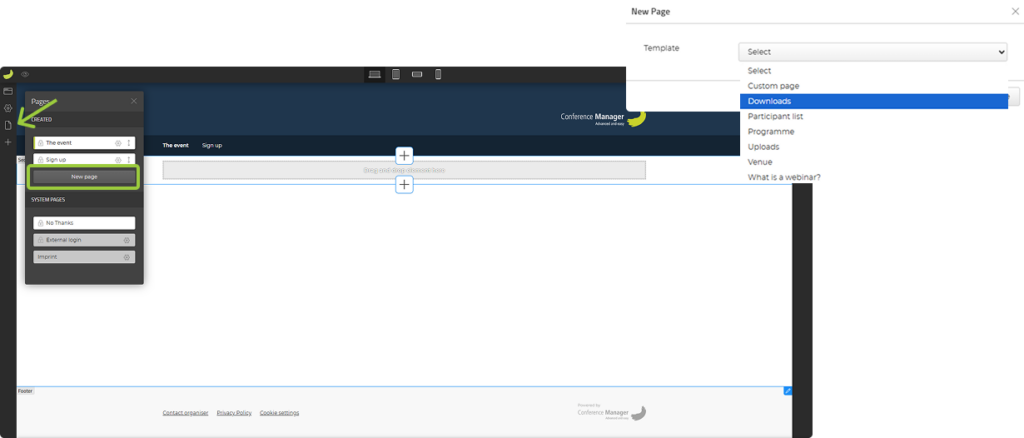
You now have a range of settings for the download page. You can choose whether it should be part of your event website or removed from the menu. Additionally, you can choose whether access to this page should be restricted.
- Once you have set up the page, click Add files.
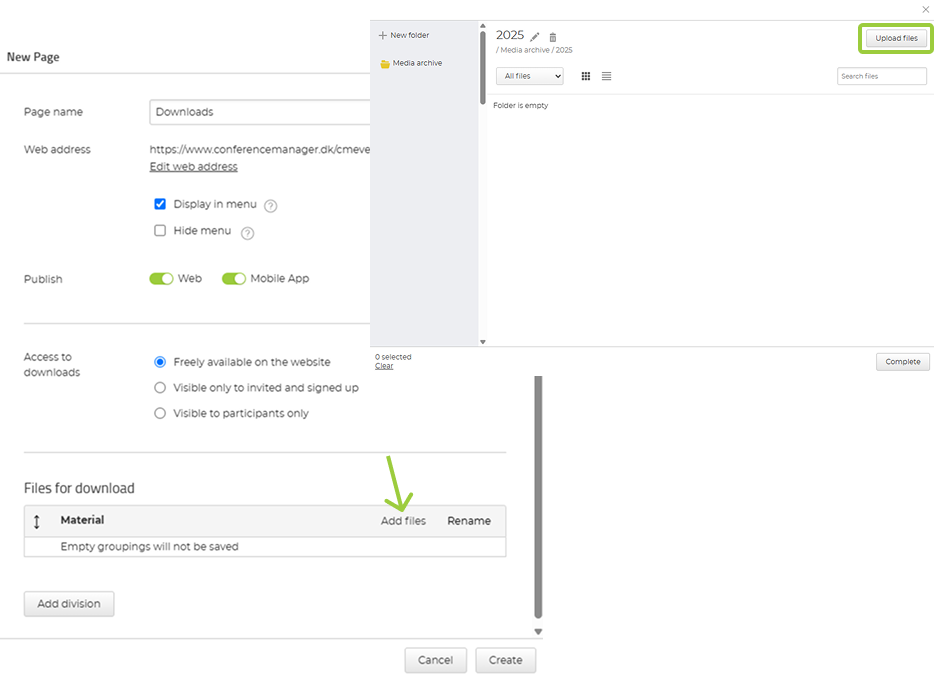
You will now open the media library. On the left side, you can choose the relevant folder where you want to save the file.
- Click on Upload files at the top right.
- Click Select files to upload or drag files here.
- Select the desired file from your file explorer and click Upload.
- Now select your uploaded file in the folder so that it is outlined in green, and click Complete.
- Click Create and save your progress.
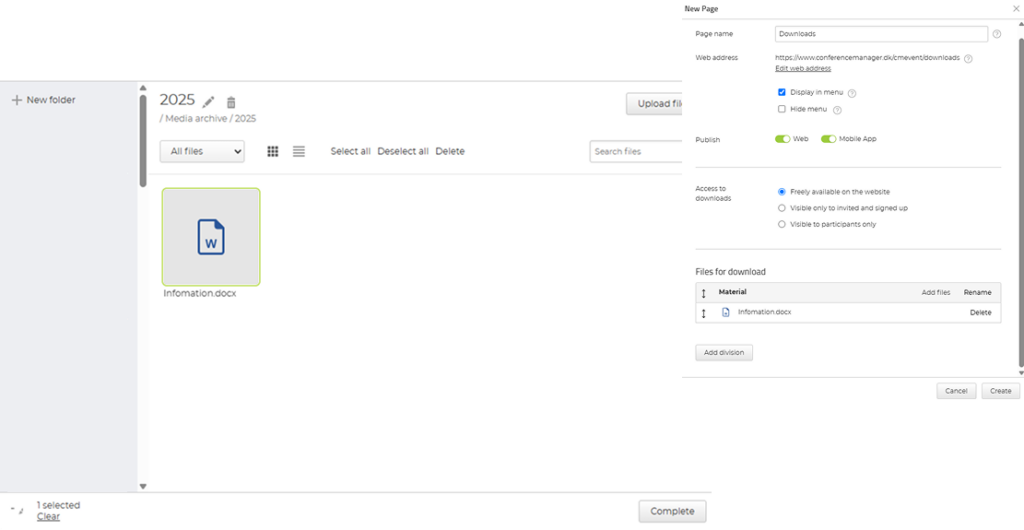
Return to the administration so that you can use the file in your email.
2. Create link to file
In this step, you create a hyperlink to your desired file. You have the option to link to a file in several email types within the system, including invitations, dispatches of materials, and other emails under communication.
- Go to your email in the system.
- Place the cursor in the text field where you want your link.
- Click Insert link.
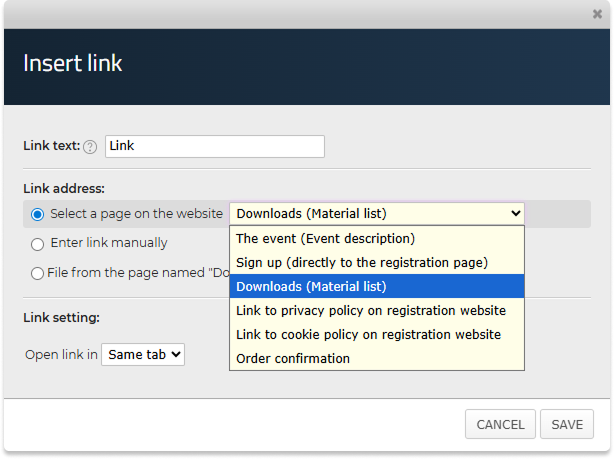
- Write a link text, e.g., “Download file here”.
- Select File from the page named “Downloads” on your website when selecting the link address.
- Select the desired file so that it is marked with grey.
- Click Save.
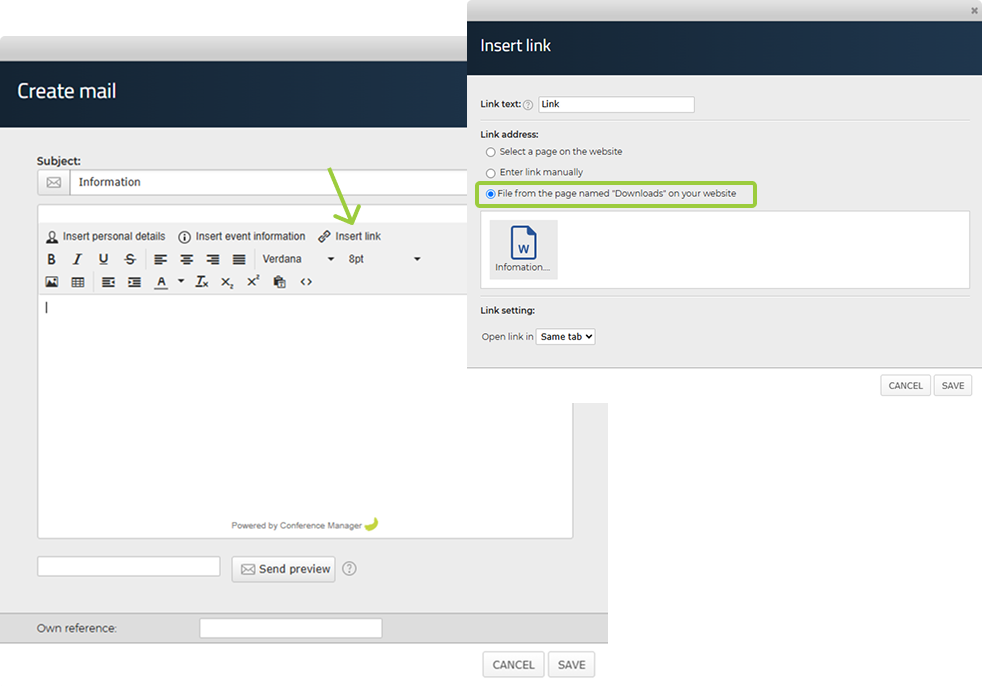
You can also choose to link to the download page and not directly to one specific file. This is useful if you have several files and want participants to access them all from one page. To do this, choose Select a page on the website under Link address and then choose Downloads (material list) in the drop-down menu.
You will now see that the link text is underlined and blue. When your participants click the link, they will either be redirected directly to the file or to the download page, depending on the link you selected.
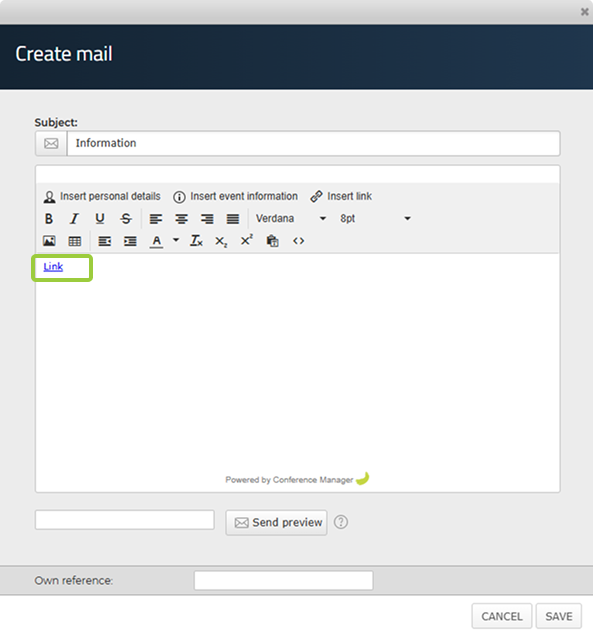
You can send a preview email to check the layout and visual appearance of your email. To test the links, we recommend adding yourself to the event as a participant and sending the email to yourself as an actual email before sending it to your participants, especially if the email contains links to content with restricted access.