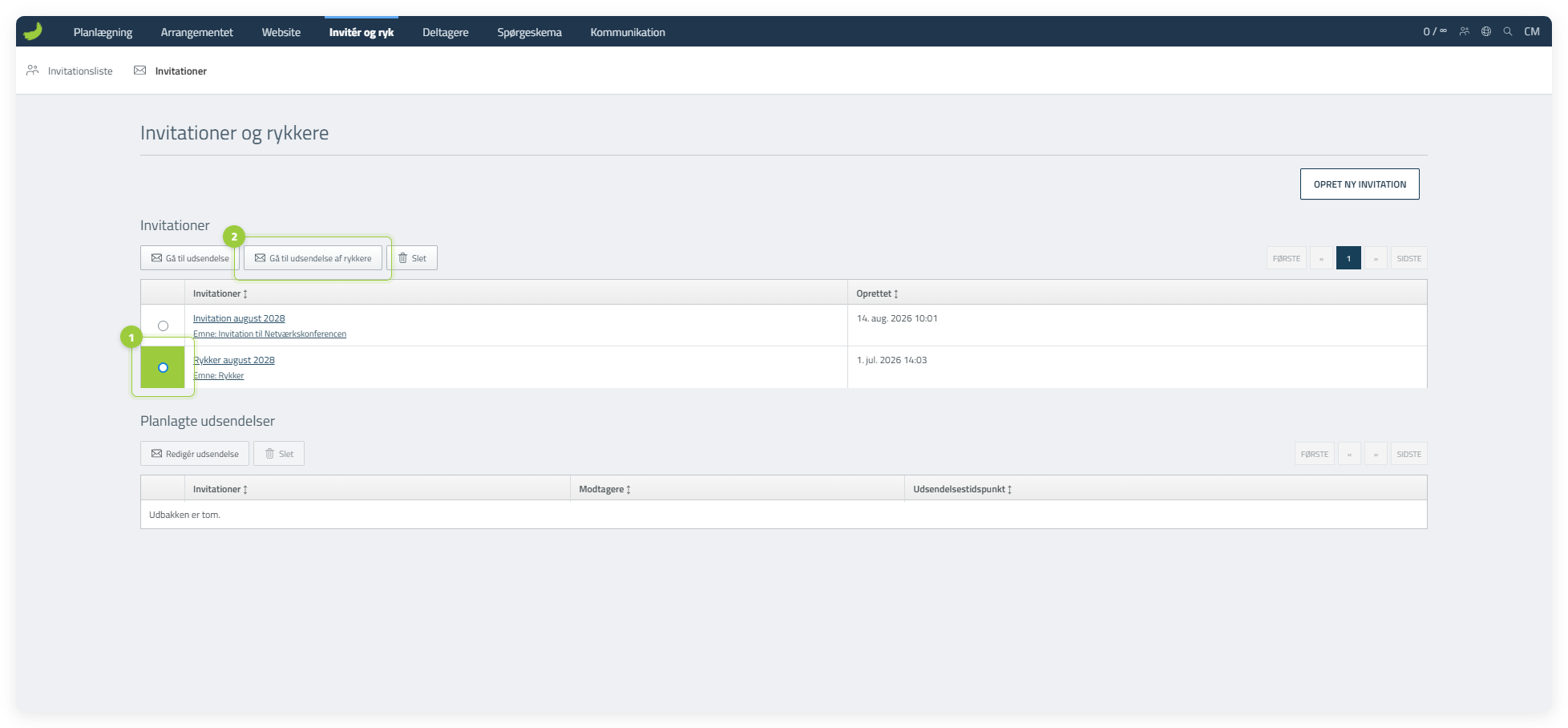

Med Invitér og ryk kan du invitere personer til dit arrangement, før de har tilmeldt sig. Du tilføjer deltageremnerne på Invitationslisten, sender dem en invitation med et tilmeldingslink, følger deres svar og sender en rykker til dem, der ikke har svaret.
Relateret guideInvitér deltagere uden om systemetLæs guidenVælg din guide
Du kan skifte mellem de to versioner uden at forlade artiklen.
Tilføj deltageremner
Åbn Invitationslisten
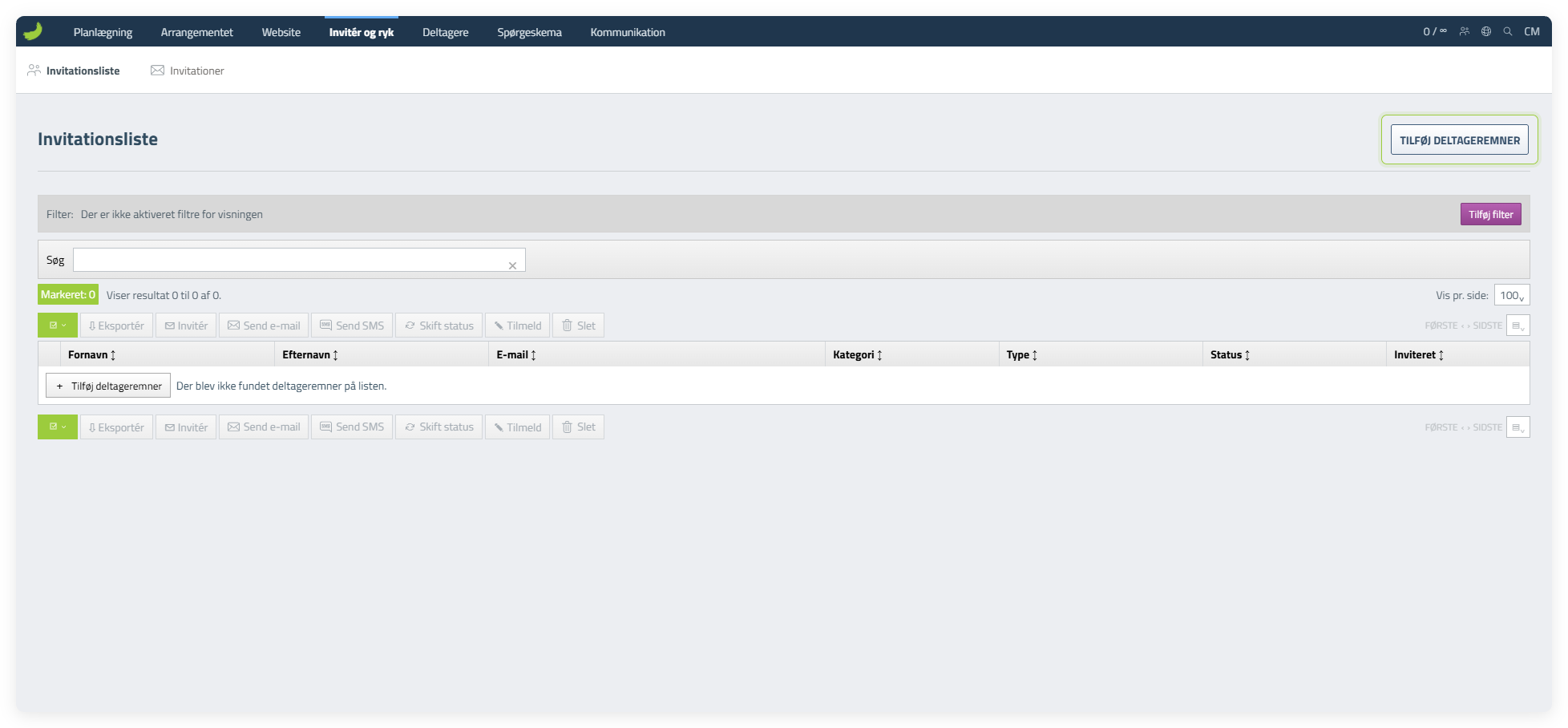
Gå til Invitér og ryk, vælg Invitationsliste, og klik på Tilføj deltageremner. Her tilføjer du de personer eller gruppemails, du vil invitere.
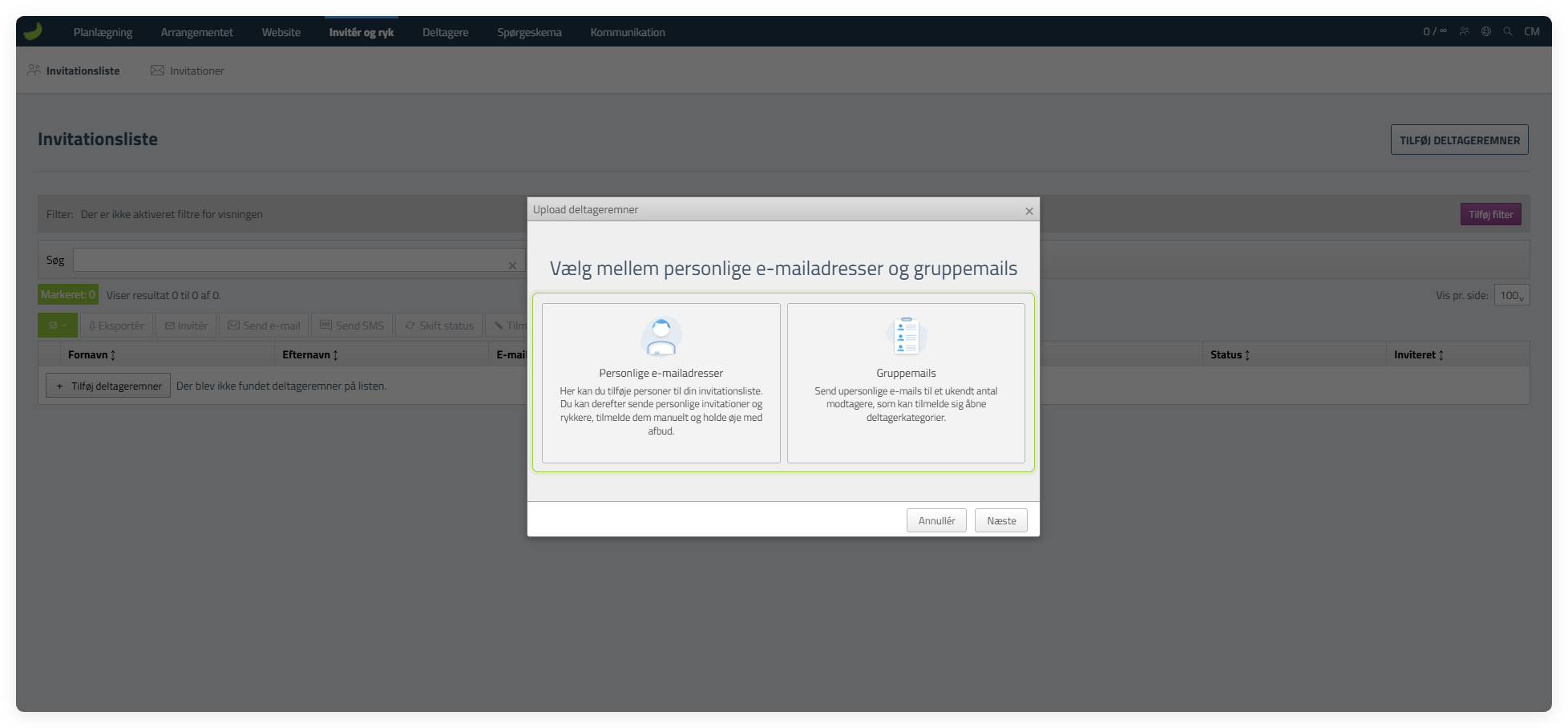
Vælg mellem personlige e-mailadresser og gruppemails
Vælg Personlige e-mailadresser, når invitationen skal knyttes til en navngiven modtager. Vælg Gruppemails, når du sender til en fælles adresse, eller invitationen kan blive videresendt. Vælg den relevante mulighed, og klik på Næste.
Tilføj de deltageremner
Når du har valgt Personlige e-mailadresser eller Gruppemails, skal du vælge, hvordan du vil tilføje de deltageremner.
Tilføj manuelt
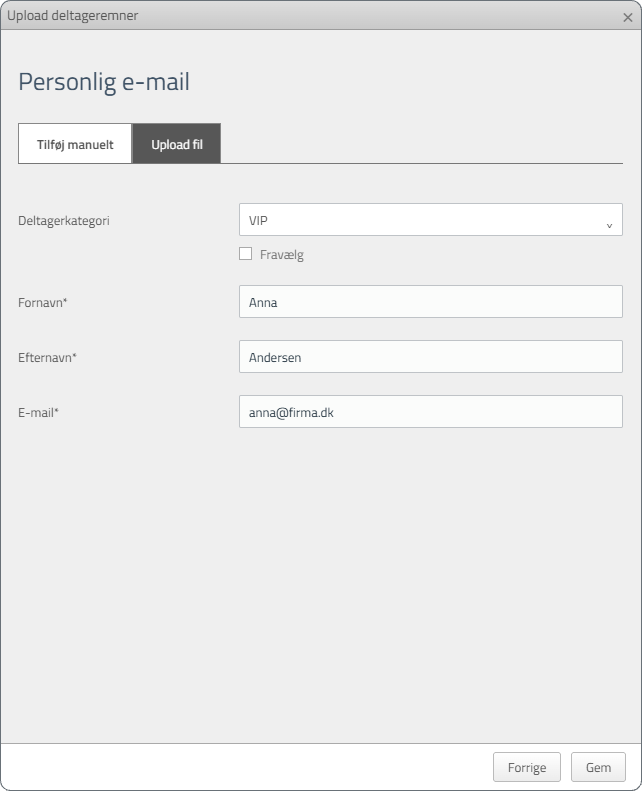
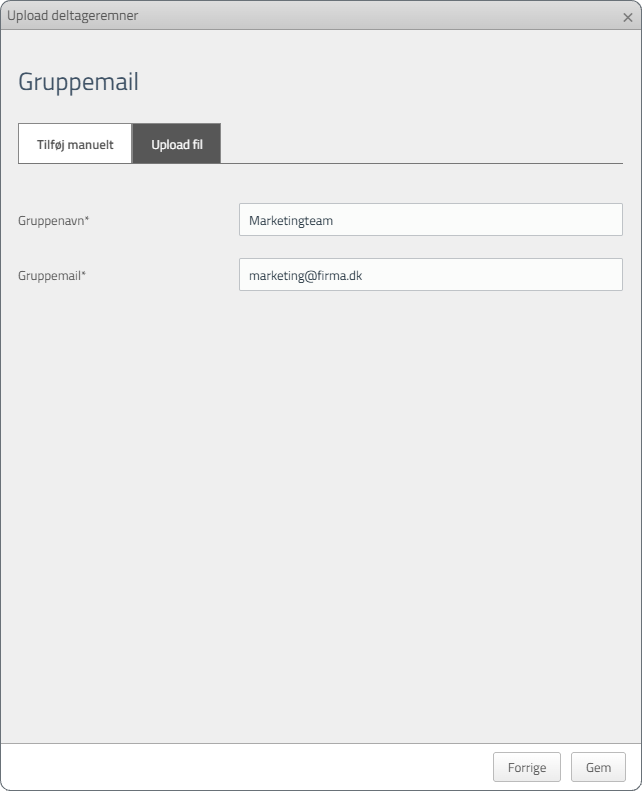
Brug denne metode til at tilføje én deltageremne ad gangen. For en personlig e-mailadresse indtaster du personens oplysninger. For en gruppemail indtaster du Gruppenavn og Gruppemail.
Upload fil
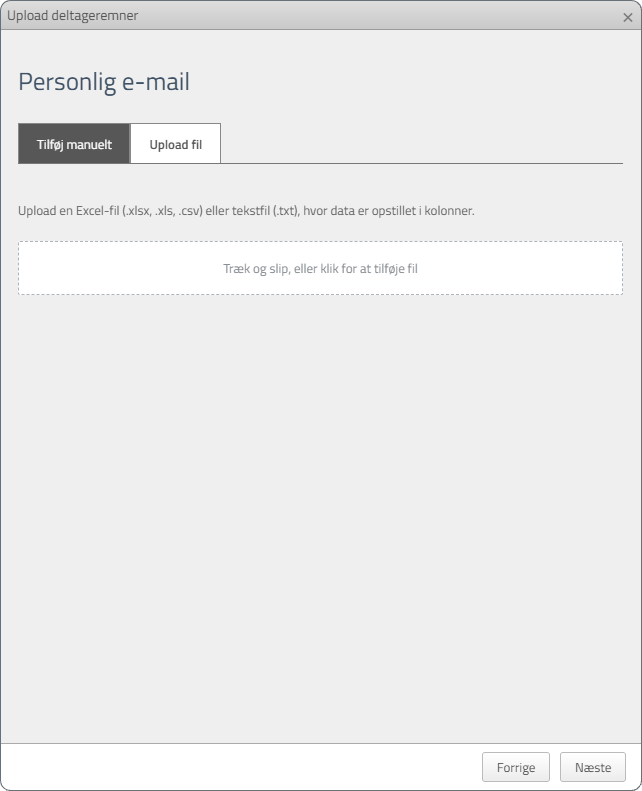
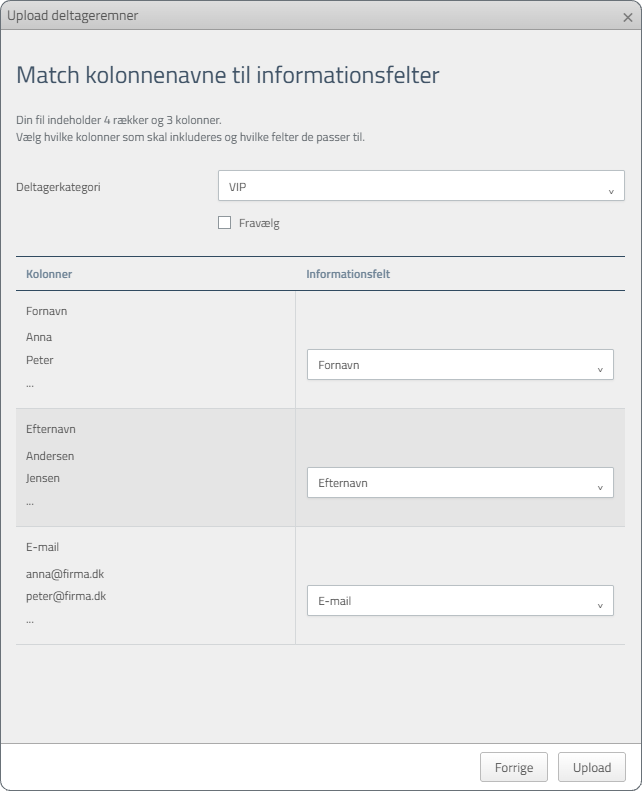
Brug denne metode til at tilføje flere deltageremner på én gang. Når du har valgt filen, matcher du dens kolonner med de tilsvarende oplysningsfelter i CM.
For personlige e-mailadresser skal du også vælge en deltagerkategori. Skal personen selv vælge kategori ved tilmelding, så vælg Fravælg.
Når nogen tilmelder sig via en personlig invitation, flyttes de automatisk til Deltagerlisten. En gruppemail er ikke knyttet til én bestemt person, så modtagerne kan ikke følges individuelt.
Tilføj manuelt
- Personlige e-mailadresser
- Gruppemails
Upload fil
- 1. Upload filen
- 2. Match kolonnerne
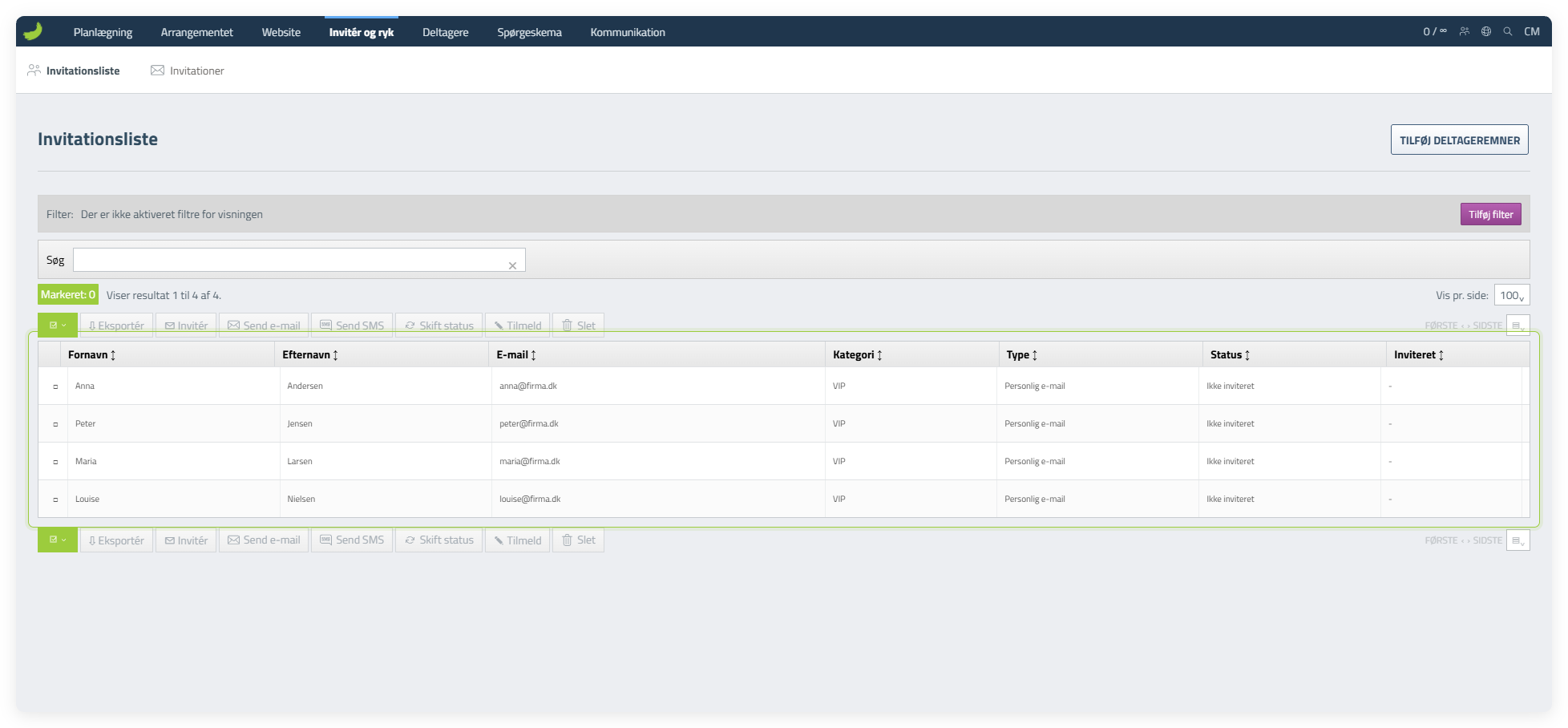
Invitationsliste
Se de deltageremner på listen
Når de deltageremner er tilføjet, vises de på Invitationslisten. Herfra kan du søge, filtrere, eksportere, sende en e-mail eller SMS, skifte status, tilmelde en person manuelt eller slette en deltageremne.
Invitationer
Opret en invitationsskabelon
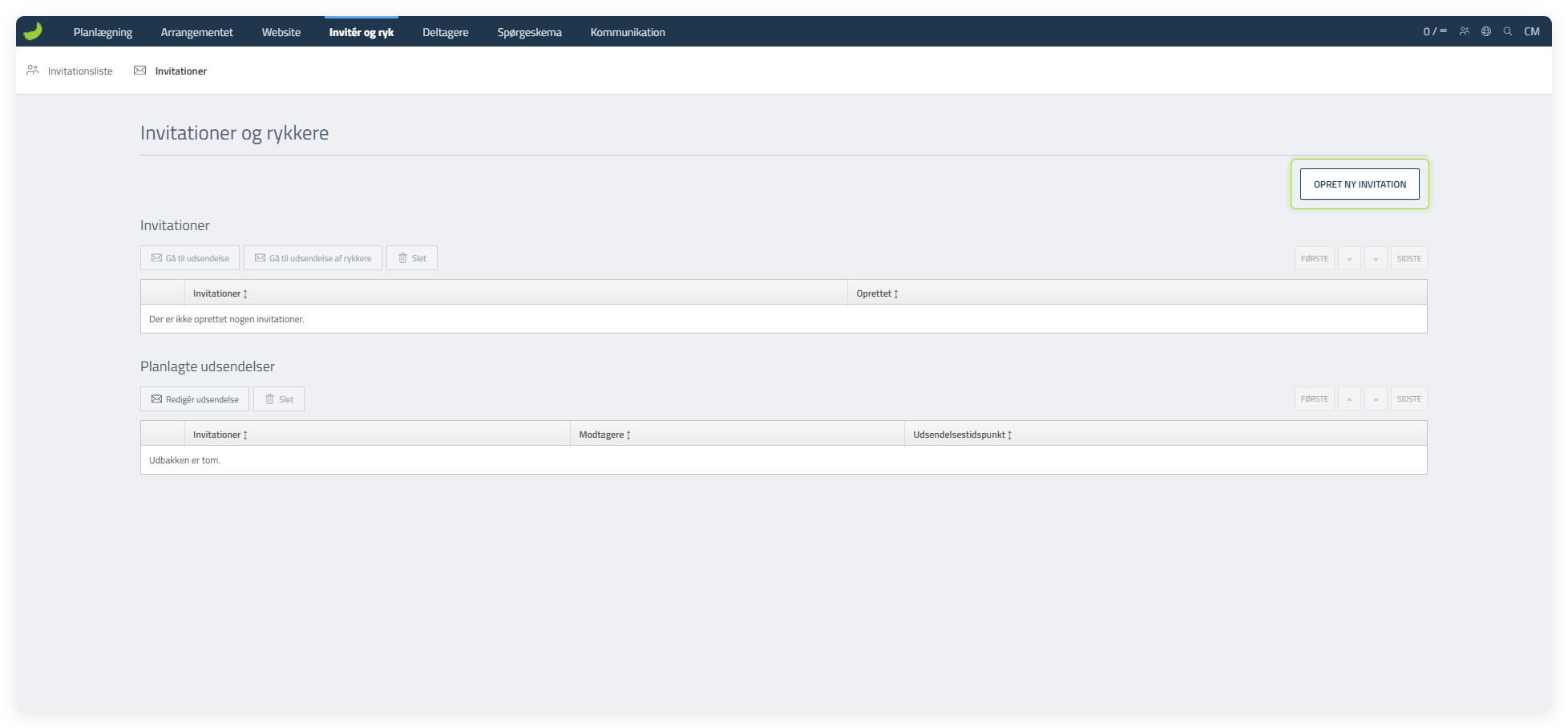
Gå til fanen Invitationer. Oversigten er tom, første gang du åbner den. Klik på Opret ny invitation for at oprette den skabelon, du vil sende til de deltageremner.
Skriv invitationen
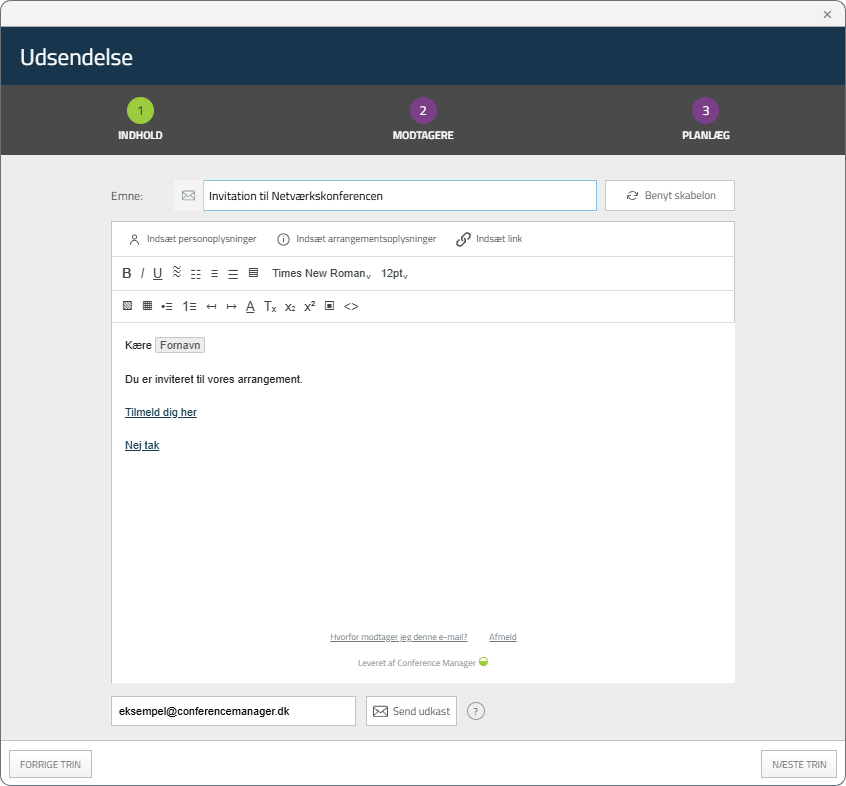
Indtast et emne, og skriv invitationen. Med Indsæt personoplysninger kan du tilføje pladsholdere som Fornavn. Du kan også bruge Indsæt arrangementsoplysninger til automatisk at tilføje arrangementsadresse, dato eller andre oplysninger fra opsætningen af arrangementet. Husk at tilføje et tilmeldingslink. Indtast til sidst en Egen reference: et internt navn på skabelonen, som deltagerne ikke kan se. Gem derefter skabelonen.
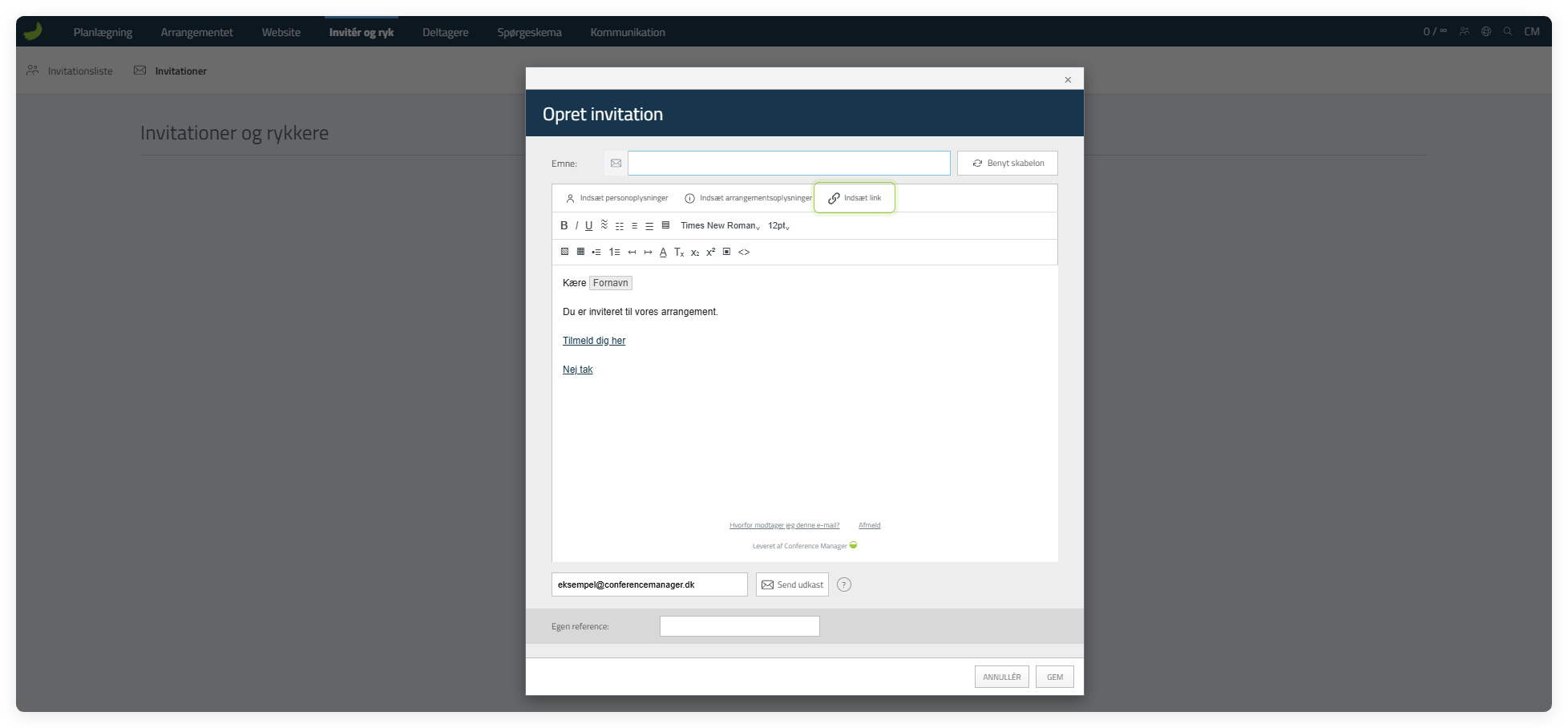
Nej tak-linket virker ikke for gruppemails, fordi de enkelte modtageres svar ikke kan følges.
Indsæt et tilmeldingslink
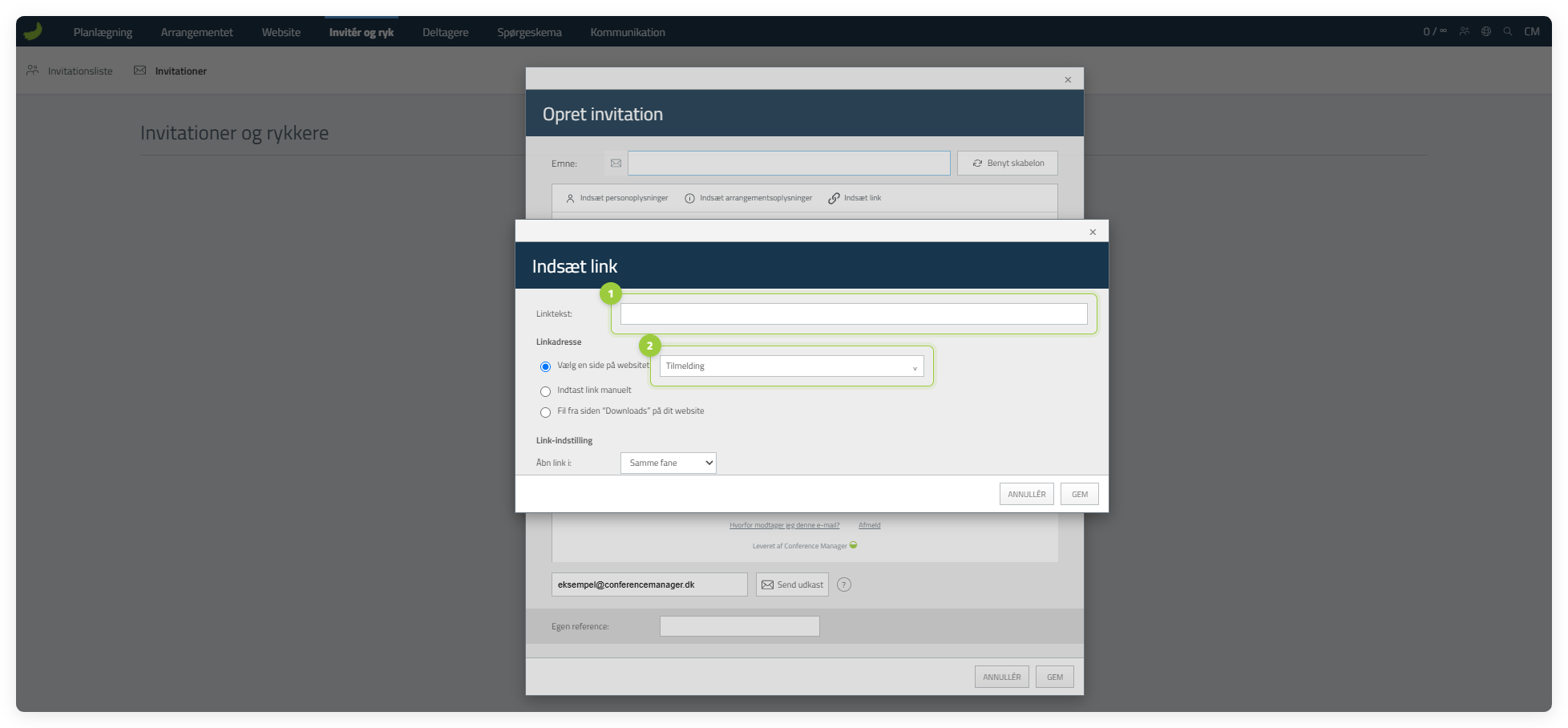
Når du opretter invitationsskabelonen, skal du indsætte et link, som modtagerne kan bruge til at tilmelde sig arrangementet. Klik på Indsæt link, indtast den klikbare tekst, fx “Tilmeld dig her”, og vælg Vælg en side på websitet under Linkadresse.
Vælg Arrangementsbeskrivelse for at linke til arrangementets forside eller Tilmelding for at linke direkte til tilmeldingssiden. Vælger du Arrangementsbeskrivelse, så sørg for, at deltagerne kan komme videre til tilmeldingen via navigationen eller en tydelig knap på websitet. Gem derefter linket.
Send invitationen
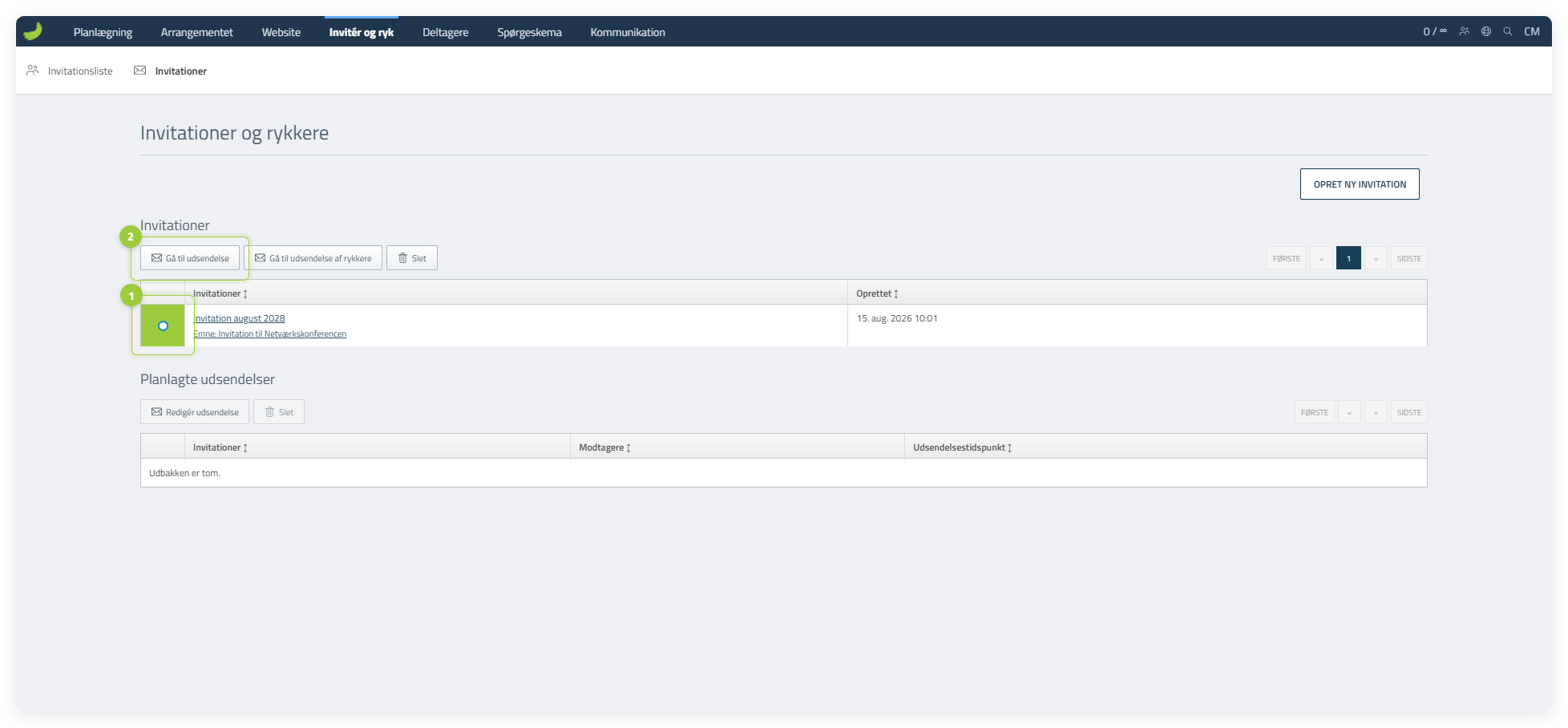
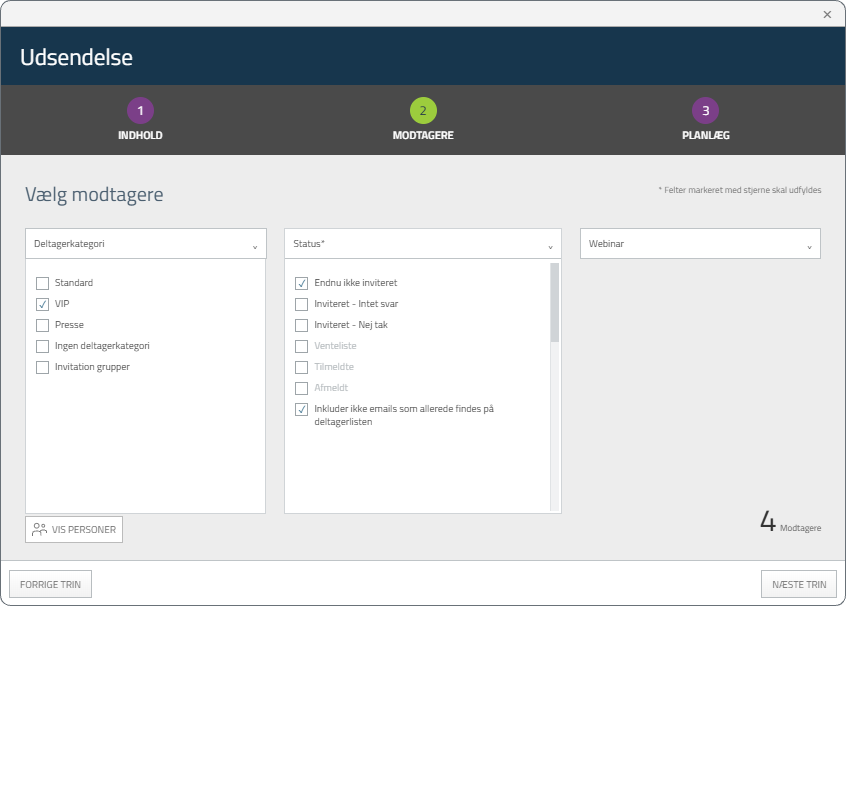
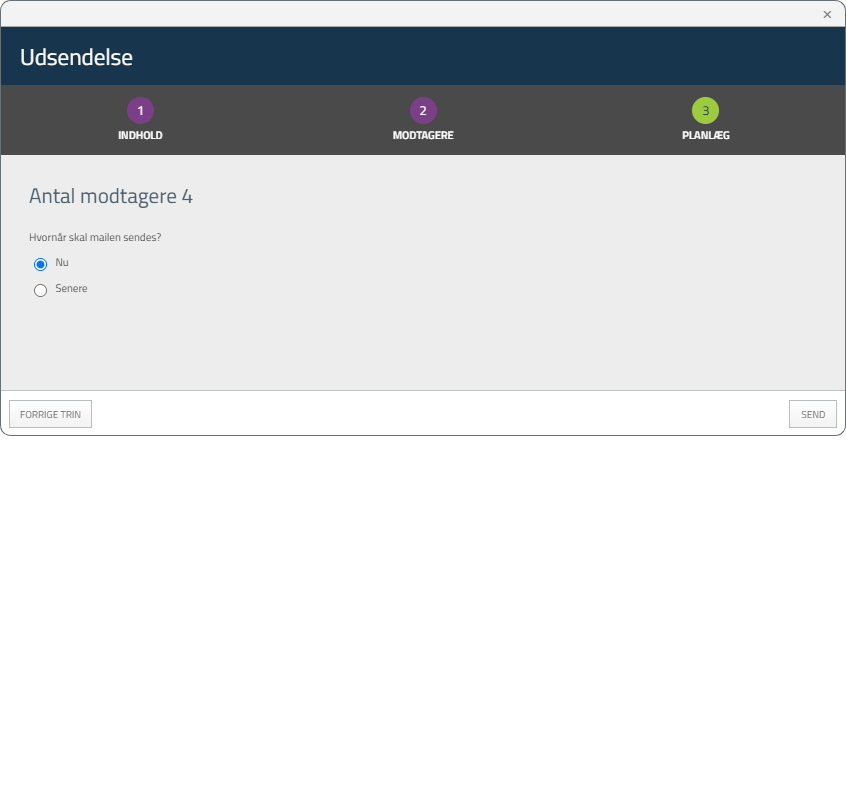
Vælg invitationsskabelonen, og klik på Gå til udsendelse. Udsendelsen har tre trin: Indhold, Modtagere og Planlæg. Gennemgå indholdet, vælg de relevante modtagere, og vælg derefter, om invitationen skal sendes nu eller planlægges til senere.
Udsendelsesforløbet
- 1. Indhold
- 2. Modtagere
- 3. Planlæg
Følg svarene
Følg status på Invitationslisten
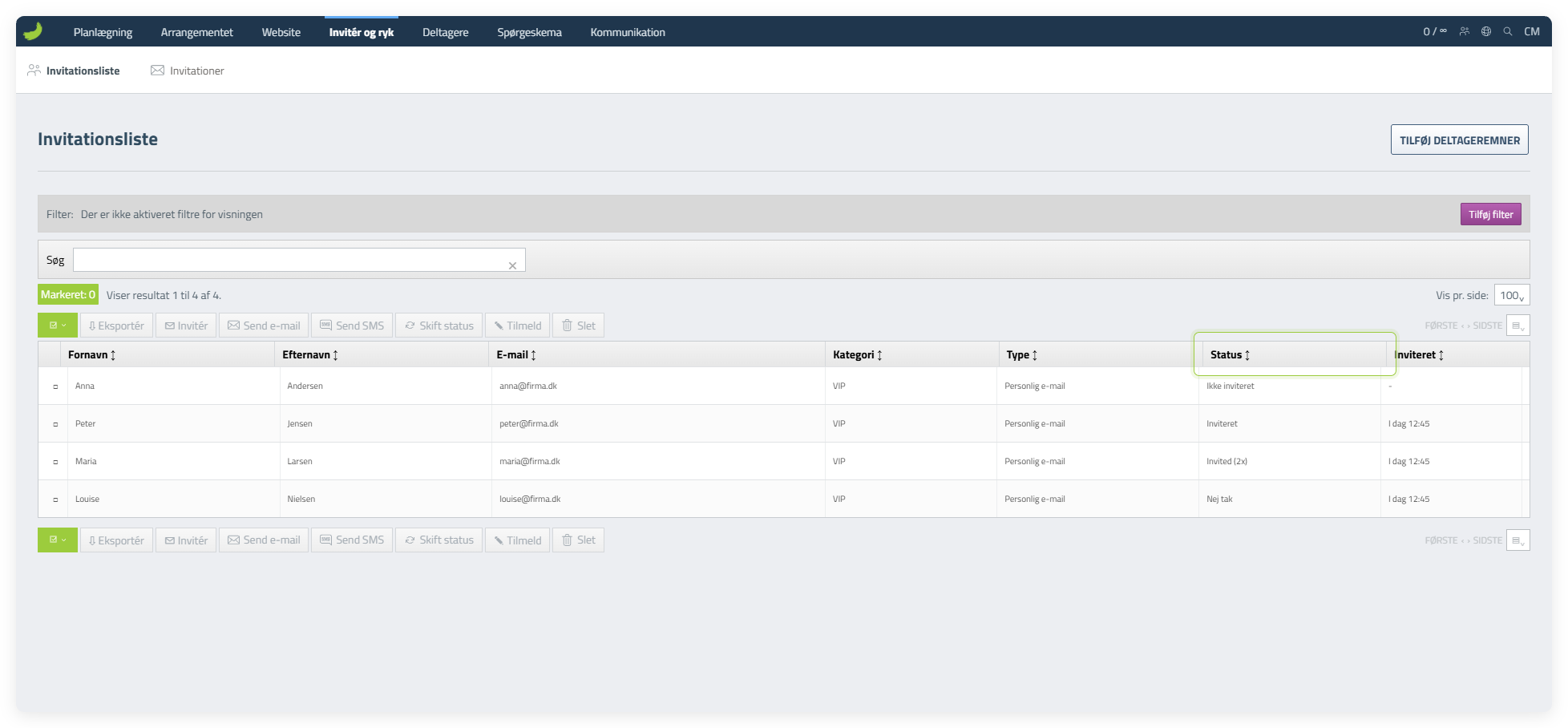
Kolonnen Status viser hver persons aktuelle status, fx Ikke inviteret, Inviteret, Inviteret (2x) eller Nej tak. Når nogen tilmelder sig, flyttes de automatisk til Deltagerlisten.
For en gruppemail kan du se status for selve gruppemailen, men ikke de enkelte svar, eller hvilke personer på Deltagerlisten der har tilmeldt sig via en bestemt gruppemail-invitation.
Send rykkere
Send en rykker til dem, der ikke har svaret
Opret en separat rykkerskabelon. Vælg den, og klik på Gå til udsendelse af rykkere. En rykker bruger det samme udsendelsesforløb i tre trin som en invitation. I trinnet Modtagere har CM allerede valgt og låst status Inviteret – Intet svar, så rykkeren kun sendes til modtagere, der ikke har svaret.