

These two emails are used when participant registration requires manual approval by a manager or organiser:
- Approval required: sent to the manager when a new registration needs approval.
- Awaiting approval: sent to the participant to inform them that their registration is under review.
To activate these emails, approval must first be enabled in the participant category settings.
Enable approval on your event
- Go to The event and Basic setup.
- Click on Participant categories and then Edit.
- Toggle Approval on.
- Choose either:
- Manager approval
- Organiser approval
- Select the participant categories that require approval, then click Save.
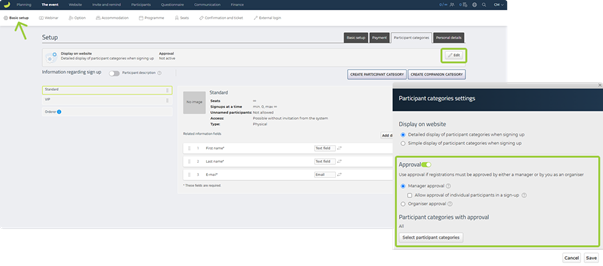
Participants in this category will now require approval before their registration is confirmed.
Activate the emails
Go to Communication and Automatic emails.
If you have selected Manager approval:
- Find the emails called Approval required (for manager) and Awaiting approval (for participant).
- Click Edit on each to customise the message.
If you have selected Organiser approval:
- Find the email called Awaiting approval (for participant).
- Click Edit to customise the message.
When are the emails triggered?
- Approval required is sent immediately to the manager after a participant submits their registration.
- Awaiting approval is sent sent immediately to the participant after they submit their registration, letting them know their submission is pending.

Elisabeth Bjørn Andersen
Published: 10.06.2025


