



If you accidentally clicked Deregistered participants must still pay when cancelling a participant – instead of Deregistered participants shall not pay – it can result in an incorrect balance in the system.

What happens:
- The system will assume the participant still needs to pay.
- This can create a negative balance (e.g. –1 DKK) in the bookkeeping.
- If the participant has already paid, you won’t be able to issue a credit note, and the refund process won’t work.
To correct the mistake and make sure the balance is cleared, follow the steps below.
Turn off automatic invoice sending
If you are using automatic invoice sending, make sure to turn it off.

Toggle off Automatic dispatch.
This prevents the system from sending out an incorrect invoice while you’re fixing the order.
Locate the cancelled participant

Find the cancelled participant and click on the name to access the personal details overview.
Click Start registration.

Check that all information fields are filled out.
Tick the box Do NOT send order confirmation to participant/orderer.
Click Complete.
Create a new order and credit it
Once the participant is signed up again, go to the order.

Click Go to order.

Click on the order line.
Enter a minus in front of the amount (e.g. change 1 DKK to –1 DKK) to indicate that the system should credit the participant.
Click Confirm.
Send the credit note
You will now be able to generate a credit note.

Click on Credit.
Click Yes to Send credit note.
If the participant/orderer has chosen to receive the invoice per email, and you don’t want them to receive the credit note, change the email address to your own under Edit orderer before crediting, and then change it back when done.
If the participant has already paid, make sure to refund them.
Register payout
To make the balance go to zero on this order, you need to then register a payout in the system.
Go to Invoice overview and click Register payment.

Choose Amount paid out and enter the amount you want to cancel out (e.g. 1 DKK) and add a note for bookkeeping, e.g. “Manual correction due to cancellation error”.
Click Confirm.
Cancel the new order

Click Cancel order.
Choose Deregistered participants must still pay and click Confirm.
Register payment on the original order
If the participant has already paid the original invoice, and a payment has been registered so that the order balance is zero, you can skip this step.
If the participant has not paid the original invoice, make sure that the balance on the original order is settled (and does not appear as a negative amount).
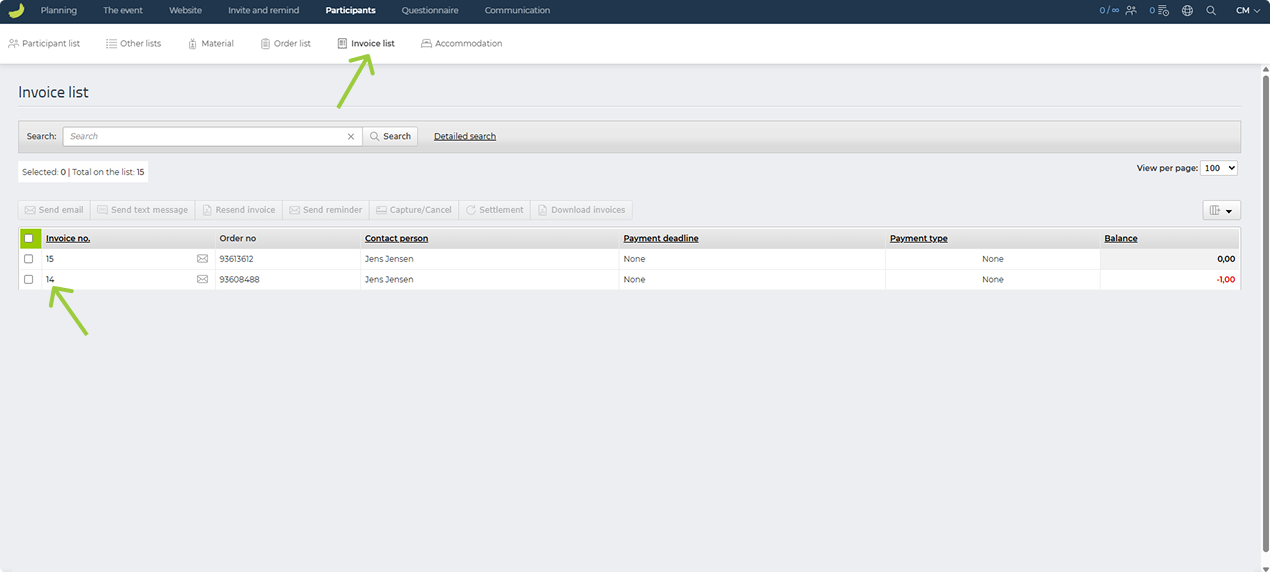
Open the original invoice by clicking on the invoice number.
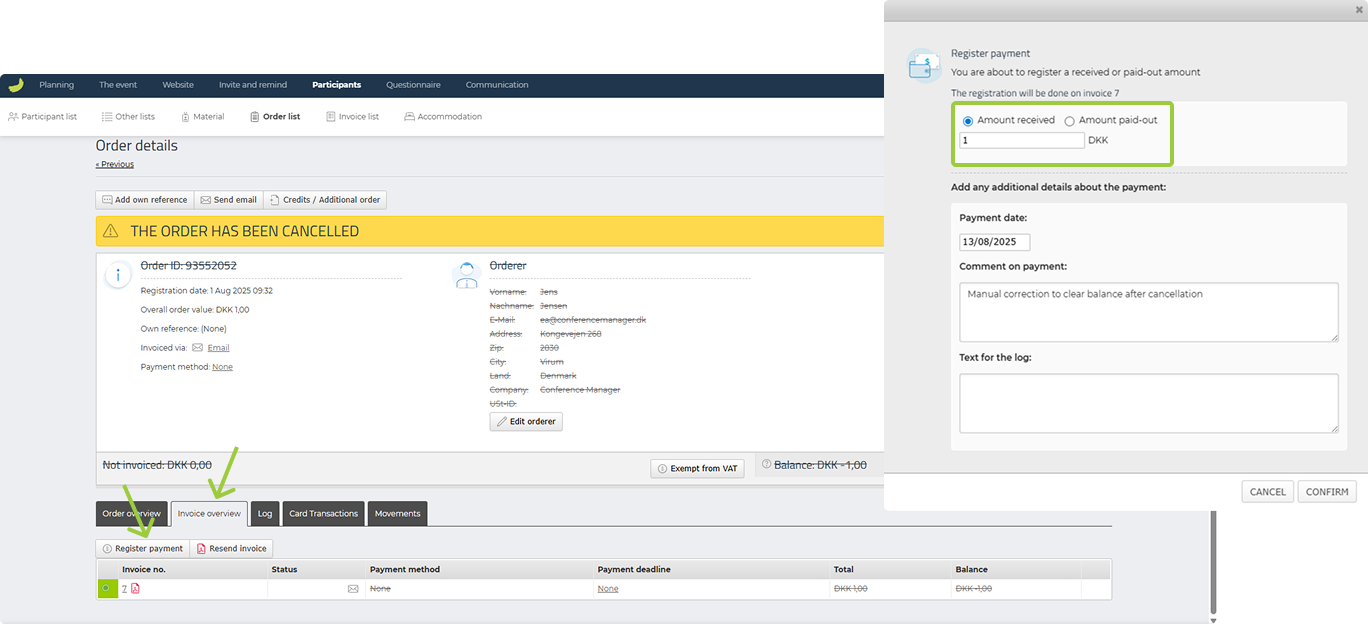
Go to Invoice overview and click Register payment.
Choose Amount received and enter the amount that should be canceled out (e.g. 1 DKK).
Add a note for bookkeeping, e.g. “Manual correction to clear balance after cancellation”.
Click Confirm.
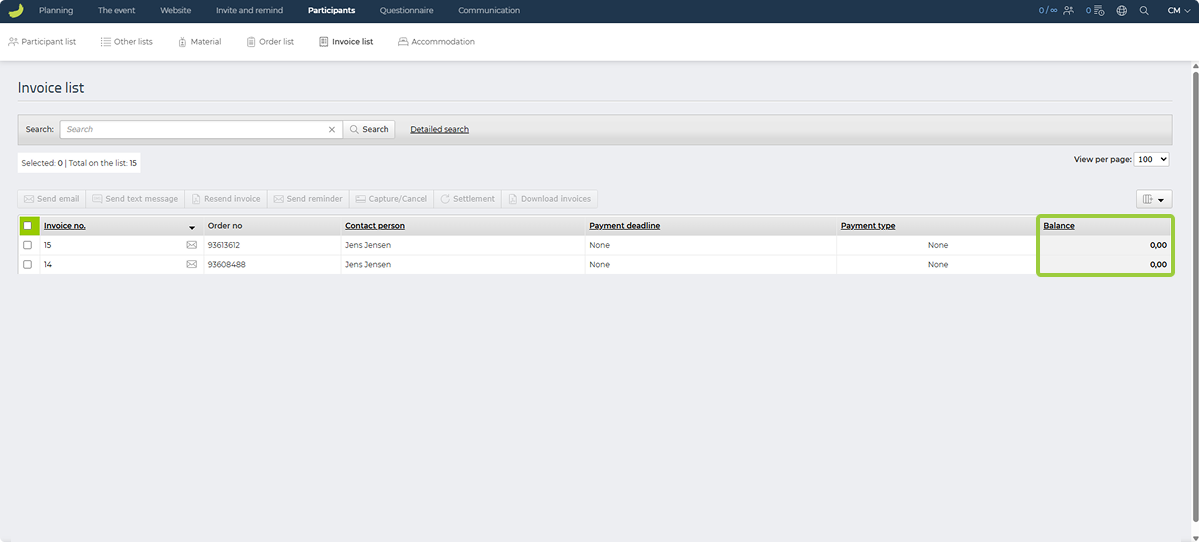
Now the two orders will cancel each other out and the balance should be zero on both:
Turn automatic invoice sending back on if needed
If you are using automatic invoice sending, turn on Automatic dispatch again.
Inform accounting (if applicable)
If you are using an accounting integration, let your accounting team know about the correction so they can update their records accordingly.