


When organising an event with paid registrations, you can choose how you want to handle payments.
Conference Manager offers two payment solutions:
Own payment methods
Use your organisation’s own payment methods, such as bank transfers, payment slips or manual payments. Your organisation is responsible for managing and keeping track of the payments.
Conference Manager Payment Management (CMPM)
Let Conference Manager handle payments using payment cards, bank transfers or payment slips. Payments are automatically registered against the relevant orders, and the collected funds are transferred to your organisation according to your payout settings.
Enable pricing and choose invoicing
Before setting up payments, you need to enable pricing and choose how invoicing should be handled for your event.
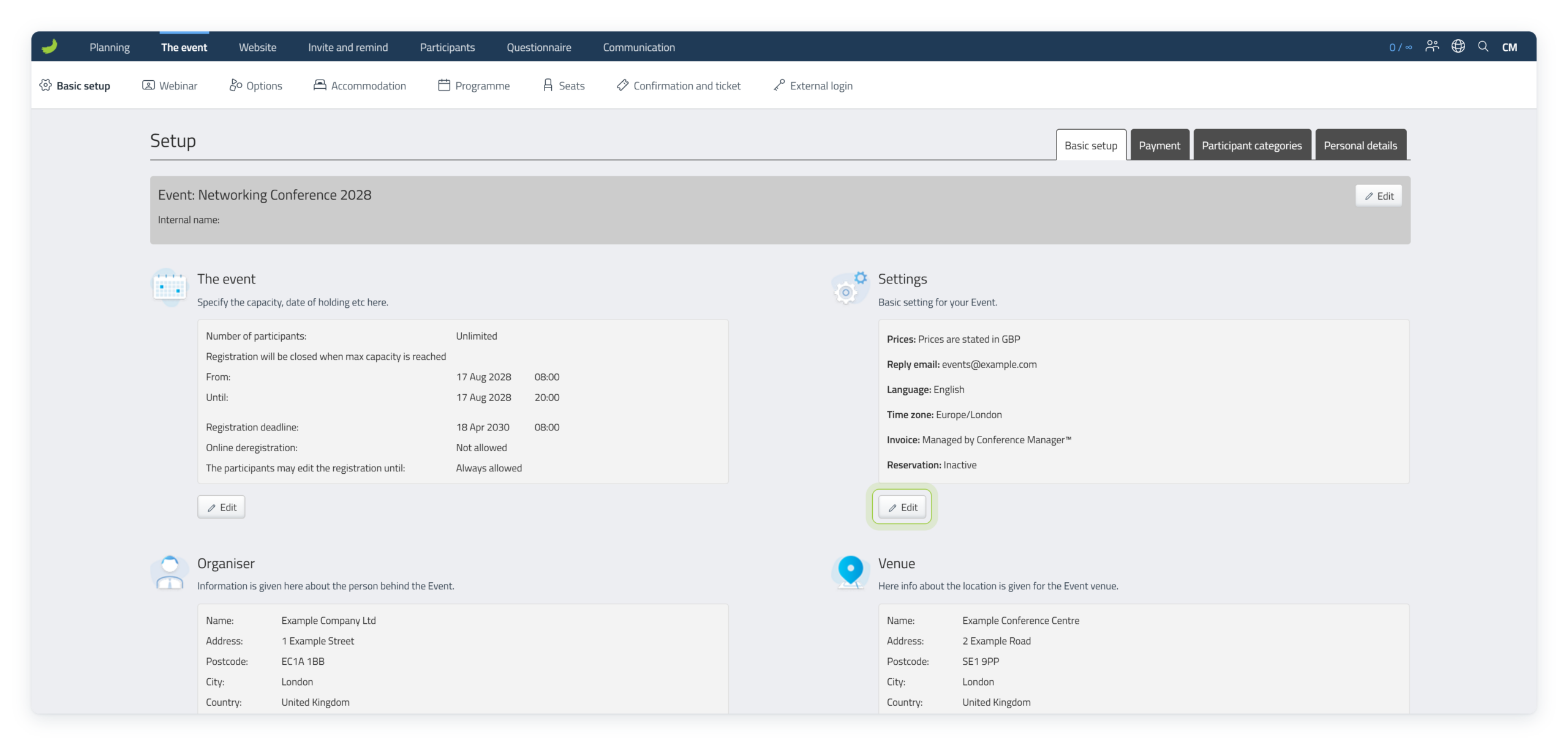
Click Edit under Settings.
Under Do you wish to specify prices for attending the Event?, select I would like to be able to specify prices.
Choose whether to manage invoicing yourself or use Conference Manager’s Invoice module.
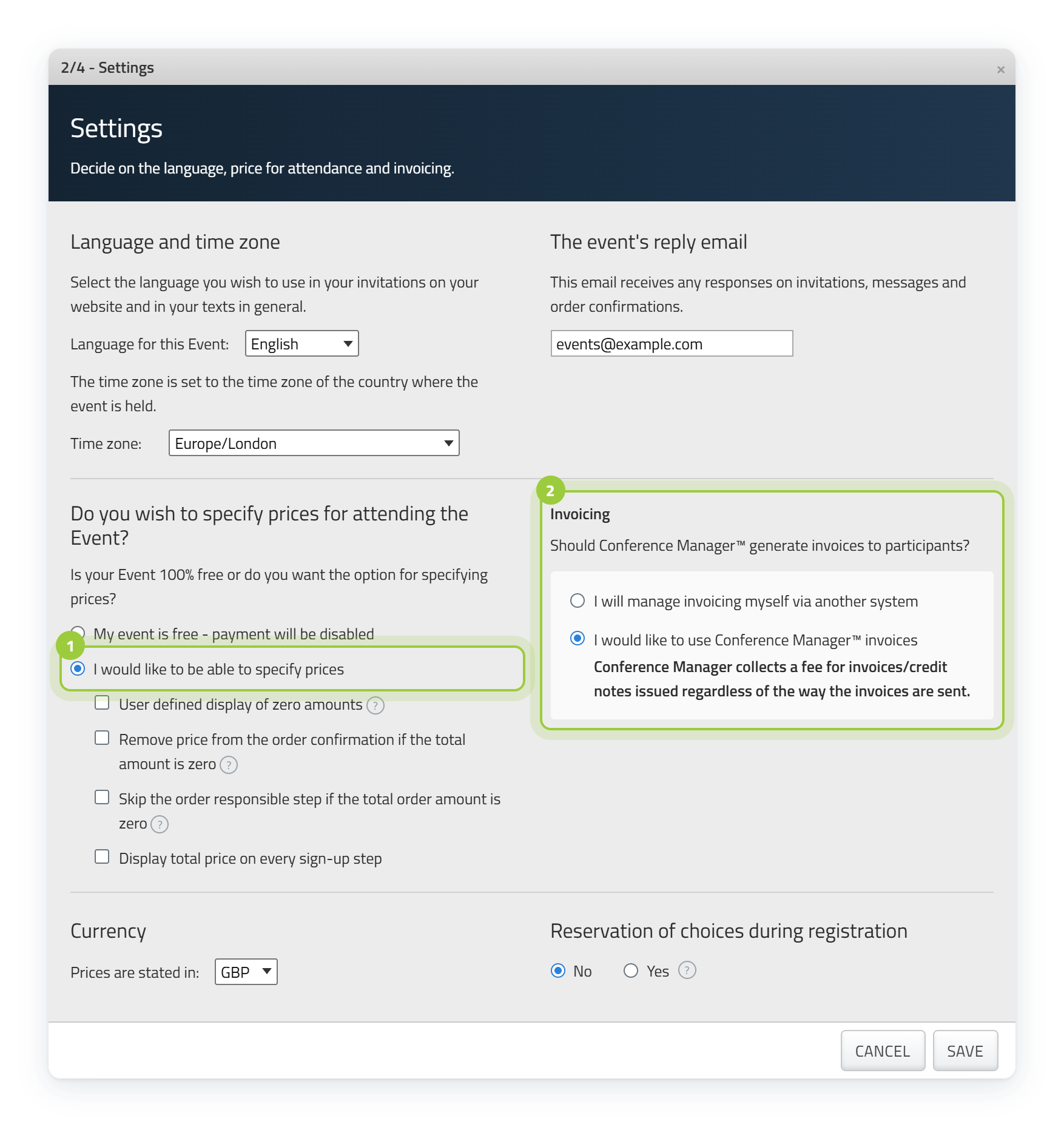
Review the additional pricing settings and check your currency.
Click Save.
The Payment tab is now available under Basic setup.
Choose your currency carefully. Once orders have been created, the currency cannot be changed.
Tailor the guide
Not sure? Skip it, and you see all of it.
Configure VAT
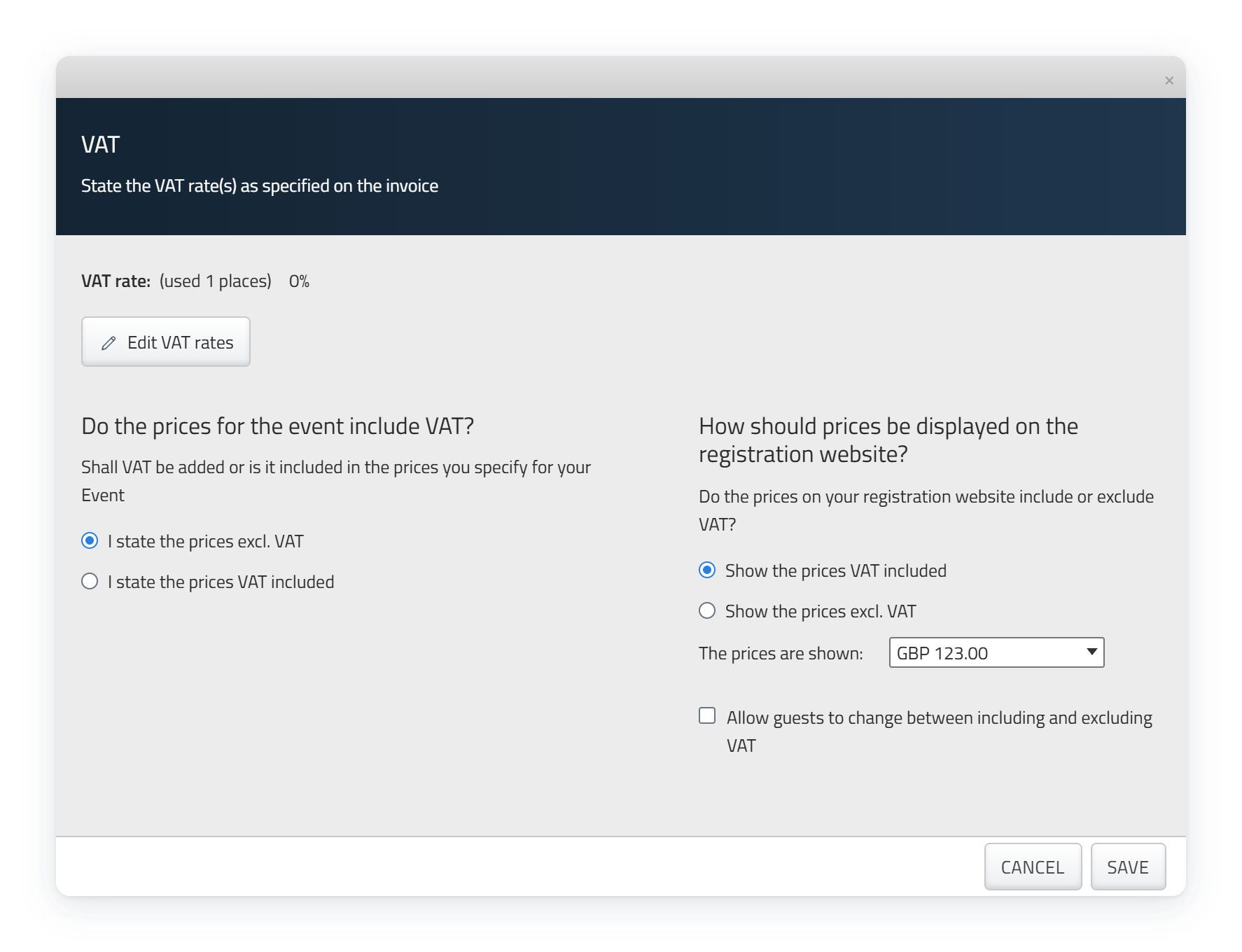
If you use Conference Manager’s Invoice module, you can configure VAT rates and how prices are entered and displayed.
Under VAT, click Edit.
Click Edit VAT rates if you need to add or change VAT rates.
Choose whether the prices you enter include or exclude VAT.
Choose how prices should be displayed on the registration website.
If relevant, allow participants to switch between prices including and excluding VAT.
Click Save.
Choose your payment solution
You can choose between CMPM and your own payment methods.
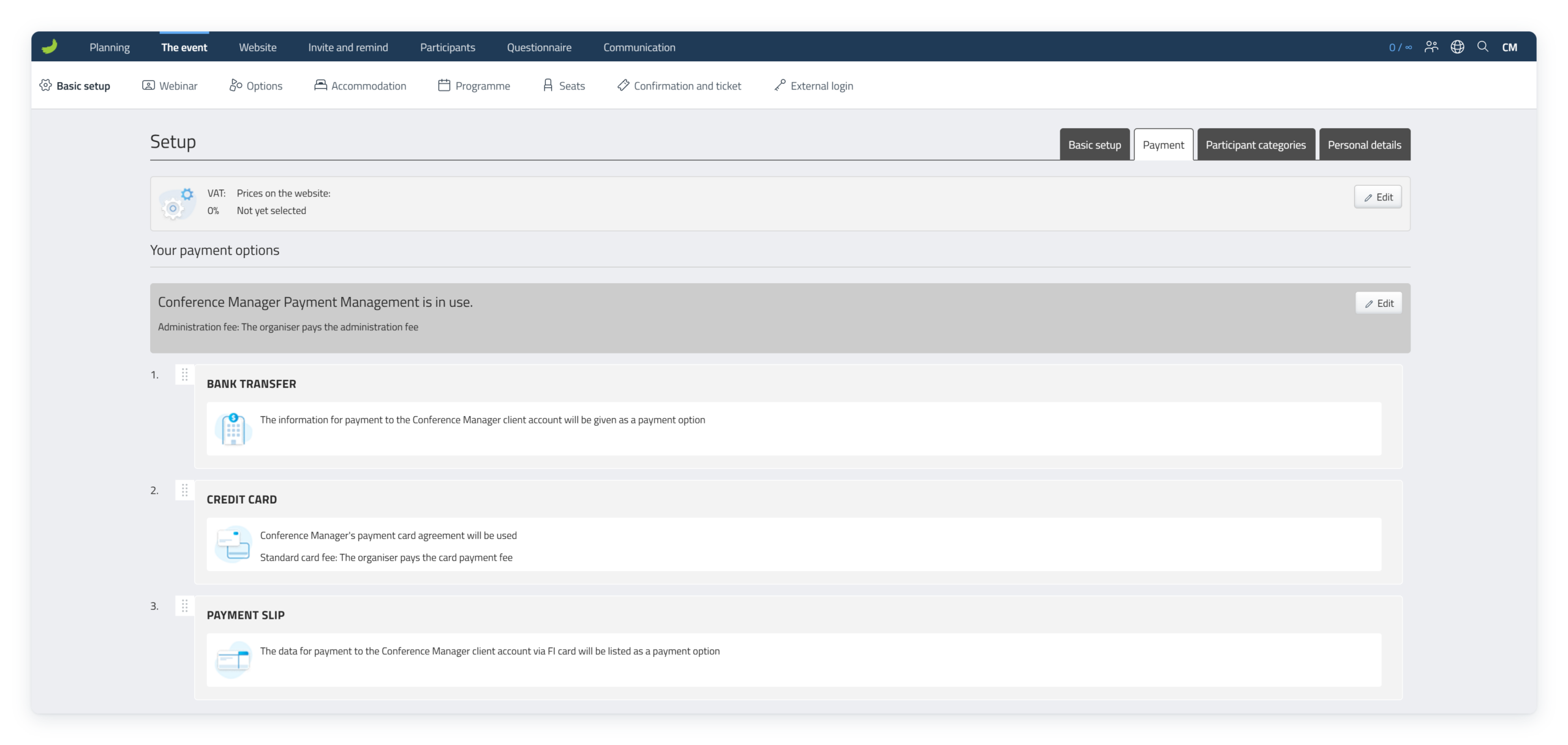
Under Your payment options, click Add payment option.
Select either Conference Managers payment methods or Own payment methods.
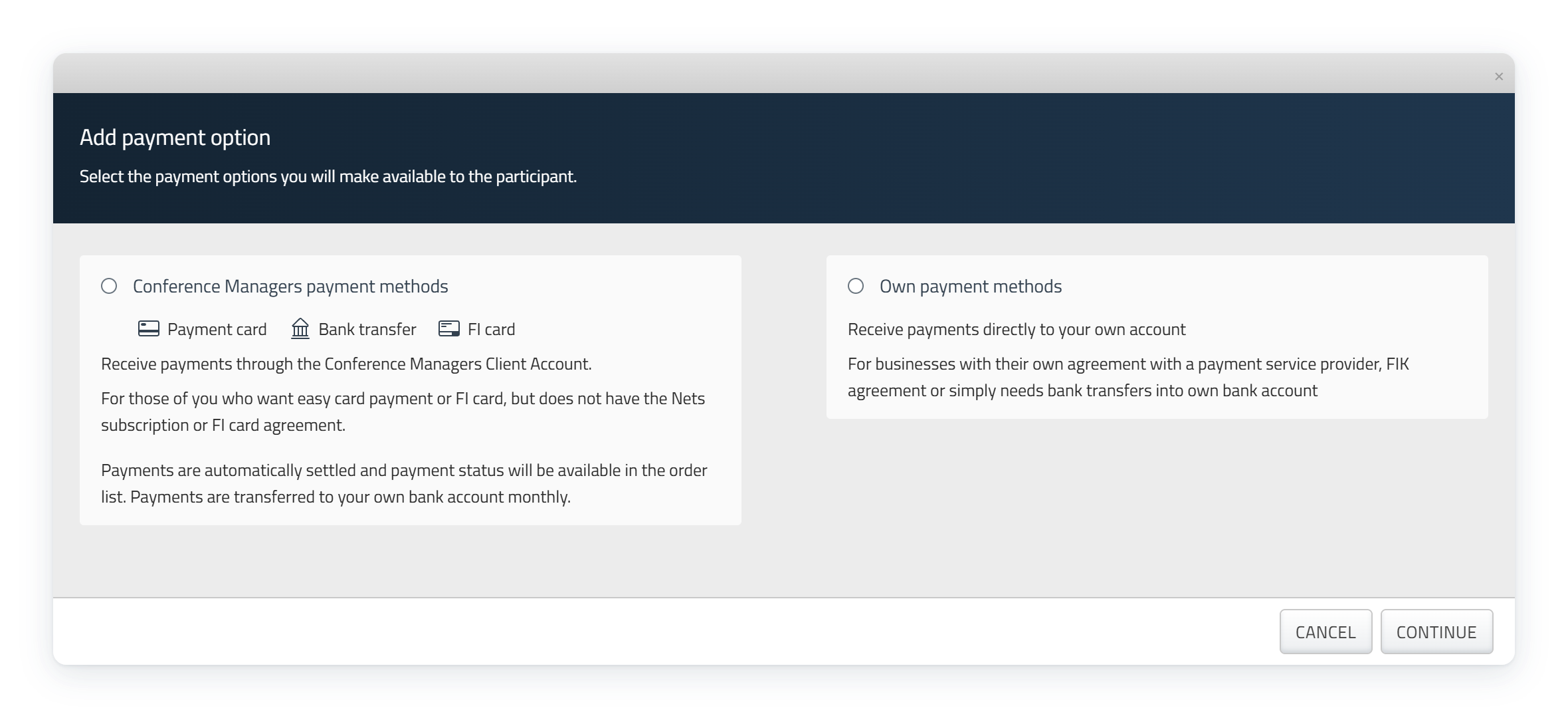
You can only use one payment solution per event. You can switch between CMPM and your own payment methods by clicking Edit and then Change, provided no transactions have been made. Once transactions have been made, you can no longer switch solutions. You can still enable or disable individual payment methods within your selected solution.
Set up Conference Manager Payment Management (CMPM)
If you want Conference Manager to handle payments, select Conference Manager’s payment methods.
You can enable one or more payment methods:
Payment cards
Participants pay by card during registration.
Payment slip (FI / Giro)
Participants pay using the payment information provided.
Bank transfer
Participants transfer the amount using the provided bank details and payment reference.
Select Conference Managers payment methods.
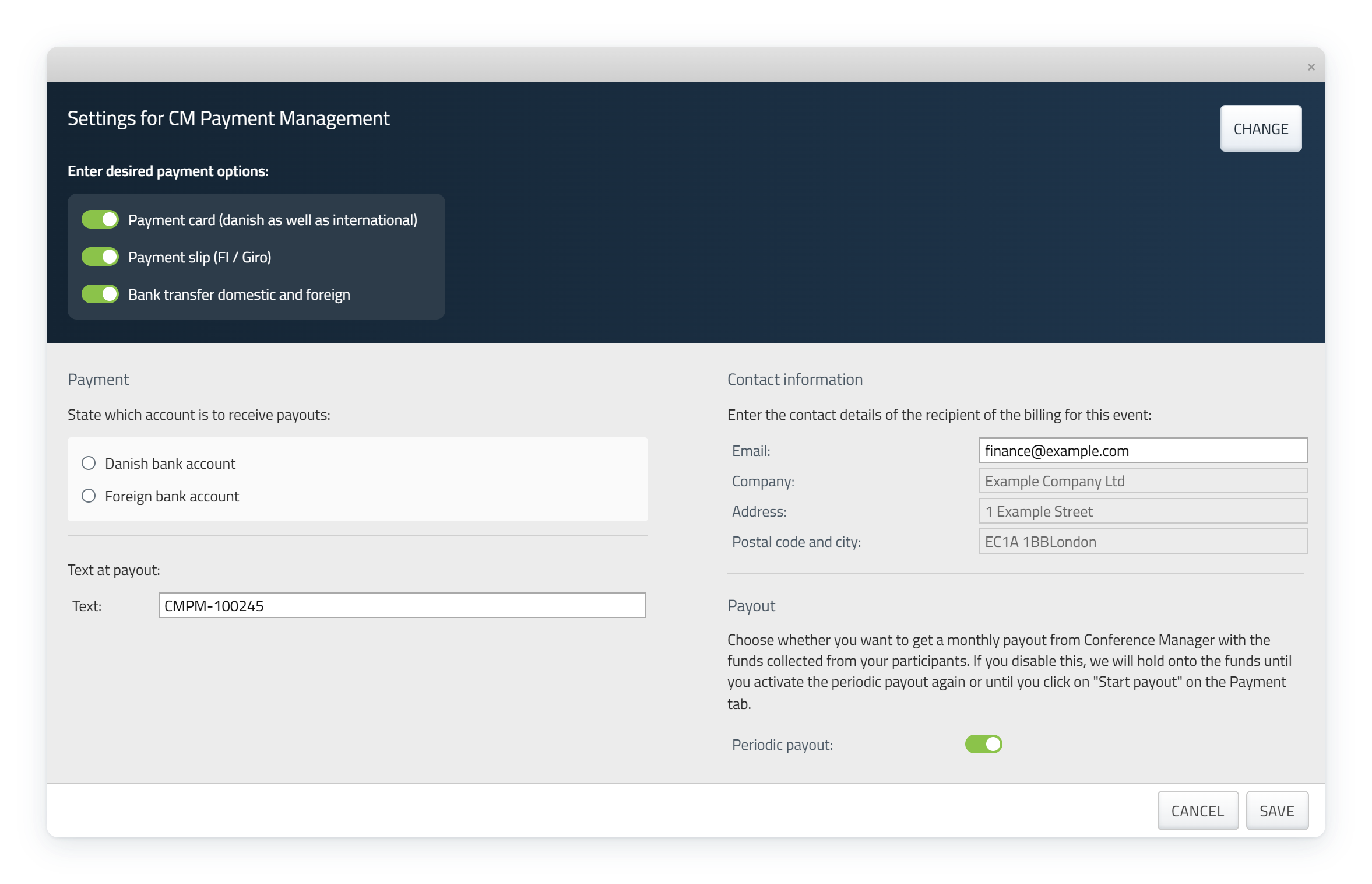
Accept the Terms and conditions for CM Payment Management and click Continue.
Enable the payment methods you want to offer.
Review your payout account under Payment and customise Text at payout if needed.
Review the details under Contact Information.
Enable or disable Periodic payout according to your preferred payout arrangement.
Click Save.
For bank transfers, participants must include the correct payment reference so Conference Manager can match the payment to their order. If Periodic payout is disabled, you can initiate payouts manually instead.
Set up your own payment methods
If you prefer to manage payments through your own solutions, select Own payment methods.
You can enable one or more of the following:
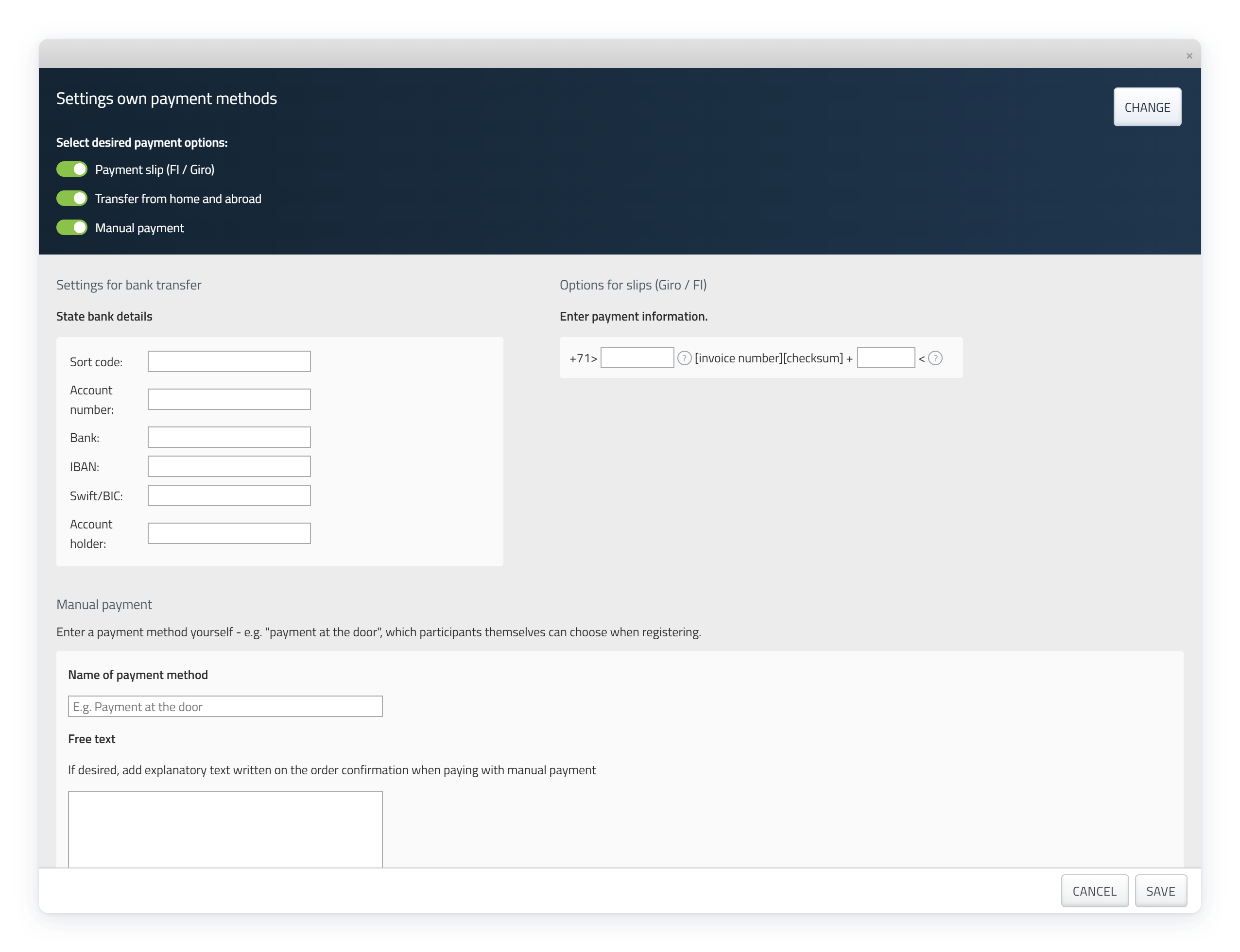
Payment slip (FI / Giro)
Enter the required payment information under Options for slips (Giro / FI).
Bank transfer
Enable Transfer from home and abroad and enter your bank details under Settings for bank transfer.
Manual payment
Enable Manual payment to offer a custom payment method, such as payment at the door. Enter a name and, if needed, explanatory text for the order confirmation.
Payment cards
If your organisation has its own payment gateway integrated with Conference Manager, card payments may also be available. You can configure card fee handling and choose whether payments are captured manually or automatically after authorisation.
Select Own payment methods.
Click Continue.
Enable the payment methods you want to offer.
Enter the relevant payment details and instructions.
Click Save.
Interested in using your own payment gateway? Open your profile menu in the top-right corner of Conference Manager and select Modules. Here, you can find and order the Payment module. You will also need an agreement with a supported payment gateway provider.
Additional options for e-invoicing
If you have also enabled e-invoicing, you can choose to make certain payment methods available only for electronic invoicing.
Enable Only available in e-invoicing next to the relevant payment method.
Review your payment setup
Before opening registration, check that your payment methods are available, your payment information is correct and participants can complete the registration process.
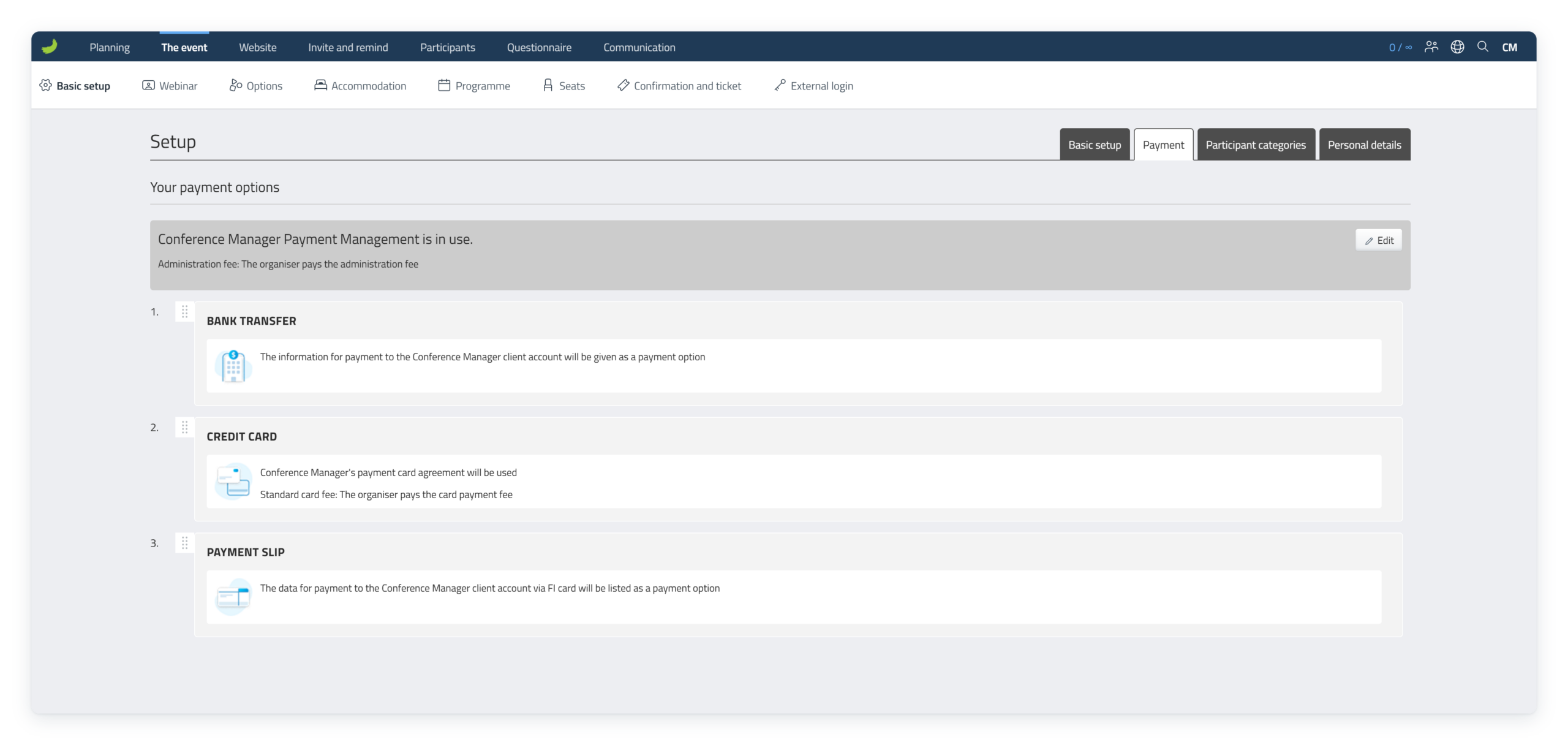
You can return to the Payment tab at any time to review your setup or edit the individual payment methods.