


You can enable a waiting list so people can sign up when your event is fully booked. When a place becomes available, you can offer it to someone on the waiting list either automatically or manually.
Enable the waiting list
You can activate the waiting list in your event’s basic setup.
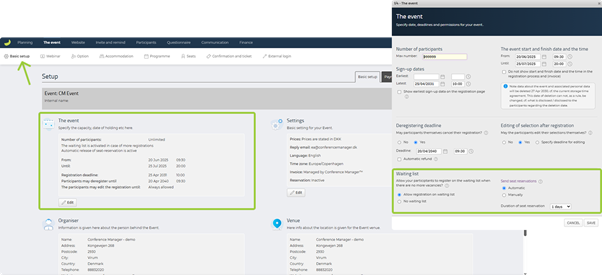
Click Edit in the The event section.
Under Waiting list, select Allow registration on waiting list.
Under Send seat reservations, choose Automatic or Manual.
Select the Duration of seat reservation, for example one day.
Click Save.
Automatic sends a reservation when a place becomes available. Manual lets you decide when reservations are sent.
Manage the waiting list
When someone joins the waiting list, a number appears beside the waiting list icon in the upper-right corner of your event.
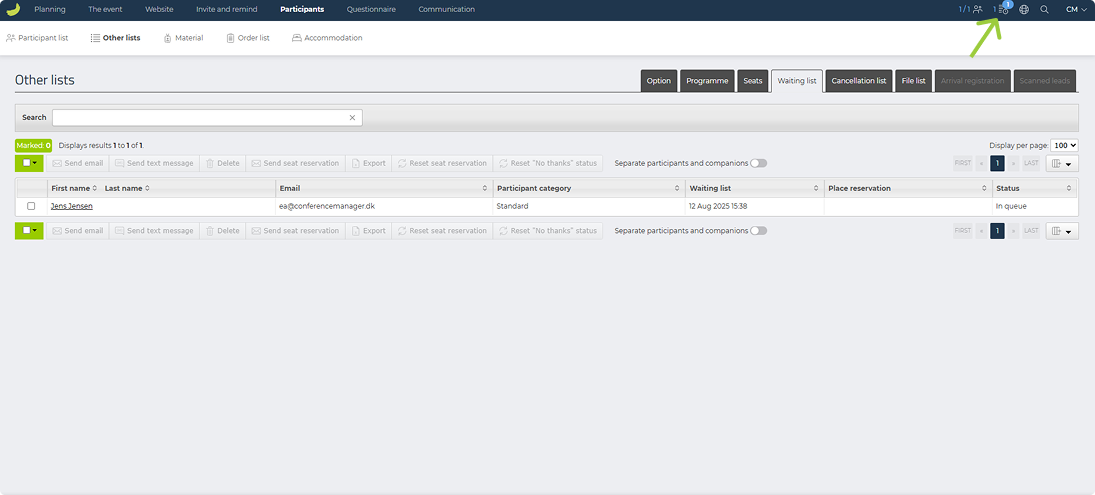
Click the icon to open the waiting list directly, or use this navigation:
Automatic reservations
If Send seat reservations is set to Automatic, a reservation is sent as soon as a place becomes available.
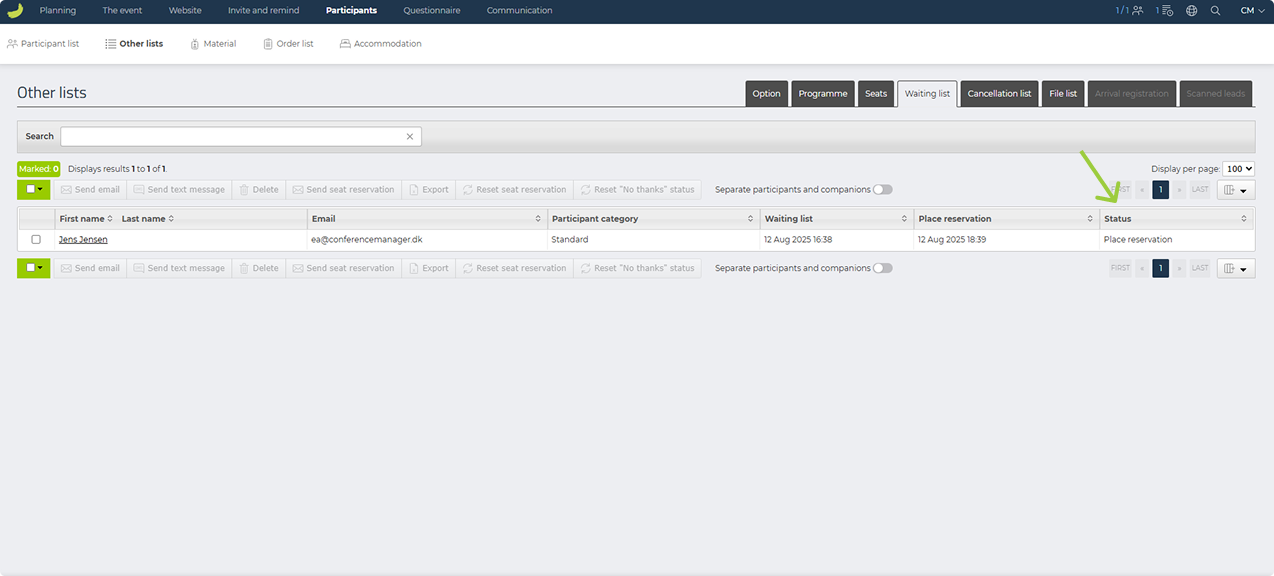
- Check the Status column to see who has received a reservation.
- Once someone completes their registration, they are moved from the waiting list to the participant list.
If the reservation expires before the person registers, the place can be offered to the next person.
Manual reservations
If you selected Manual, you must send the reservation yourself.
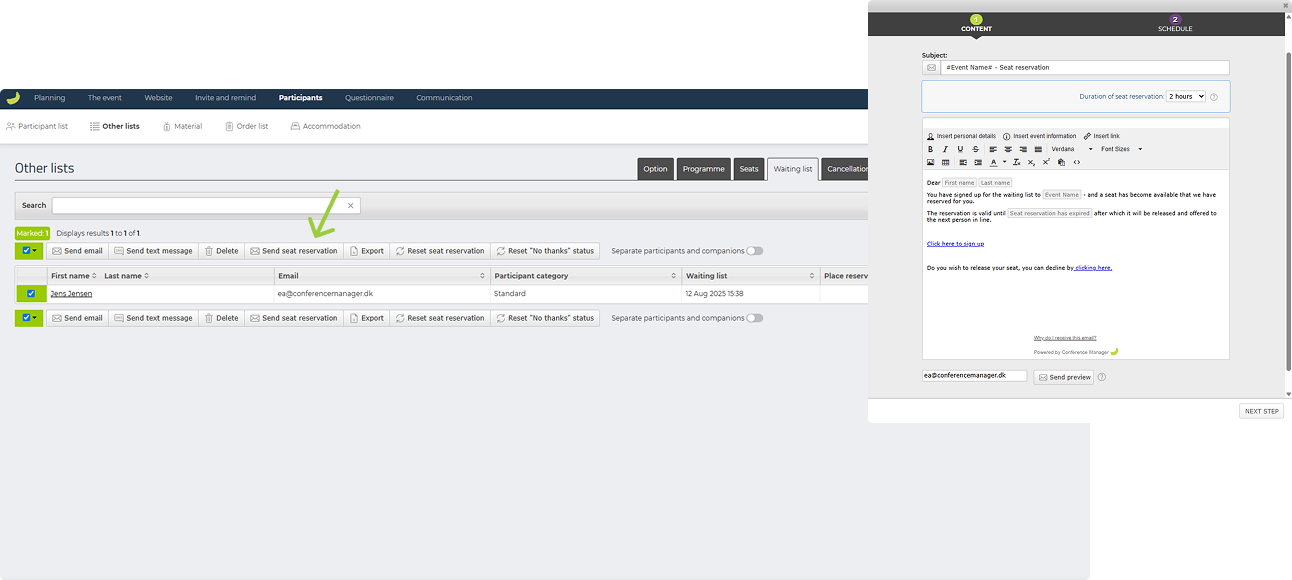
Select the checkbox beside the relevant person.
Click Send seat reservation.
Confirm the Duration of seat reservation and edit the email if needed.
Click Next step to send the email immediately or schedule it for later.
Confirm the sending.
The default email includes personal details, event information and the reservation deadline. You can adjust its wording, links and formatting.
The recipient receives a link to complete their registration. If they do not register before the deadline, you can offer the place to another person.
If a seat reservation expires
An expired seat reservation cannot simply be extended by resending the same email.
Depending on your settings, you have two options:
- Manual reservations: Select the person, click Reset seat reservation, and send a new reservation manually.
- Automatic reservations: Temporarily switch to Manual, wait for an available place, and send the person a new reservation.
Resetting and resending a reservation may cause the event’s capacity to be exceeded if another person has registered in the meantime.