



Once you have been registered as a user in Conference Manager, you will receive a welcome email with the information you need for your first login. The email includes your username, a temporary password, and the name of the organization you should log in to.
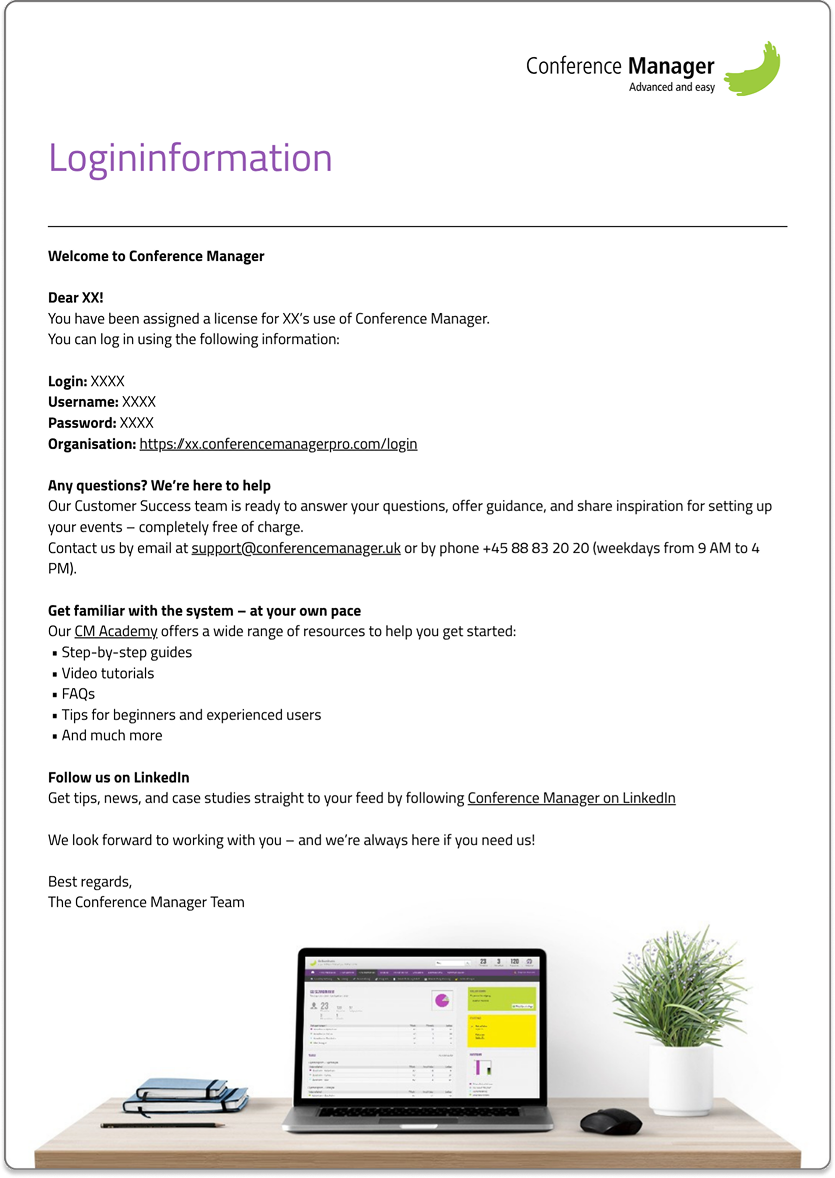
Follow these steps to log in for the first time:
Open your welcome email from Conference Manager.
Click the link in the email to go directly to the login page.
Enter your username and the temporary password you received.
Click Log in.
Make sure to log in using your username – it is not necessarily the same as your email address.
After logging in with your temporary password, the system will prompt you to create a new personal password.
Choose a secure password that you will remember for future logins.
You will also be asked to set up two-factor authentication (2FA) using an authenticator app. The app generates a 6-digit code to help protect your account. Follow the instructions on the screen to connect your app and confirm the setup.
Related guideSet up two-factor authentication with an authenticator appNeed help setting up 2FA? Follow this guide.Read the guideAt the same time, you must complete your user profile. Please remember to:
- Enter your job title.
- Confirm your email address.
- Select your language and location.
Once all information has been completed, remember to click Update to save your changes.
Once your new password has been created, you can log in to Conference Manager using your personal password from now on. When prompted, enter the code from your authenticator app to verify your login.
If you experience any issues logging in, you are always welcome to contact us.