



This guide shows you step by step how to log in with your external login for the first time, create your own password and set up two-factor authentication.
Open the email with your login details
You will receive an email from Conference Manager with:
- Your username
- Your temporary password
- A mobile key (for the CM Exhibition app only)
- A link to the login page
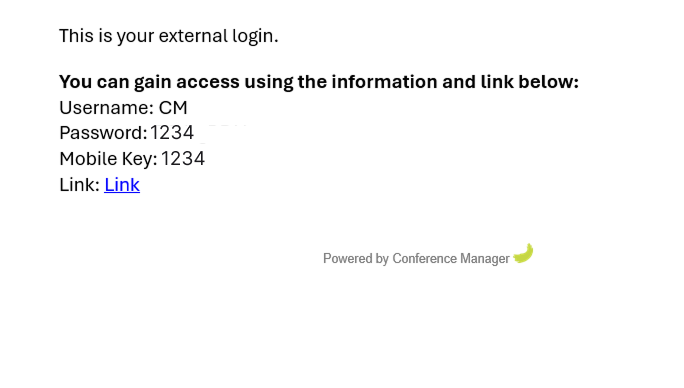
Click the link in the email to open the login page.
Enter username and temporary password
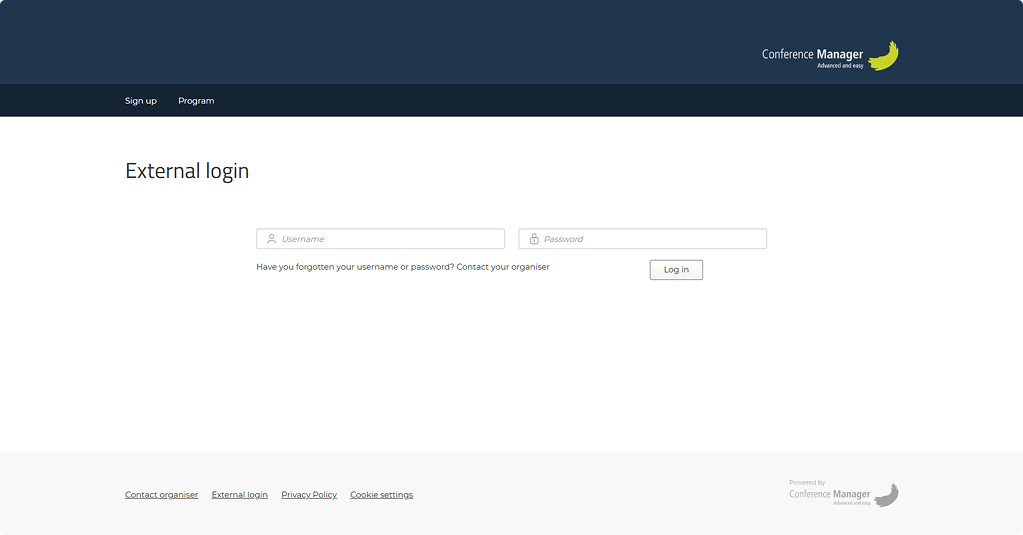
- On the login page, type your username and the temporary password from the email.
- Click Login.
Create your own password
The first time you log in, you will be asked to create your own password.
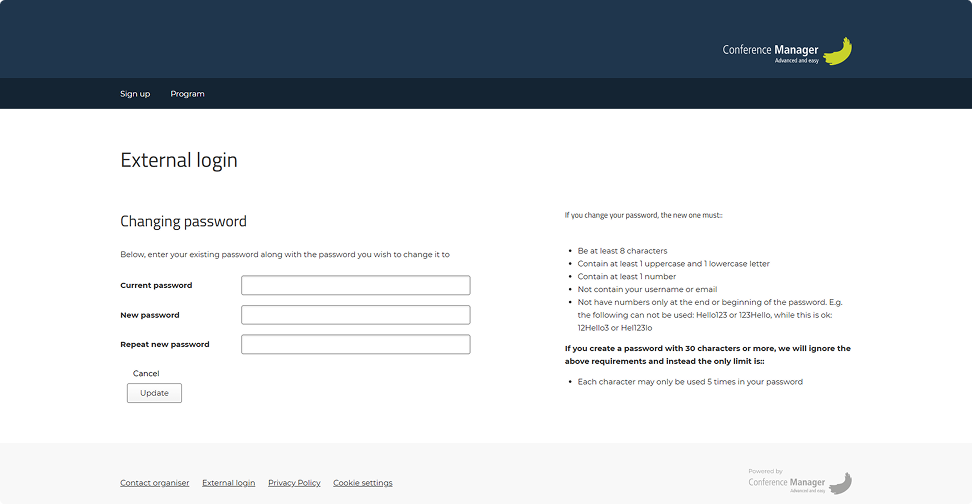
- First, enter the temporary password you received.
- Then enter a new password and confirm it.
- Click Update to complete.
From now on, you will use your new password when logging in.
Set up two-factor authentication
After you create your new password, you will be asked to set up an authenticator app (for example, Google Authenticator or Microsoft Authenticator).
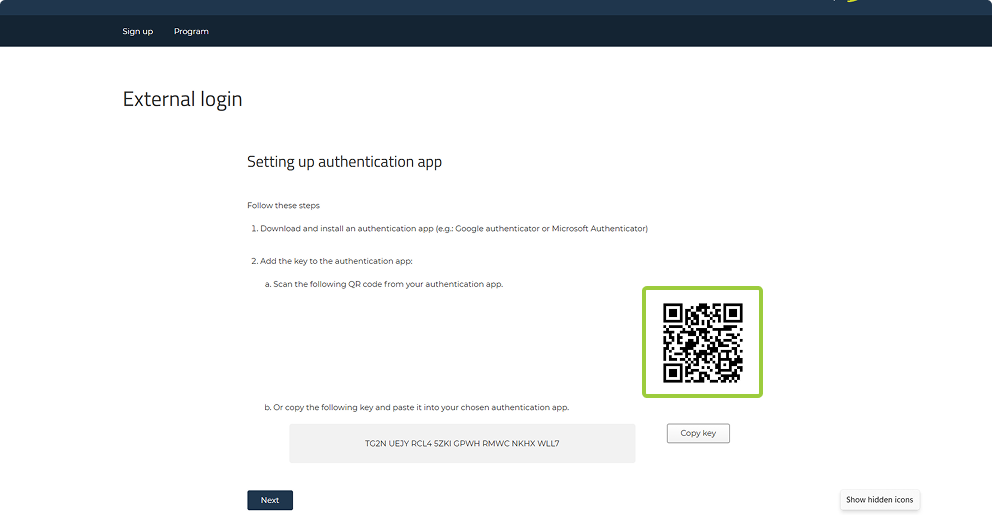
- Download and install an authenticator app on your mobile device, if you don’t already have one.
- Open the app and scan the QR code shown on the screen, or manually enter the key code displayed.
- The app will now generate a one-time 6-digit code that refreshes continuously.
Enter the code from the app
- Type the 6-digit code from your authenticator app into the field on the screen.
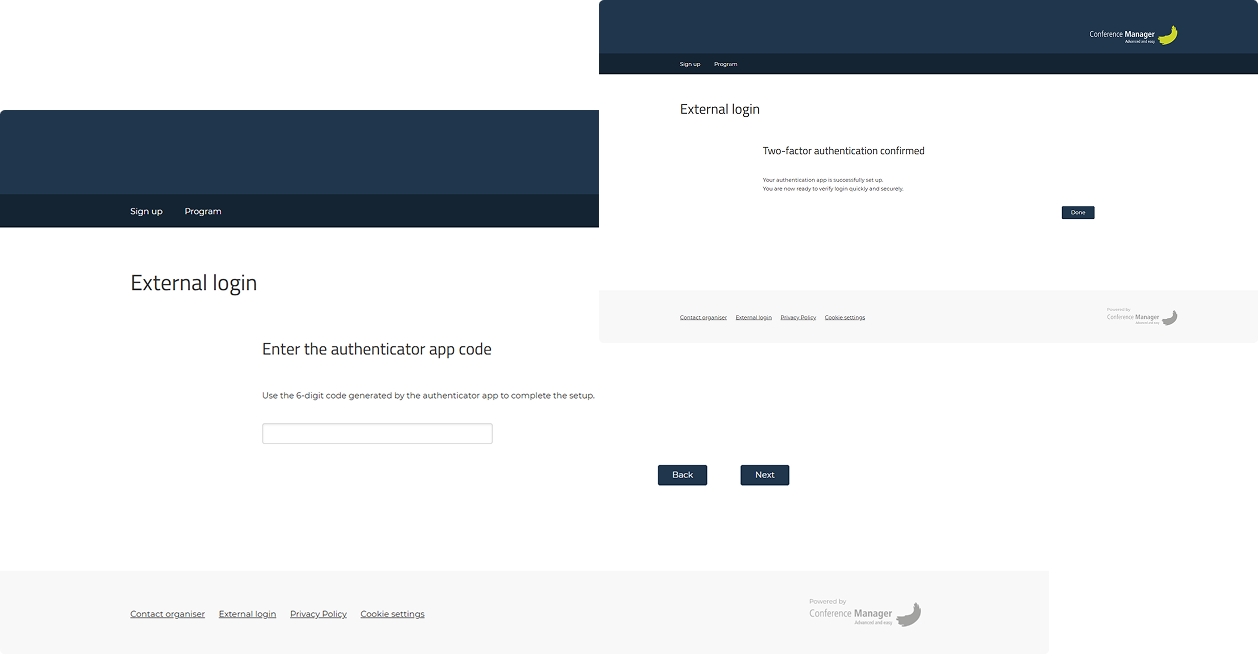
- Click Next and then Done to complete the setup.
Log in with your new password
- Enter your username and your new password.
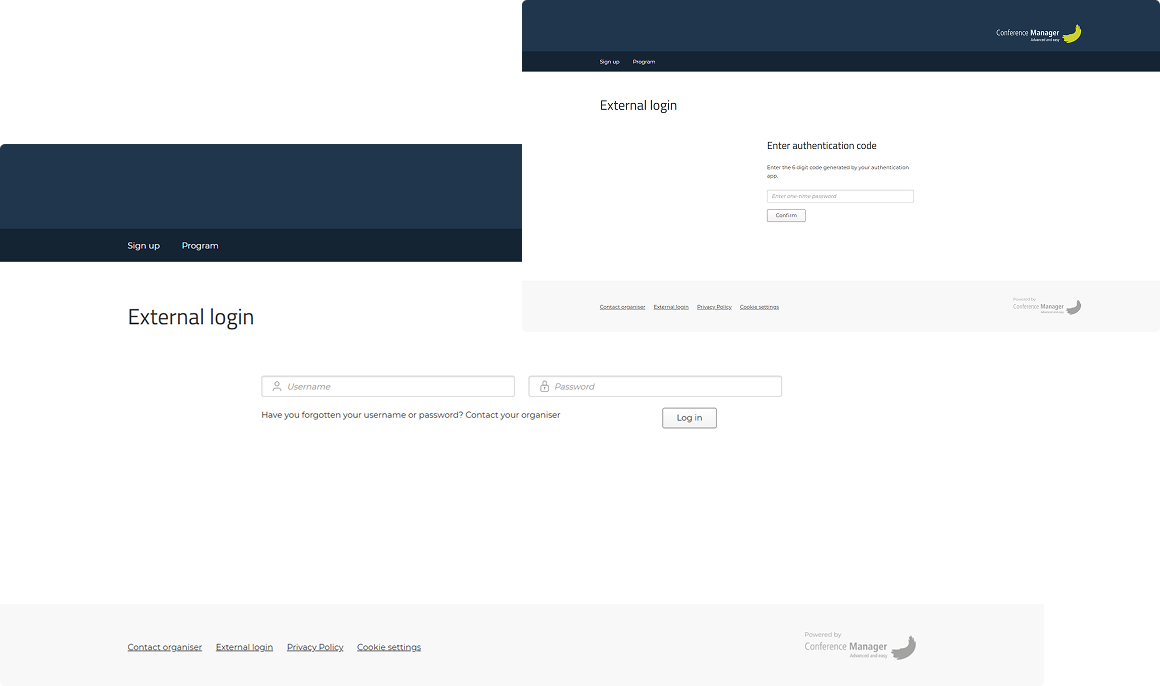
Since you are now logging in for the first time on your IP address, you will be asked to enter a code from your authenticator app again.
From now on, always use your new password and the code from the app when prompted.