



This email is automatically sent to participants on the waiting list when a seat becomes available. To activate the email, the waiting list must be enabled, and seat reservations must be in use.
This article shows how to configure those settings step by step.
Enable the waiting list
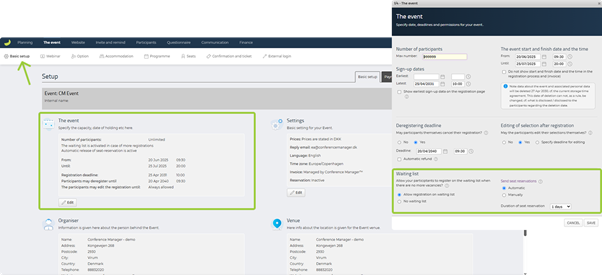
Click Edit on the section called The event.
Under Waiting list, select Allow registration on waiting list.
Under Send seat reservations, choose either:
Automatic – the system sends a reservation immediately when a spot opens.
Manual – you control when invitations are sent from the waiting list.
Choose Duration of seat reservation (e.g. 1 day).
Click Save.
Edit the email (optional)
Until the waiting list is enabled, the email is shown as inactive under Automatic emails. Once the waiting list is enabled, the email is activated automatically. You only need to edit it if you want to change the content.
Find the email Waitlist update: New spot available.
Click Edit to customise the email content.
Click Save.
When is the email triggered?
The New spot available email is sent when a seat becomes available and a seat reservation is issued.
This can happen in two ways:
- Automatic – if you’ve selected Automatic under Send seat reservations, the system will send the email as soon as a spot opens.
- Manual – if you’ve selected Manual, you must trigger the reservation yourself from the waiting list for the email to be sent.