

With Live Q&A in Conference Manager, you can create an interactive question session during your event.
First, you need to create an external login in Conference Manager. This login is your access point to start and control the Live Q&A session on-site.
Watch a quick explainer

Create an external login
Go to The event and External login.
If external login is not yet enabled on your website, the system will show a message telling you this. Click the link in the message to go directly to the website settings.
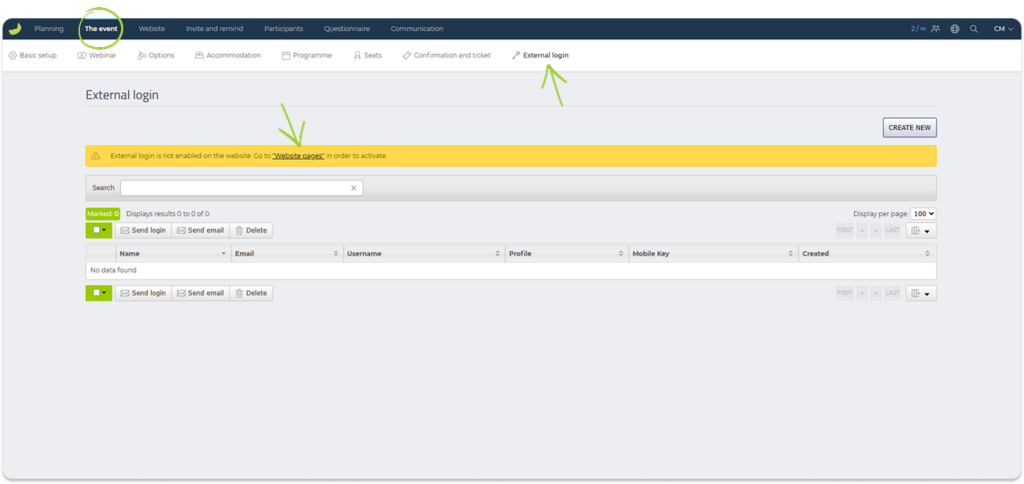
You will now be taken to the Website Designer.
To activate the external login page:
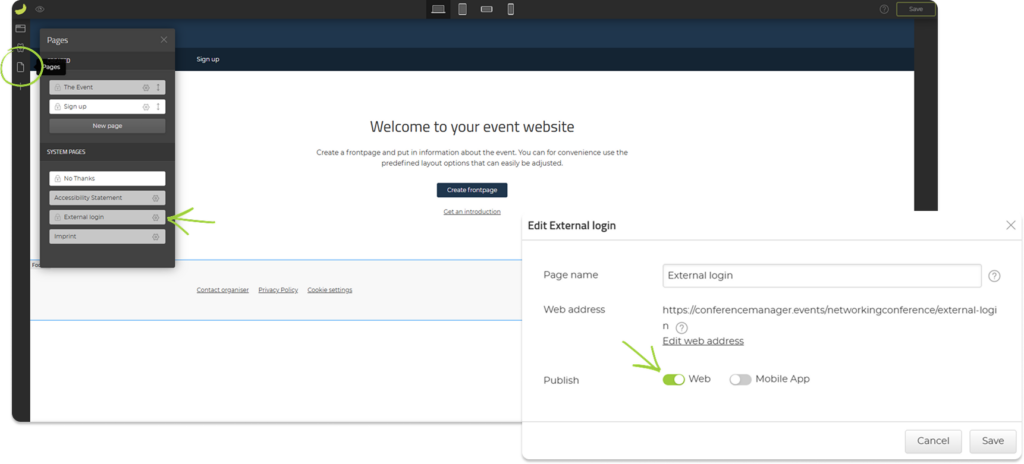
- Click Pages in the left corner.
- Find External login under System pages.
- Click the Settings icon.
- Next to Publish, select Web.
- Click Save.
Once this has been done:
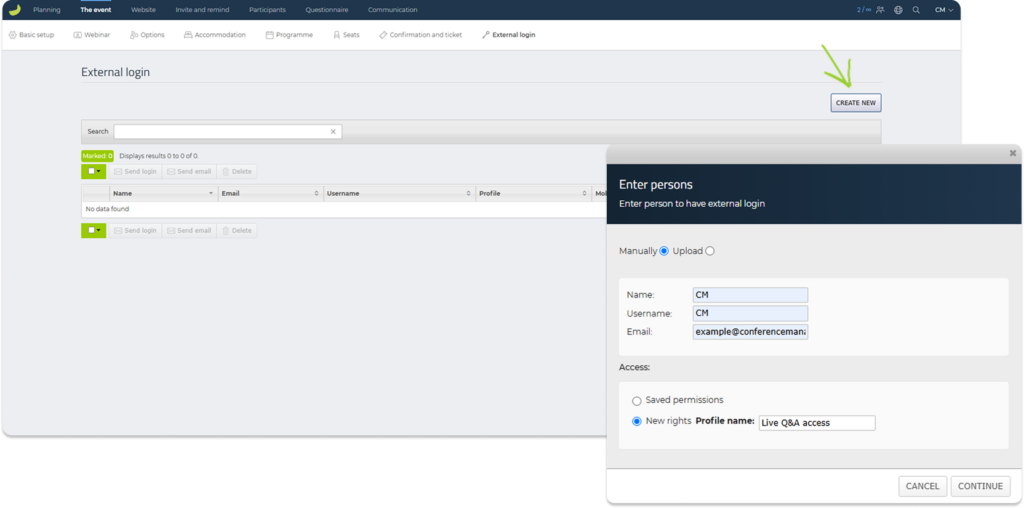
- Return to The event and External login.
- Click Create new.
- Choose to create the login manually.
- Create a Username.
- Fill in the personal information.
- Create a Profile name for this set of access rights.
The profile will be saved and can easily be used again in the future if you need to create another external login with access to Live Q&A.
Under access rights:
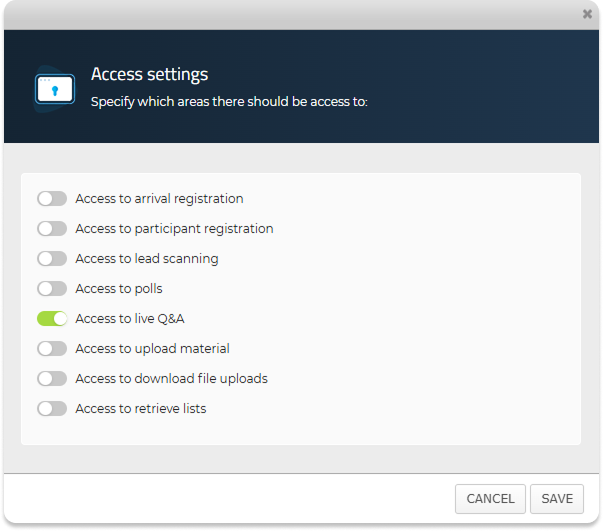
- Select Live Q&A as the information that should be accessible.
- Click Save.
Once you have created the external login, it will appear in the overview.
To access the login details:
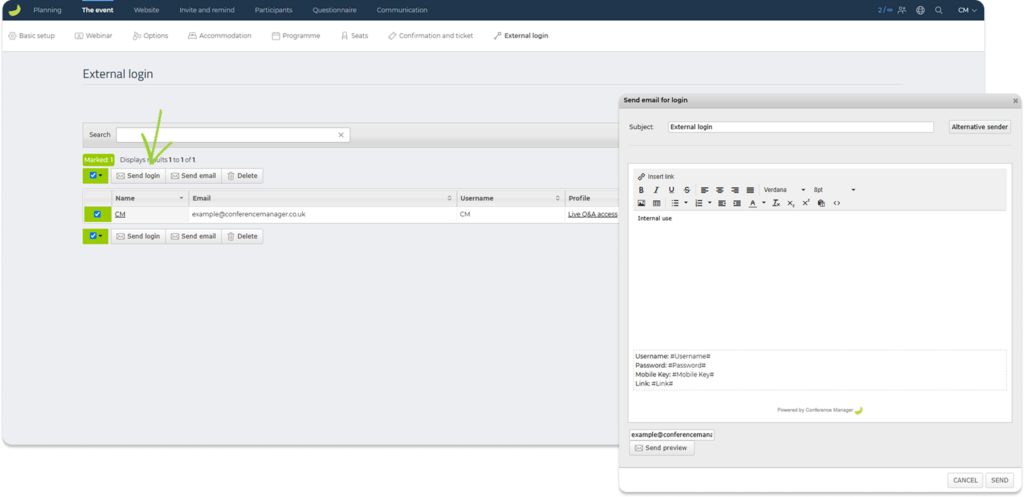
- Check the box next to the external user.
- Click Send login.
- Enter a subject and message.
The system requires you to enter a subject and message before the email can be sent. Since you are sending it to yourself, it is not important what you write.
Your login details will automatically appear in the email you receive.
Run the Live Q&A with the external login
Open the external login page using the link shown in the email.
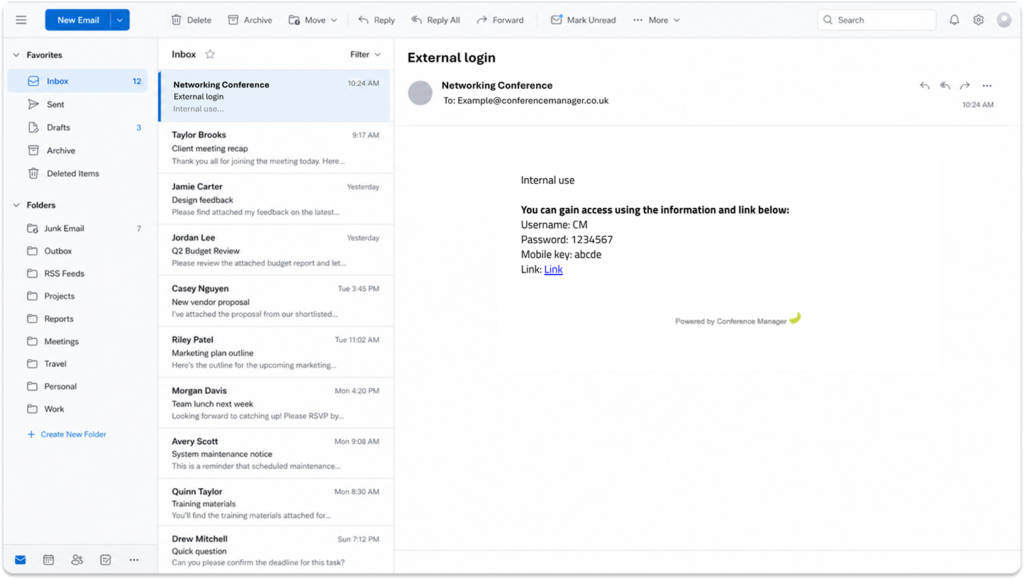
Log in with the external login details.
The first time you log in:
- Enter the temporary password shown in the email.
- Create a new password.
- Set up two-factor authentication using an authenticator app.
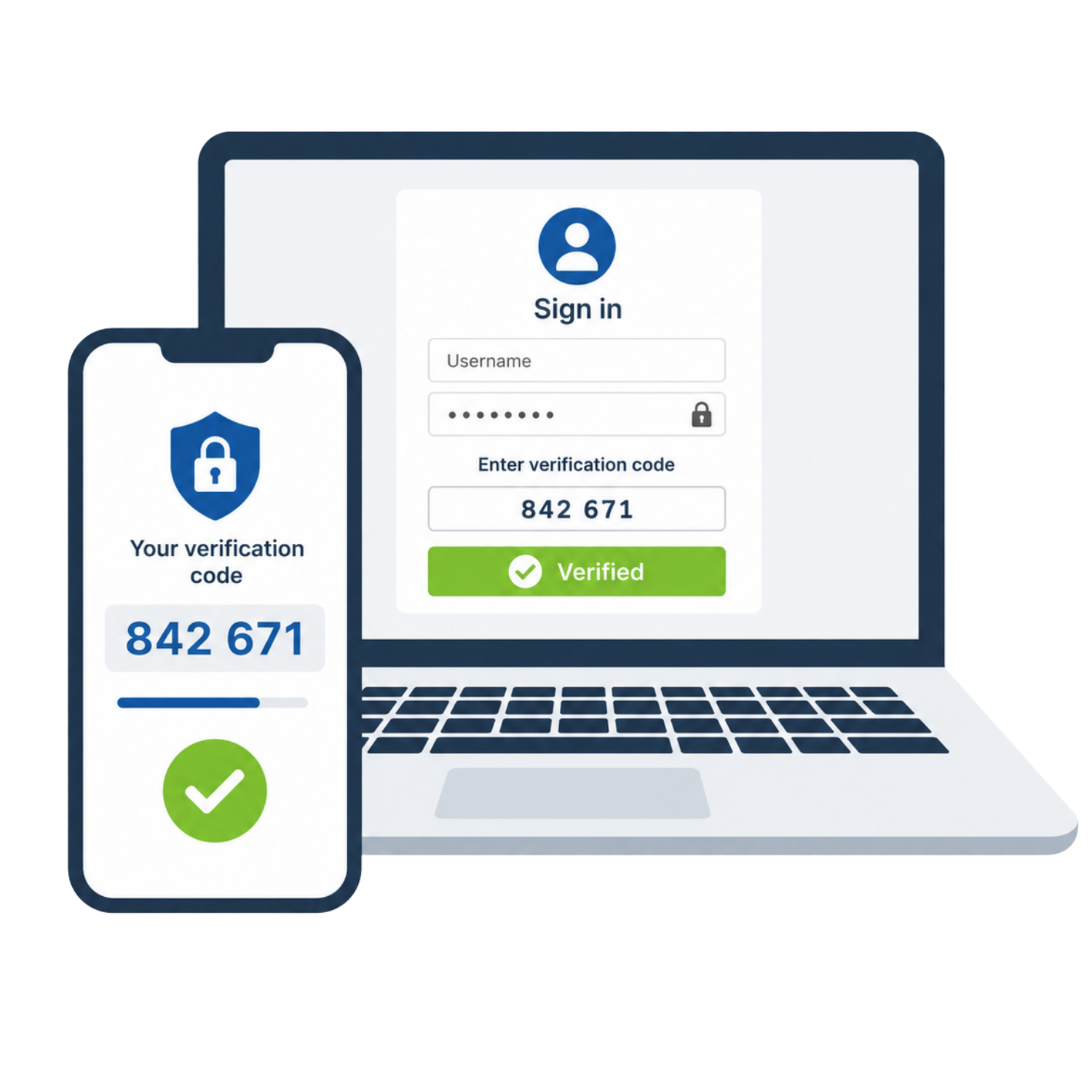
Click here to learn more about how to set up two-factor authentication for an external login.
Once logged in:
- Go to Live Q&A.
- Click Start a new session.
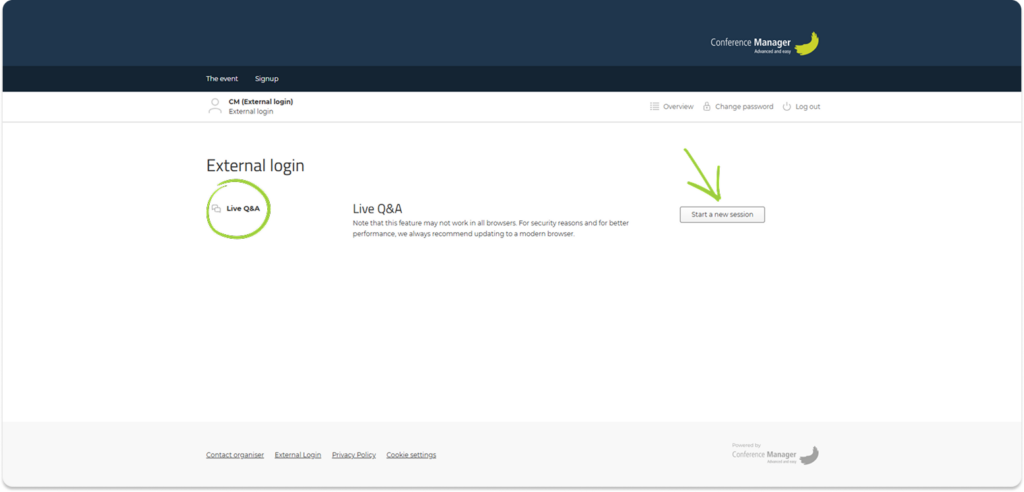
This opens the Live Q&A in a new window.
The Live Q&A can now be shown on a big screen during the event, so participants can follow along and submit questions.
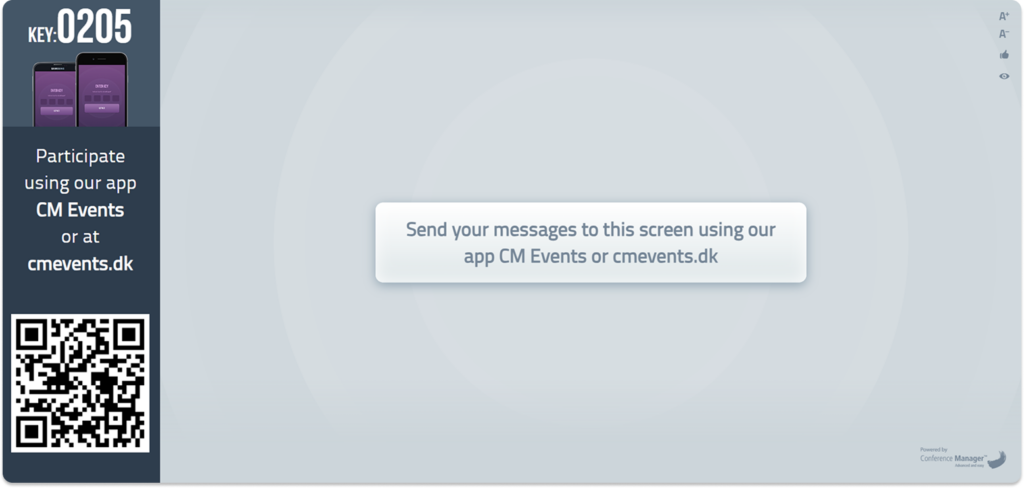
Participants can join by opening the CM Events app or going to cmevents.dk and entering the four-digit key shown on the big screen.
Adjust the Live Q&A settings
In the Live Q&A view, you can choose whether participants should only see their own messages on their device.
If this setting is disabled, all messages will be shown on participants’ devices, and they will be able to upvote each other’s messages.
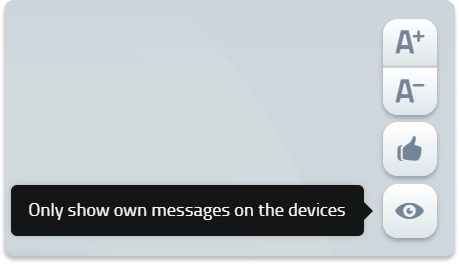
If the setting is enabled, participants will only be able to see their own messages, and they will not be able to upvote messages.
You can also:
- Adjust the text size on the big screen.
- Choose whether the messages shown on the big screen should be sorted by the number of upvotes.
Once participants have joined, they can submit questions live during the session.