



Under The event → Webinar, you can create webinars for online and hybrid events.
You can stream directly through CM Live or connect the event to an external webinar provider such as Zoom or Microsoft Teams. Conference Manager gives each participant a personal webinar link, which can be sent automatically and used to track whether the participant opened the link.
Related guideCM Live or an external provider – understanding your webinar optionsNot sure how CM Live differs from an external provider? Explore how the two webinar solutions work and what they offer.Read the guideBefore you begin
Before you can create a webinar, the event must have at least one participant category where the type of participation is set to Online or Hybrid.
Only participant categories with one of these participation types can be connected to a webinar.
Related guideChoose hybrid, physical and online participationLearn how to set the participation type for your participant categories.Read the guideCreate a webinar
Create a webinar
Click Create webinar.
Select CM Live or Other provider.
Enter a name for the webinar.
Select the participant categories that should have access to the webinar.
Check the start and end time.
Complete the settings for the selected webinar type and click Save.
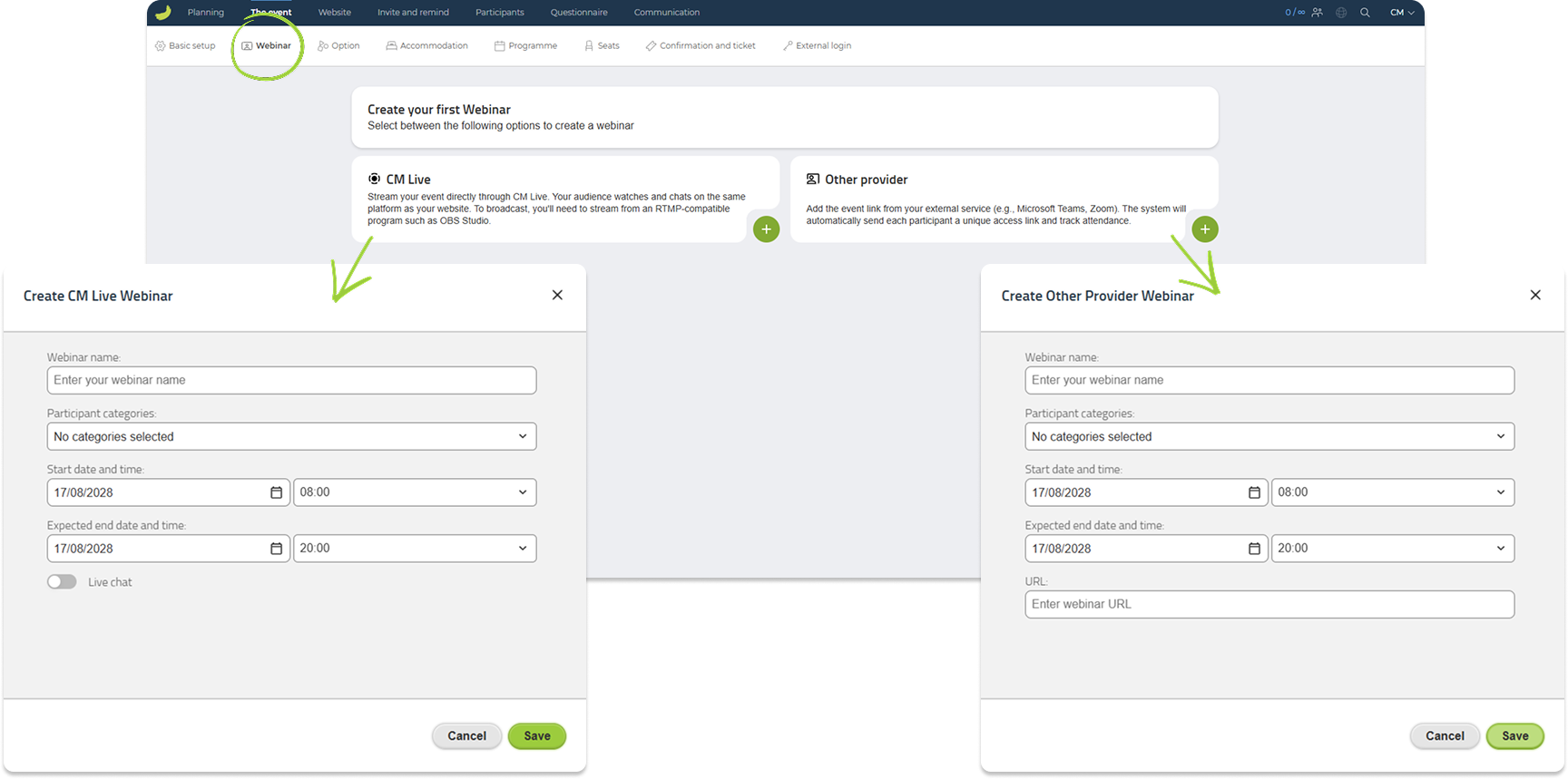
The start and end time are taken from the event settings by default, but you can change them for the individual webinar.
You can create multiple webinars within the same event. For example, you can create separate webinars for different sessions or use a new webinar link for each day of a multi-day event.
CM Live
Select CM Live to stream the webinar directly through Conference Manager.
Participants watch the stream directly on your event website and can use the built-in chat, if enabled.
When creating the webinar, you can choose whether to enable the chat. If the chat is enabled, you can also choose how participant names should be displayed.
Connect your streaming software
CM Live requires streaming software that supports RTMP. You can use your preferred compatible streaming software. OBS Studio is one example.
After creating the webinar, Conference Manager provides:
Each webinar has its own stream key.
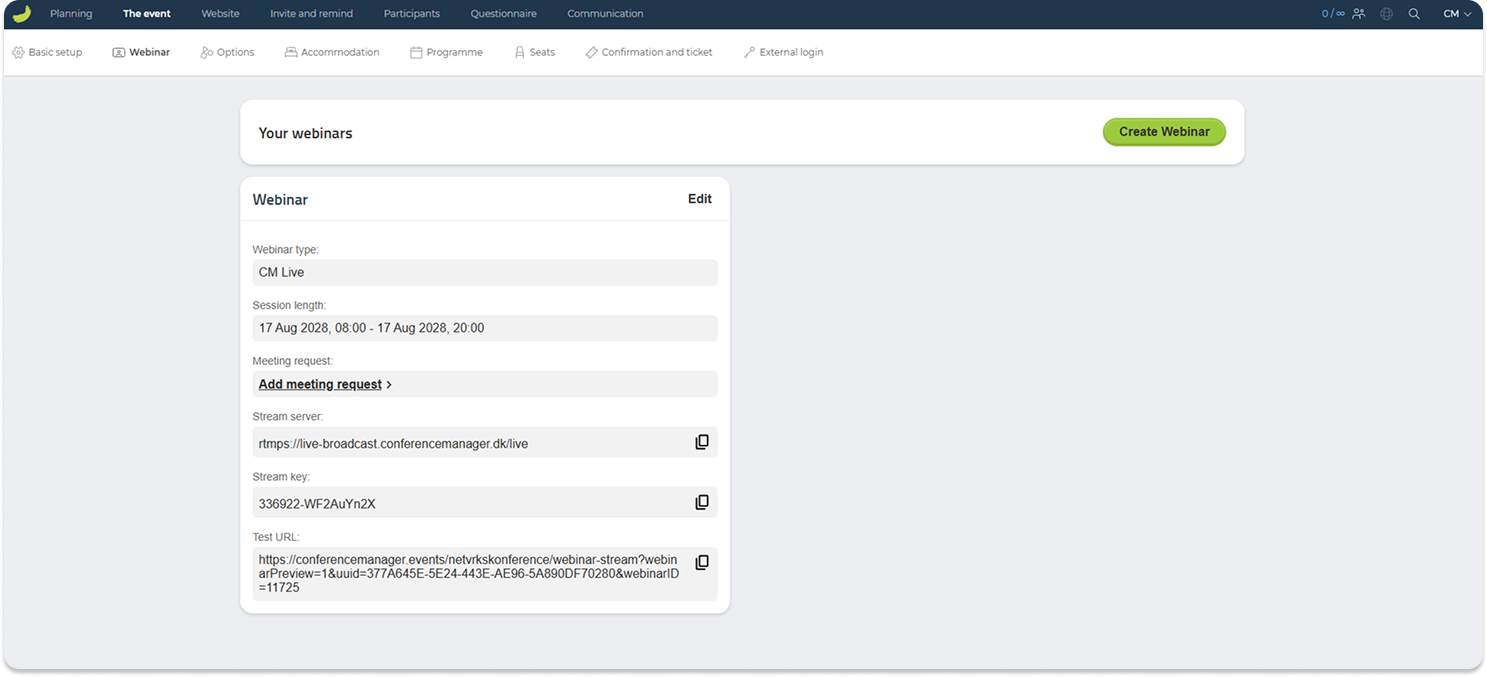
Copy the stream server and stream key into the streaming settings in your streaming software.
Related guideOBS Quick Start GuideLearn how to set up OBS Studio and prepare it for streaming.Read the guideTest the webinar
The test URL is intended for administrators.
Use it to:
- Preview the webinar page
- Test the stream before the webinar begins
- Check the participant experience
- Check that the chat is working
- Join the chat as an administrator
- Answer questions during the webinar
Start the stream in your streaming software while the test URL is open to confirm that the connection is working correctly.
VideoIntroduction to webinar featuresWatch an introduction to the webinar features in Conference Manager. Please note: The webinar interface has been updated and may look different from the version shown in the video. The available functions are, however, the same.Watch the videoOther provider
Select Other provider if you use an external webinar or meeting service, such as Zoom, Microsoft Teams or another provider.
First create the webinar or meeting in the external service. Then copy its webinar URL and enter it in Conference Manager.
Connect an external provider
Select Other provider.
Enter a name for the webinar.
Select the relevant participant categories.
Check the start and end time.
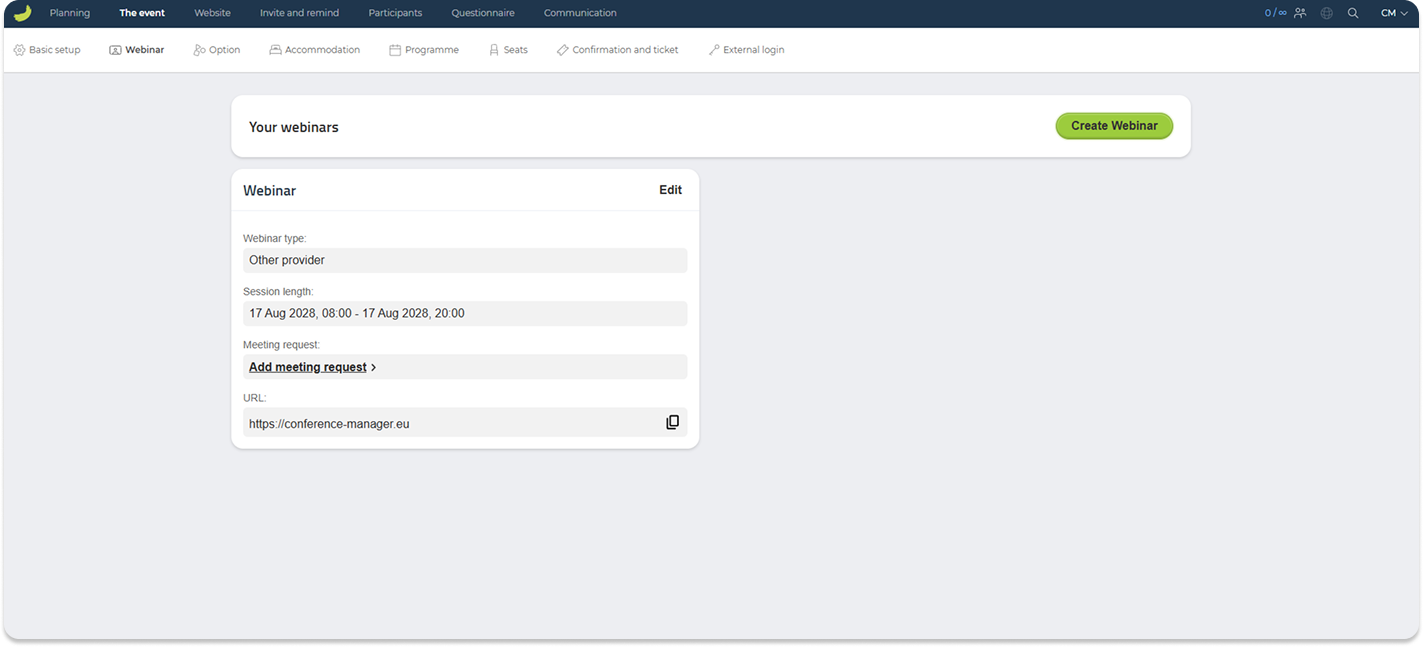
Paste the webinar URL from the external service into the URL field.
Click Save.
Conference Manager uses this URL to give participants access to the external webinar.
Check the access settings
Before adding the URL, check that the settings in the external service allow participants to access the webinar through the link sent by Conference Manager.
Check whether participants:
- Must be invited manually
- Must be approved by an organiser
- Must register separately with the external provider
- Must sign in to an account
- Must enter a password
- Are placed in a waiting room
- Are affected by domain restrictions
These settings can be used when they are part of your intended setup. However, they must not unintentionally prevent participants from joining the webinar. Test the external webinar link before sharing it with participants.
Send the personal webinar link
Conference Manager automatically sends each participant their personal webinar link by email one hour before the webinar starts.
The email is sent to participants in the categories connected to the webinar.
The link is personalised, allowing Conference Manager to register whether the individual participant opened it.
If participants need the link earlier, you can include it in a meeting request or another email.
Include the link in a meeting request
You can include the personal webinar link in a meeting request if participants should receive it earlier.
This allows participants to add the webinar to their calendar and access their personal link directly from the calendar invitation.
Related guideCreate a meeting requestLearn how to create a calendar invitation and include the participant's personal webinar link.Read the guideInsert the link in an email
You can also insert the personal webinar link into an email under Communication.
Insert the webinar link
Create a new email or edit an existing email.
Click Insert link.
Select Choose a page on the website under Link address.
Select Link to webinar from the drop-down menu.
Click Save.
Conference Manager then inserts the individual participant’s personal webinar link into the email.
Track webinar participation
Conference Manager registers when a participant opens their personal webinar link.
You can use this information to identify participants who opened or did not open the webinar link.
This can be useful when sending:
- Follow-up emails
- Questionnaires
- Materials from the webinar
- Information about another webinar
Opening the webinar link indicates that the participant accessed the webinar. It does not necessarily show how long the participant watched or remained in the webinar.