

The Programme tab allows you to create and manage the agenda for your event. Here, you can add programme items such as presentations, workshops, breaks, and social activities, and optionally allow participants to select which sessions they would like to attend during registration.
Set up your programme
At the top of the page, click Edit to configure the overall programme settings.
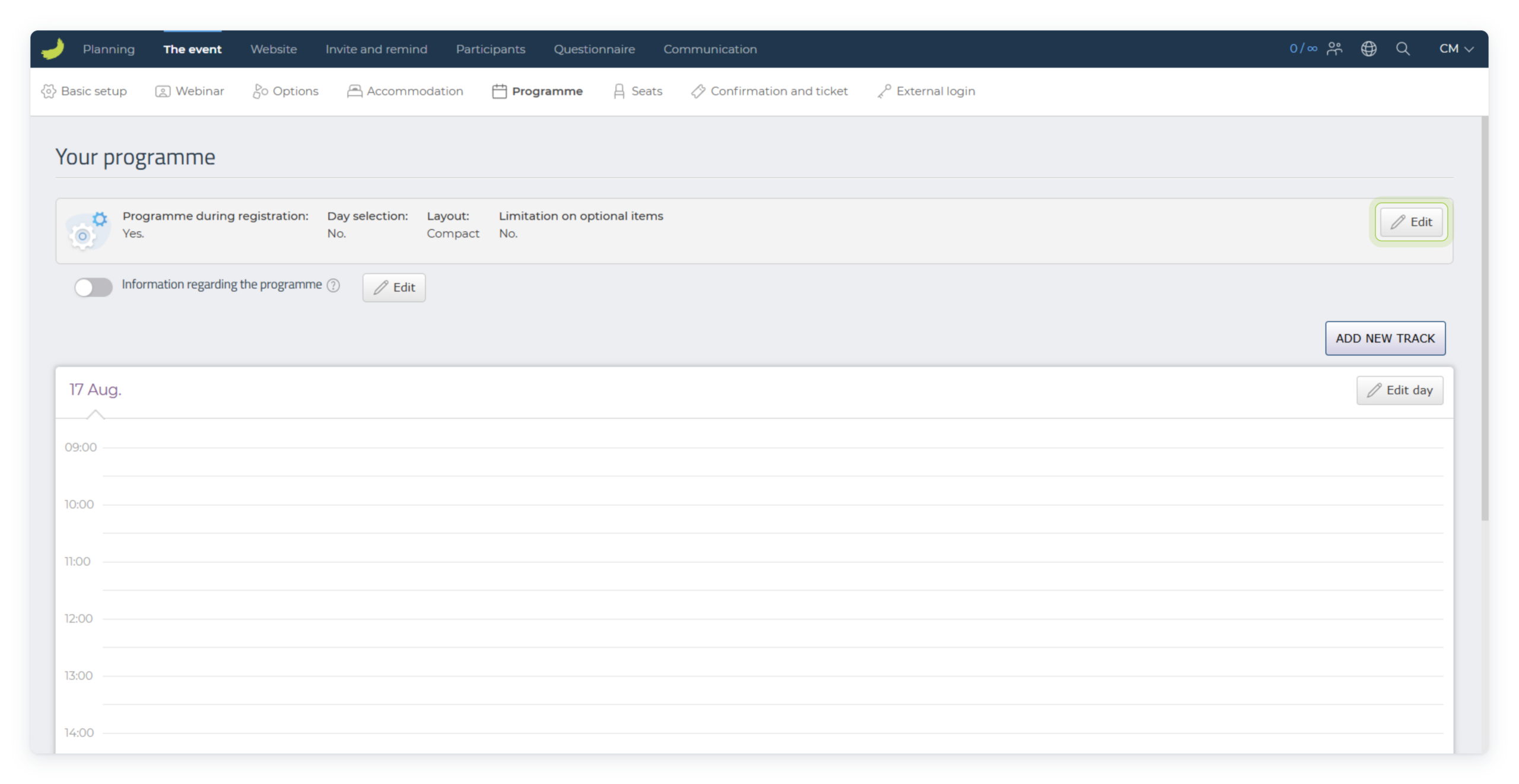
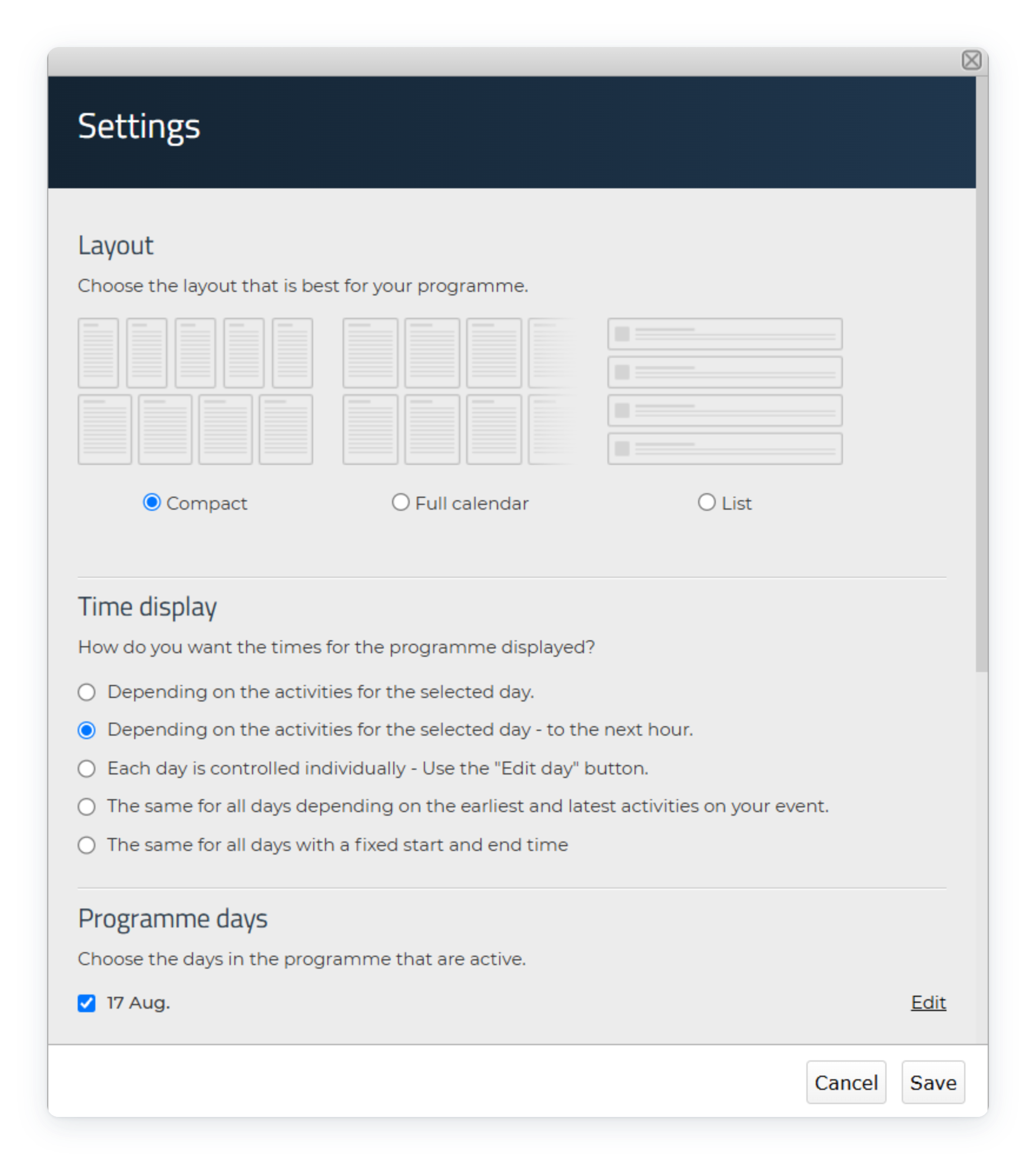
Here, you can define:
- Layout – Choose how the programme should be displayed (Compact, Full calendar, or List).
- Time display – Select how the time scale should be shown.
- Programme days – Add one or more days to the programme.
- Programme during registration – Choose whether participants should select programme items during registration.
- Day selection – Decide whether participants can select or deselect entire days.
- Limitation on optional items – Limit how many optional programme items participants must select.
Click Save when you have finished configuring the programme settings.
Add programme tracks
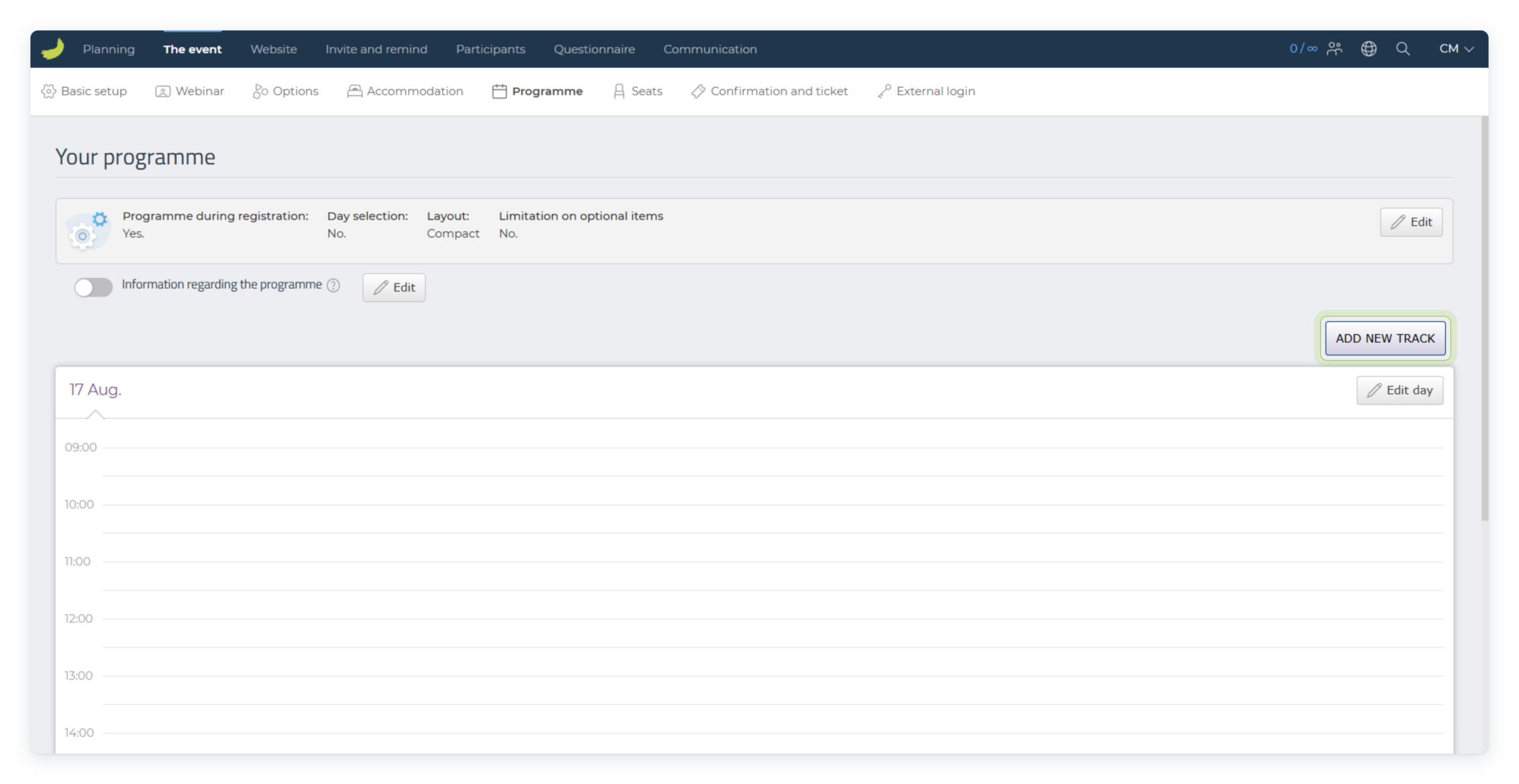
If your event includes more than one programme day, each day will appear as a separate tab in the programme overview, such as Day 1, Day 2, and so on. Click on the relevant day tab to add programme tracks for that specific day.
To create a new programme track, click Add new track.
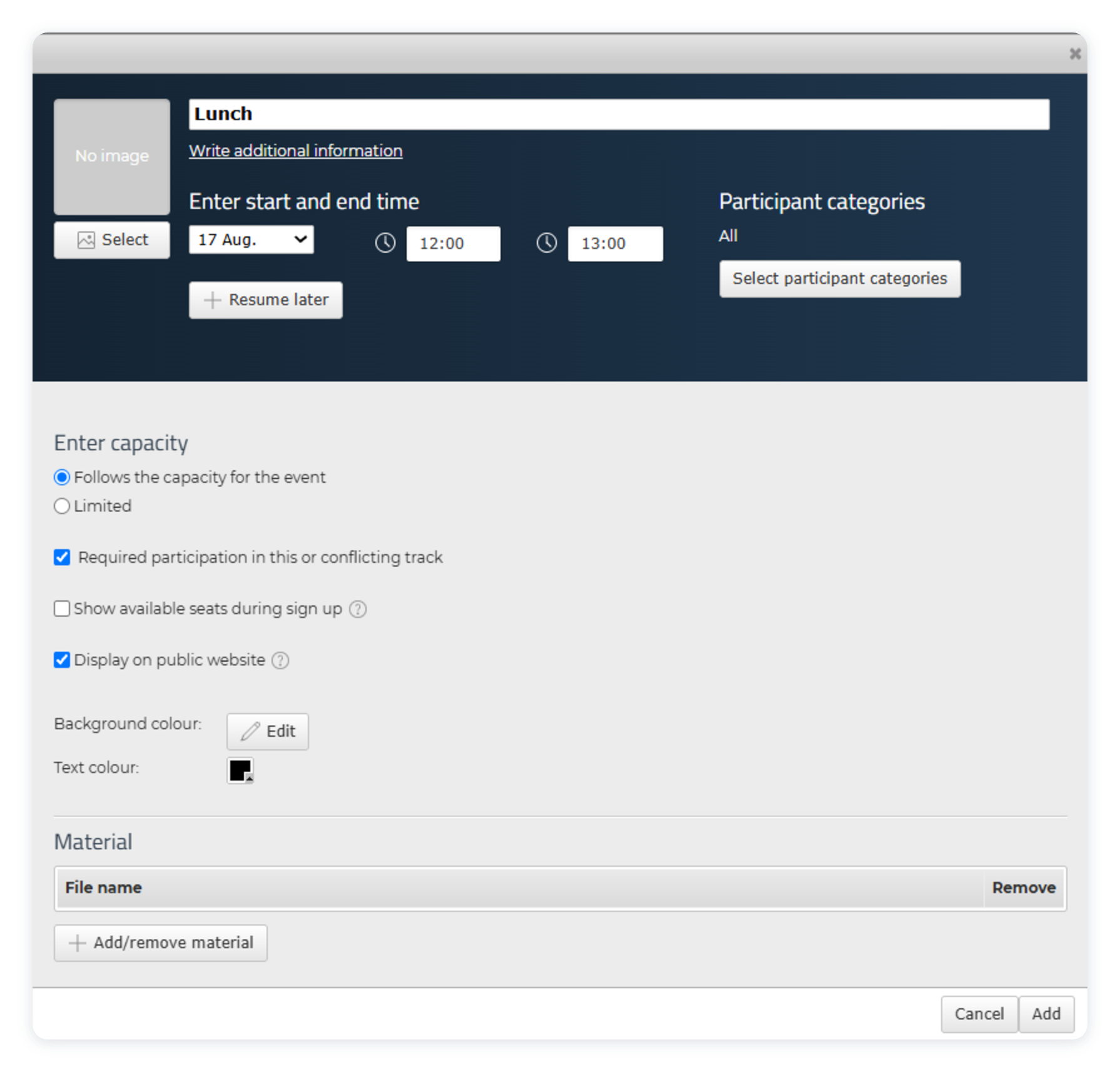
Define the following settings:
- Title of the programme track
- Additional information and description
- Start and end times
- Programme day
- Participant categories that should have access to the item
- Capacity
- Price (if any)
- Background and text colours
- Materials and attachments
- Image
Click Add to save the programme track.
Capacity settings
Each programme track can have its own capacity settings.
You can choose whether the track:
- Follows the overall event capacity
- Has a limited number of seats
- Requires participation in this or a conflicting track
- Shows available seats during registration
These settings are useful when participants need to sign up for workshops or sessions with limited capacity.
Restrict programme tracks to specific participant categories
Choose if a programme track should be available to all participant categories, or if only certain categories should have access to it. Click Select participant categories and choose the relevant categories.
Add materials and images
You can upload files and images for each programme track.
This can be used to provide for example:
- Presentation slides
- Handouts
- Additional documents
- Session images
Edit, copy or delete programme tracks
To edit an existing programme track, click directly on the item in the programme overview.
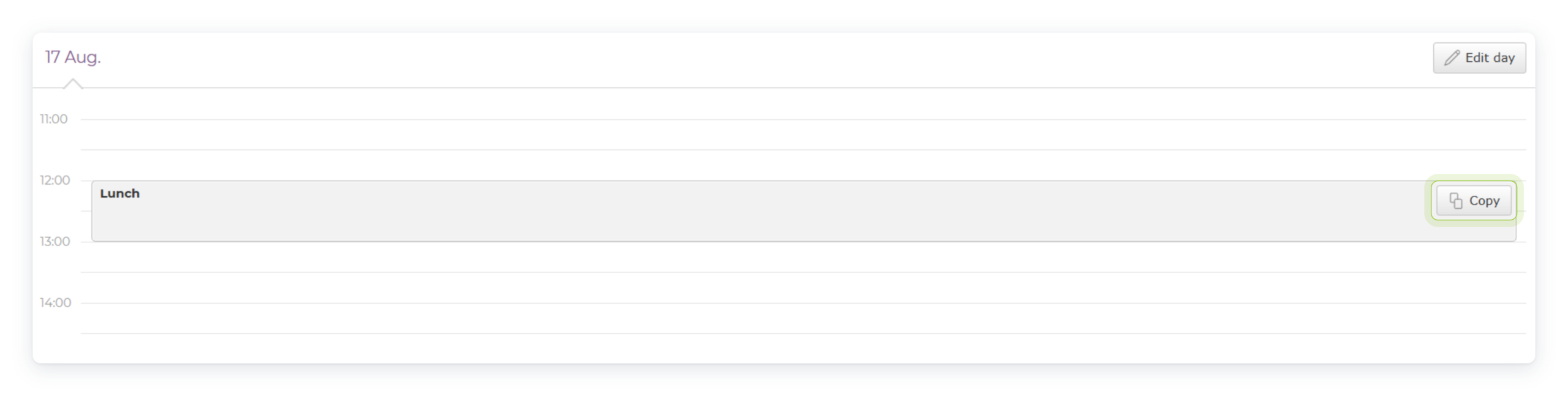
To create a copy of an existing programme track, click Copy on the relevant item. You can then adjust the copied track instead of creating a new one from scratch.
To remove the entire programme, click Delete programme.