



You can add information fields to participant categories in your event if you need to collect data such as title, organization, or mobile number.
1
Add personal information field
Go toThe eventBasic setupParticipant categories
Click on the participant category you want to edit.
Click Add personal information field.
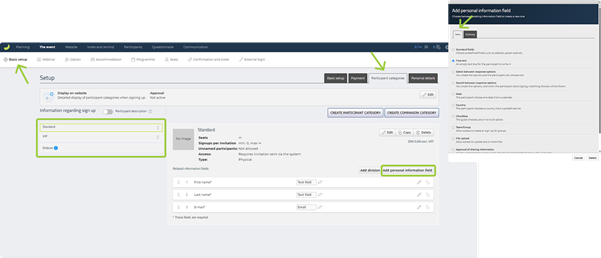
In the new window that opens, click New. You can now choose from different field types:
- Standard fields – Use predefined fields such as address, gender and mobile phone.
- Free text – An empty text box for the participant to write in.
- Select between response options – You create the options and the participant can choose one.
- Search between response options – Matching choices will be shown as the participant types.
- Date – The participant chooses one date from a calendar.
- Country – The participant chooses a country from a predefined list.
- Checkbox – The participant can choose yes or no to a specific statement.
- Team/Group – Allows participants to create teams that others can join during registration – define who can create and who can join.
- File upload – Allow participants to upload one or more files.
- Approval of sharing information – Ask the participant to approve data sharing with a third party.
- Custom standard fields – Use personal data fields you’ve made accessible across various events.
Select the desired field type and click Select.
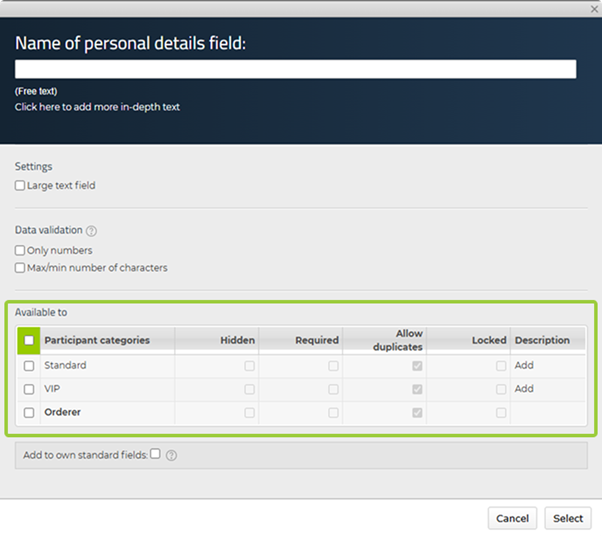
Fill in the field title and optionally a description.
Choose whether the field should be required or not.
Choose which participant categories the field should be linked to.
Click Select.
The field is now added to the registration form for the selected categories.
2
Edit and sort fields
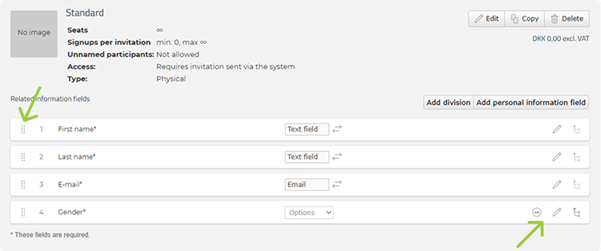
Once you have created multiple fields, you can:
- Edit a field by clicking the pencil icon.
- Delete a field by clicking the minus icon.
- Reorder fields using drag and drop – use the drag handle with eight dots on the left side to move a field up or down.