



When you enable prices for your event, choose whether your organisation handles invoicing outside Conference Manager, or uses Conference Manager invoices.
- Own invoicing: Your organisation creates and sends invoices outside Conference Manager.
- Conference Manager invoices: Conference Manager creates and sends the invoices, and you set them up here.
Enable prices and choose invoicing
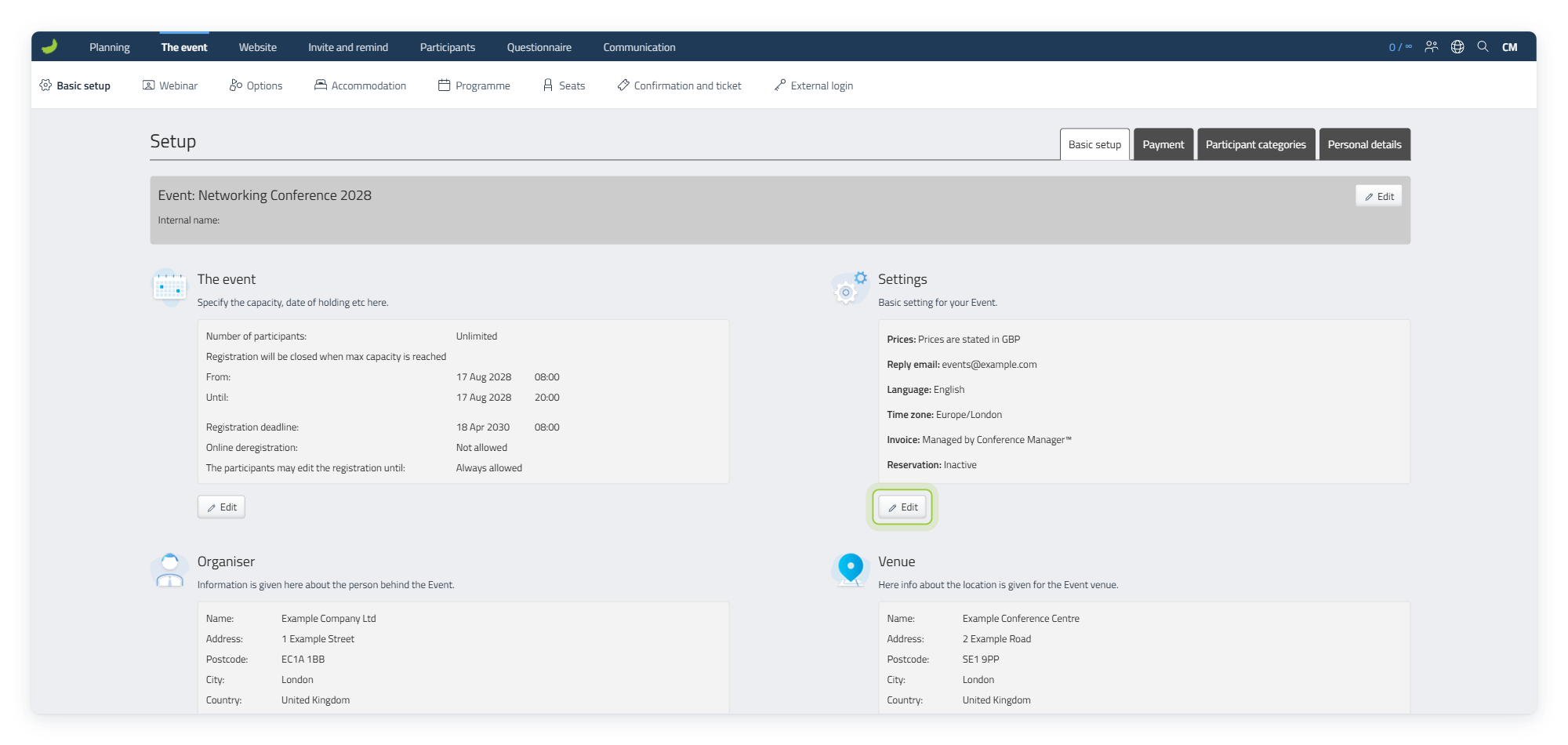
Click Edit under Settings.
Under Do you wish to specify prices for attending the event?, choose I would like to be able to specify prices.
Under Invoicing, choose I will manage invoicing myself via another system or I would like to use Conference Manager™ invoices.
Click Save.
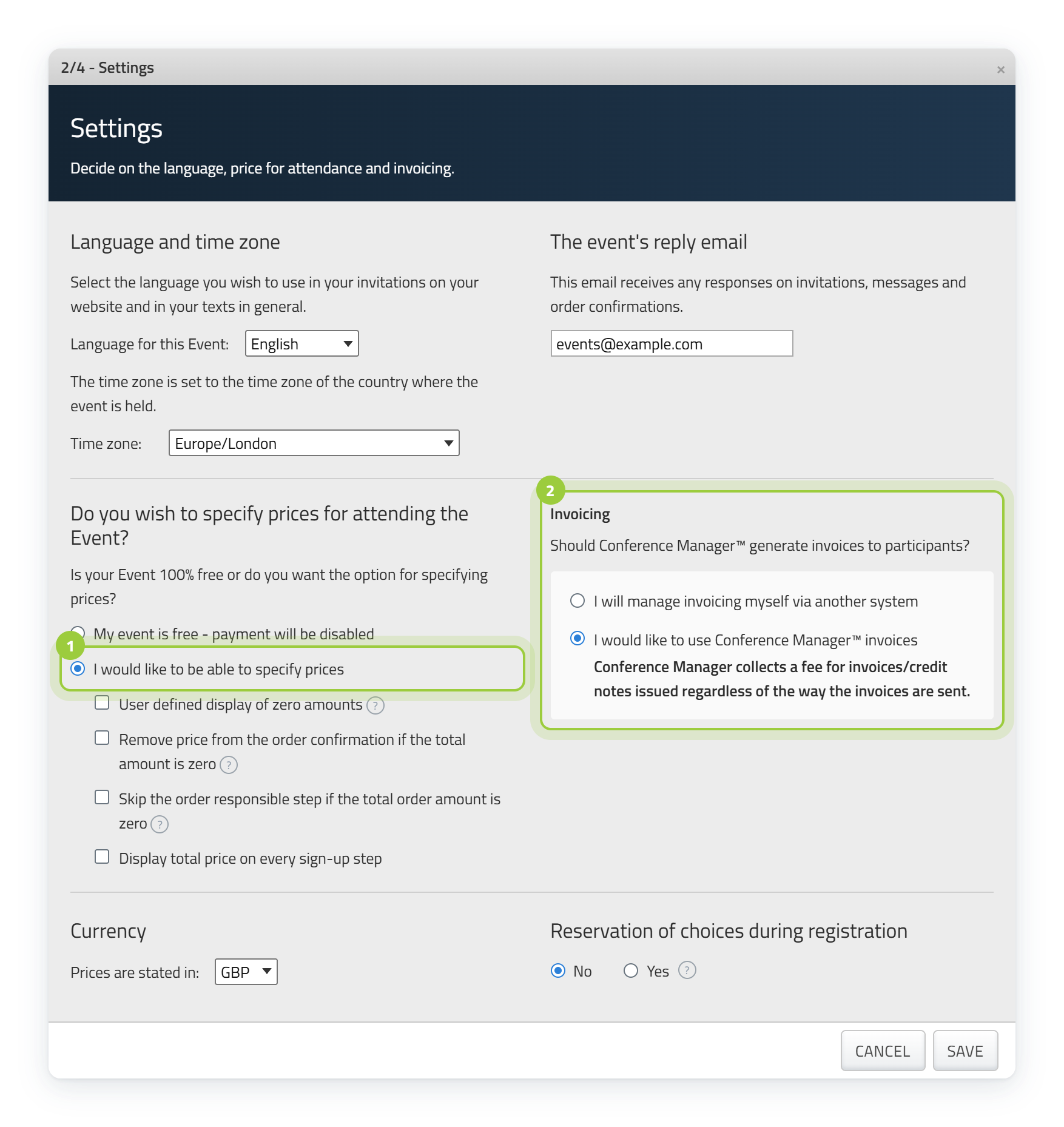
Conference Manager collects a fee for each invoice and credit note issued, regardless of how the invoices are sent.
If you choose Conference Manager invoices, the Invoice tab becomes available under Confirmation and ticket.
Set up the invoice
Here you set up the content and layout of the invoices. Turn on the settings you need, and click Edit next to a setting to change it:
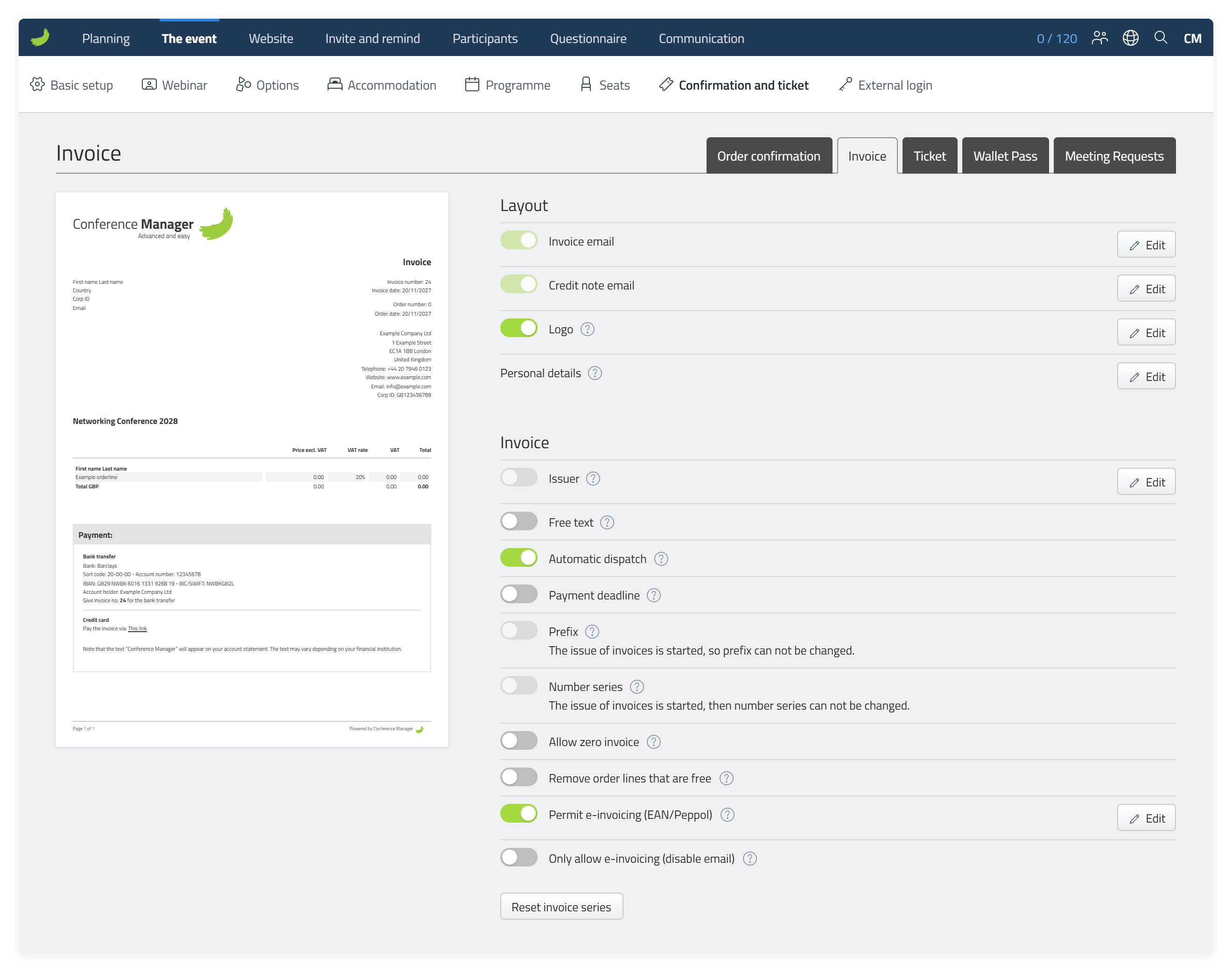
- Invoice email and Credit note email: the emails that the invoice and the credit note are sent with. Click Edit next to each one to change the subject and text. Read How do I issue a credit note?
- Logo and Personal details: what is shown at the top of the invoice.
- Issuer: the organisation that issues the invoice.
- Free text: your own text on the invoice.
- Payment deadline: when participants must pay. Read How do I set a payment deadline on invoices?
- Prefix and Number series: the invoice numbers. They cannot be changed once the first invoice has been issued, unless you reset the invoice series.
- Allow zero invoice: whether participants who pay nothing also receive an invoice.
- Remove order lines that are free: order lines with no price are left out of the invoice.
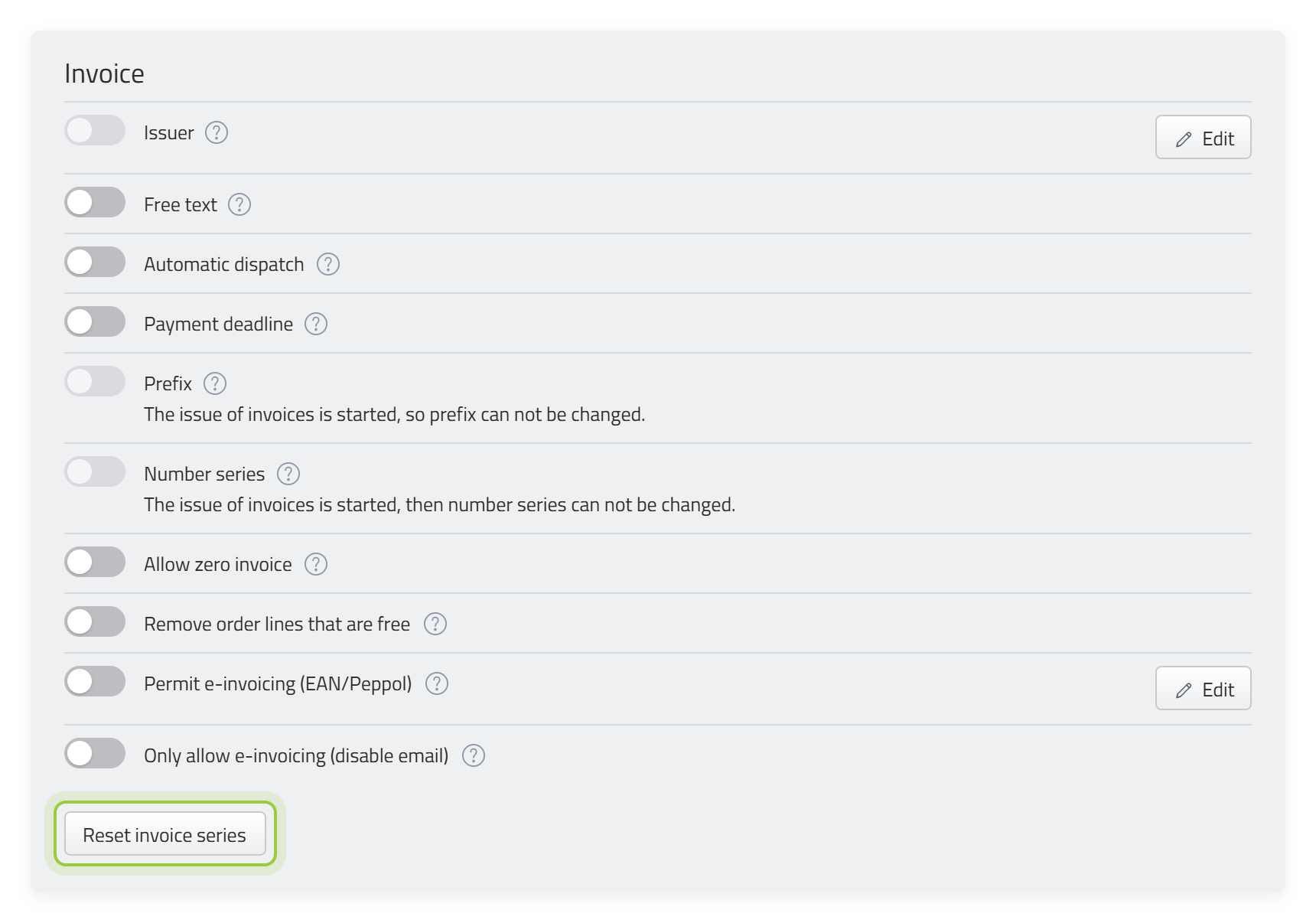
Reset invoice series at the bottom of the tab deletes the whole invoice list for the event. Use it only when you have tested invoicing and want a fresh invoice list, or when you need to change Prefix or Number series after invoices have been issued.
Choose how invoices are sent
Turn Automatic dispatch on or off.
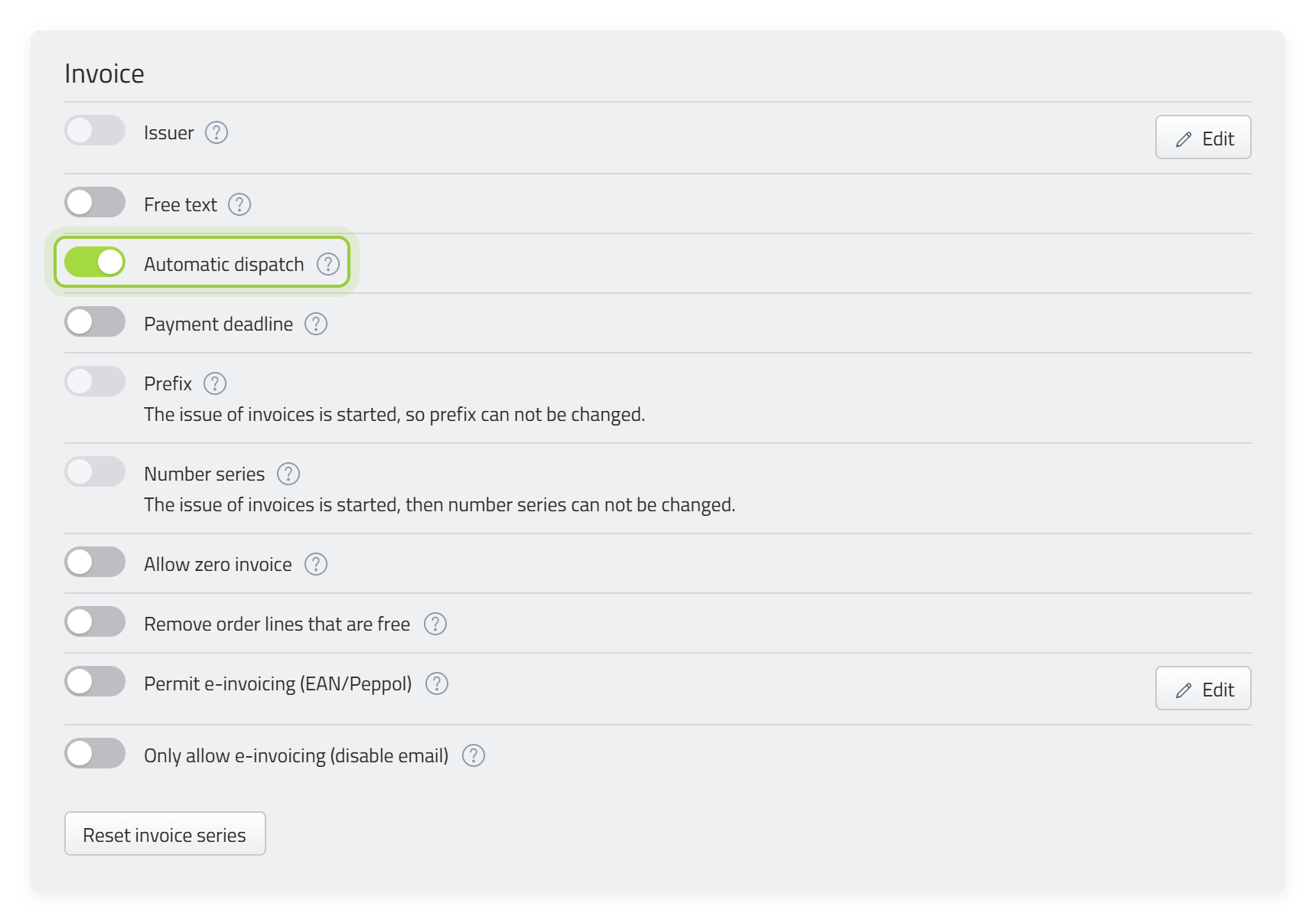
- On: The invoice is created and sent when the participant completes registration.
- Off: You create and send the invoices yourself from the order list.
With Conference Manager invoices, an invoice must be issued before the participant can pay by card. With Automatic dispatch turned on, the participant can normally pay during registration.
Set up e-invoicing
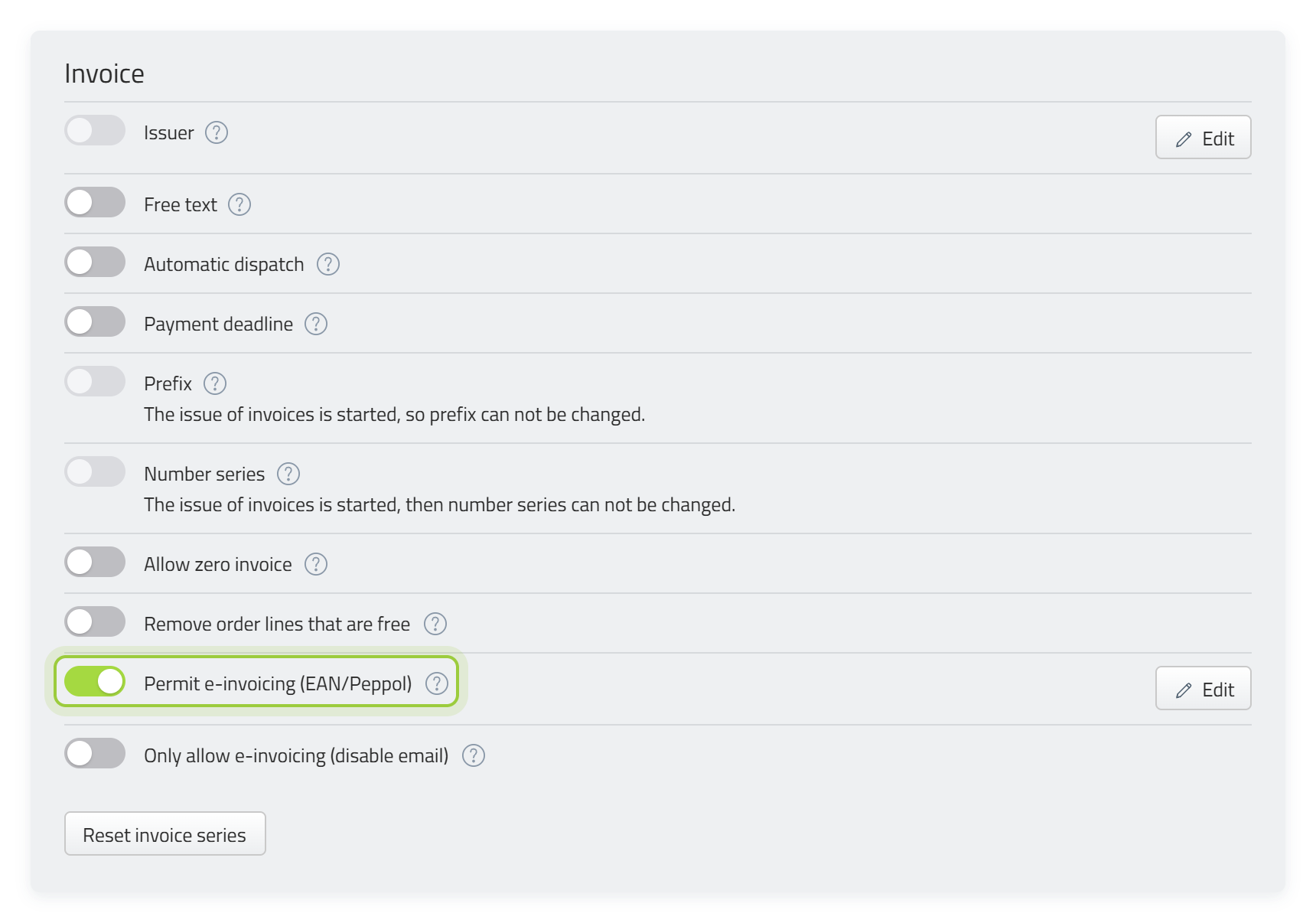
If invoices must be sent electronically, turn on Permit e-invoicing (EAN/Peppol) and fill in the issuer information. To send invoices only as e-invoices, also turn on Only allow e-invoicing (disable email).
Send an invoice manually
If Automatic dispatch is turned off, you send each invoice yourself.
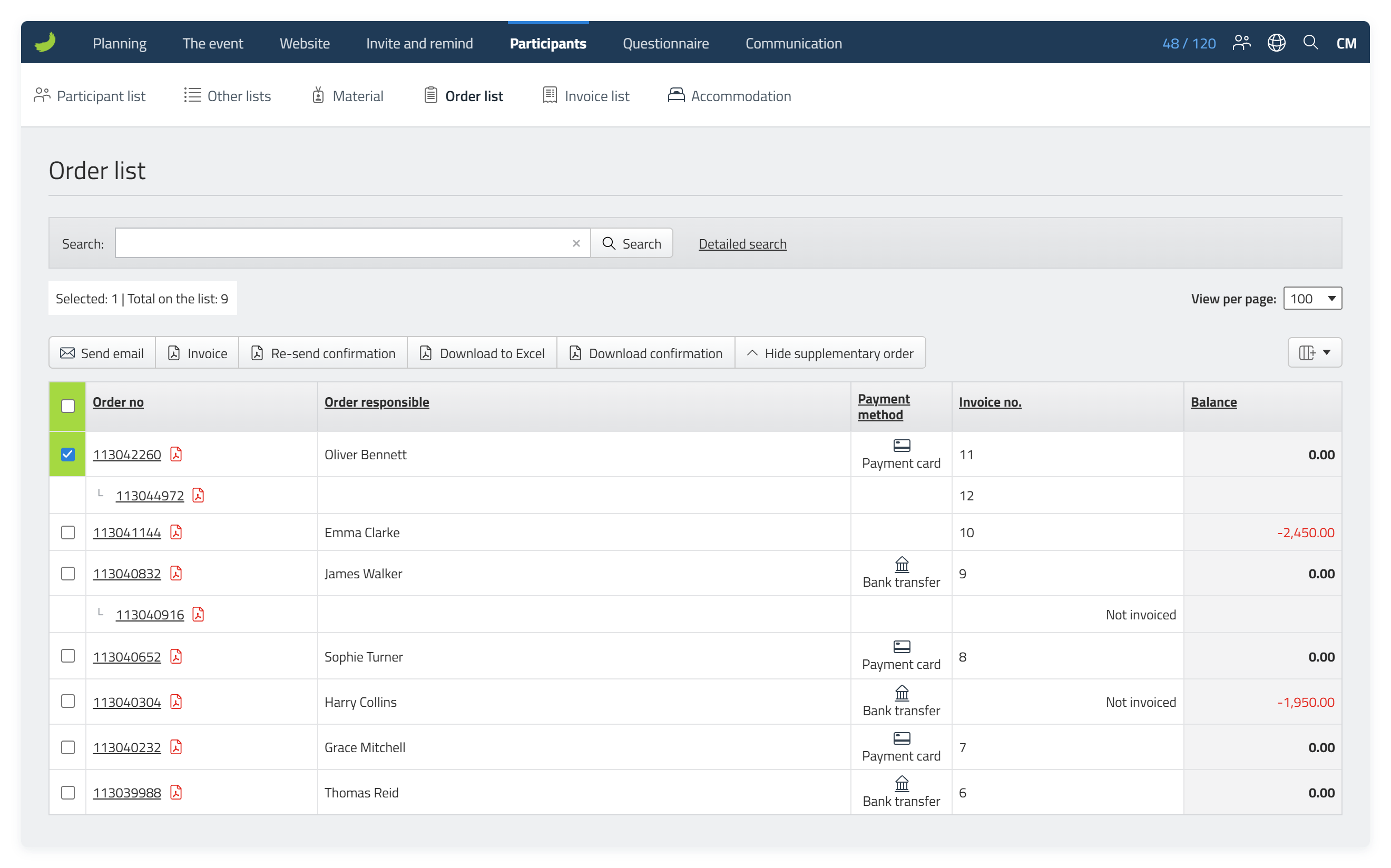
Select the order.
Click Invoice above the list, and click Confirm.
See and follow up on invoices
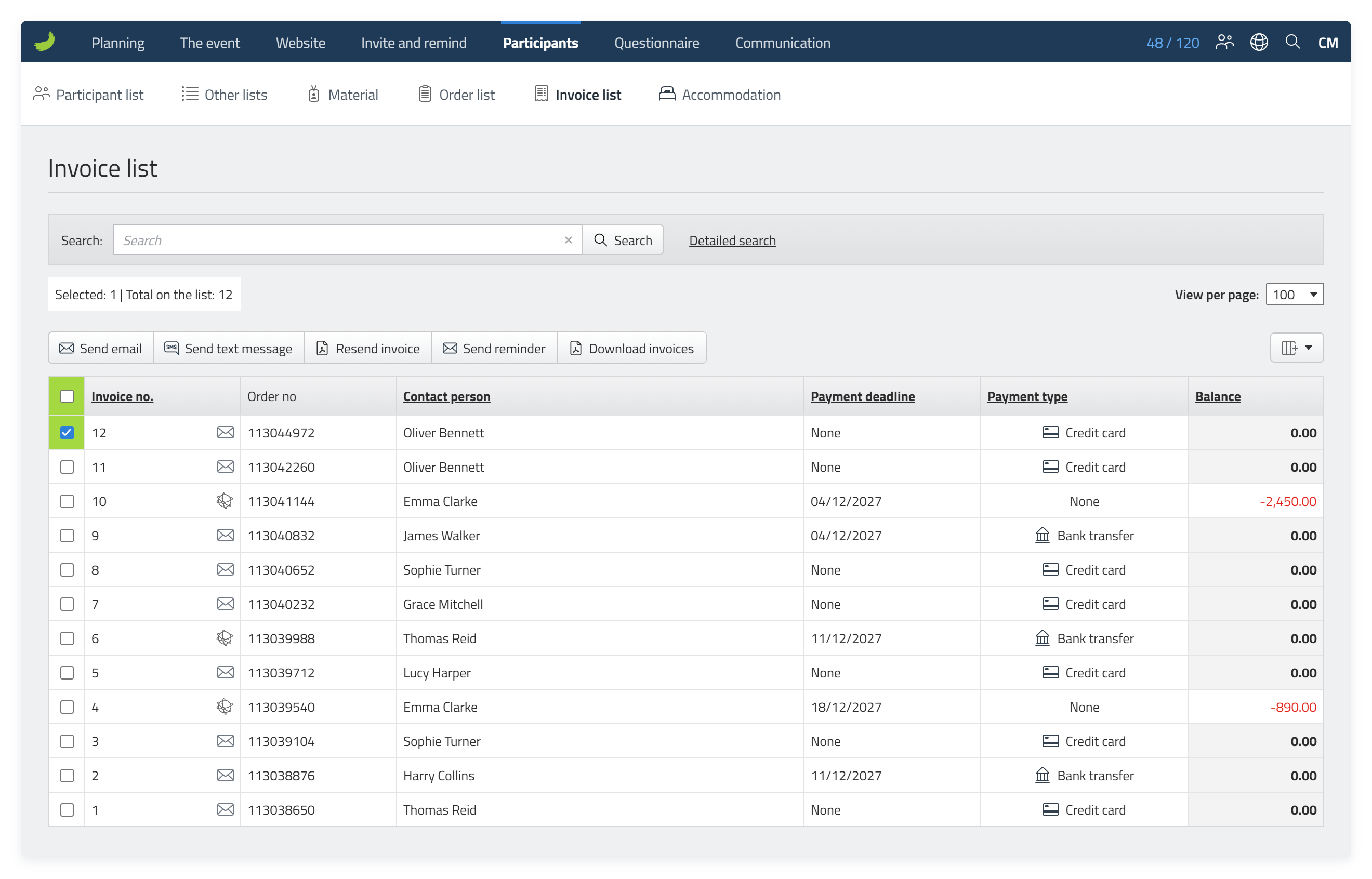
Here you see all invoices for the event, with payment deadline, payment type and balance. Select one or more invoices to Resend invoice, Send reminder or Download invoices.